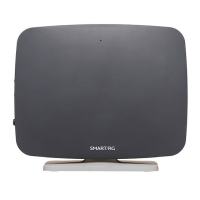
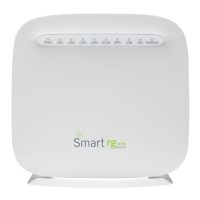
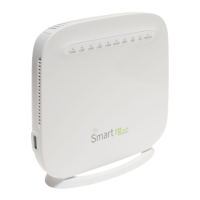
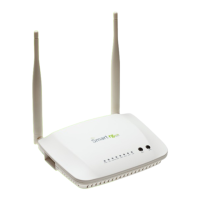
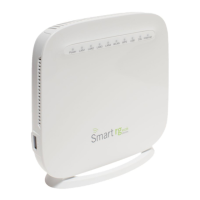
The Smart/RG SR515ac is a versatile gateway designed to provide internet connectivity and Wi-Fi services, functioning as a central hub for home or small office networks. It supports multiple WAN services, including xDSL, 3G, and Ethernet uplinks, offering flexibility in how it connects to the internet. The device is designed for straightforward installation and offers both automated and manual configuration options for various network settings, including Wi-Fi.
Function Description
The primary function of the SR515ac is to act as a broadband gateway, connecting your local network to the internet. It integrates several key functionalities into a single unit:
- DSL Modem: The gateway can connect directly to a DSL service line, converting the DSL signal into an Ethernet signal that can be used by connected devices. It supports DSL sync acquisition and maintains an online connection for data transfer.
- Router: It routes traffic between your local network (LAN) and the internet (WAN), managing IP addresses and ensuring data packets reach their correct destinations.
- Wireless Access Point (WAP): The SR515ac provides Wi-Fi connectivity, allowing wireless devices such as laptops, smartphones, and tablets to connect to the internet and the local network without physical cables. It supports both 2.4 GHz and 5 GHz bands, offering flexibility and potentially higher speeds or better range depending on the band used.
- Ethernet Switch: Equipped with multiple LAN ports, the gateway allows wired devices (e.g., PCs, gaming consoles) to connect via Ethernet cables, providing stable and high-speed connections.
- 3G WAN Service Support: For scenarios where traditional broadband is unavailable or as a backup, the device can utilize a 3G USB data card connected to its USB port, enabling internet access over a cellular network.
- Ethernet WAN Uplink: It can also connect to the internet via an Ethernet WAN port, making it compatible with fiber-to-the-home (FTTH) or other Ethernet-based broadband services.
Usage Features
The SR515ac is designed for ease of use, from initial setup to daily operation:
- Simple Installation Process:
- Physical Connections: The installation involves connecting the gateway to the incoming service wall jack (DSL, Ethernet WAN, or 3G USB data card), connecting a PC to a LAN port with an Ethernet cable, plugging in the power adapter, and turning on the unit. Clear instructions guide users through these steps.
- Automated Setup: Upon power-up, the gateway attempts to automatically connect to the internet, simplifying the initial configuration for most users.
- LED Indicators for Status Monitoring: The front panel features a series of LEDs (Power, LAN 1-4, WLAN, DSL, Internet) that provide immediate visual feedback on the gateway's operational status. These indicators help users quickly diagnose connection issues or confirm successful operations:
- Power LED: Indicates if the device is on or off.
- LAN LEDs: Show activity and connection status for wired Ethernet ports.
- WLAN LED: Indicates Wi-Fi functionality and activity.
- DSL LED: Shows the status of the DSL connection, including sync in progress or acquired.
- Internet LED: Reflects the internet connection status, including online status, data transfer, or connection failure.
- Blinking LEDs: Often signify ongoing processes like DSL sync or data transfer, while solid lights typically indicate a stable connection or enabled feature.
- Web-Based Configuration Interface: The gateway's settings can be accessed and managed through a web browser by entering a specific IP address (e.g., 192.168.1.1). This interface allows users to:
- Log In: Secure access to settings using a username and password (default admin/admin, though service providers may customize).
- Configure WAN Services: Manually set up internet connection parameters if the automatic process fails, including advanced settings for Layer 2 Interface and WAN Services.
- Manage Wi-Fi Settings:
- Enable/Disable Wi-Fi: Control the wireless radio for both 2.4 GHz and 5 GHz bands.
- SSID Management: Select and configure the Wi-Fi network name (SSID).
- Security Settings: Choose network authentication types (e.g., WPA Passphrase) and encryption preferences to secure the wireless network.
- WPS (Wi-Fi Protected Setup): Offers a simplified method for connecting WPS-compatible devices to the Wi-Fi network by pressing a physical button on the gateway. This feature supports both 2.4 GHz and 5 GHz bands with different button press durations.
- Manual Wi-Fi Setup: Provides a traditional method for configuring Wi-Fi settings, including SSID, authentication, and encryption, for devices that do not support WPS or for users who prefer manual control.
- Multiple Wi-Fi Bands (2.4 GHz and 5 GHz): The SR515ac supports dual-band Wi-Fi, allowing devices to connect to either the 2.4 GHz band (offering wider coverage) or the 5 GHz band (providing faster speeds and less interference, ideal for streaming and gaming).
- Physical Buttons:
- Power Button: Located on the back, it allows users to turn the unit on or off.
- WPS Button: Located on the side, it facilitates quick and secure wireless connections with WPS-enabled devices.
- On/Off Button: A general power control.
Maintenance Features
The SR515ac incorporates features that aid in maintaining its operation and troubleshooting potential issues:
- Reset Functionality: A small, recessed Reset button on the rear panel allows users to restore the gateway to its factory default settings. This is useful for resolving persistent configuration issues or preparing the device for a new setup. It requires a thin object (like a paper clip) to activate, preventing accidental resets.
- Troubleshooting Guidance: The manual provides clear instructions for common issues, such as inability to connect to the internet, guiding users to check physical connections and power status.
- Firmware Updates (Implied): While not explicitly detailed in the provided excerpts, gateways typically support firmware updates to improve performance, add new features, and address security vulnerabilities. This is a standard maintenance practice for such devices.
- Wall Mount Option: The gateway can be optionally wall-mounted, which can help with cable management, improve Wi-Fi signal distribution by placing it higher, and protect it from accidental damage. The process involves:
- Removing the existing mount from the bottom.
- Sliding the mount onto the back of the gateway and tightening a screw.
- Mounting two screws (with anchors) into the wall using a template.
- Sliding the gateway onto the wall screws.
- Record Keeping for Wi-Fi Settings: The manual includes a dedicated section for users to record their Wi-Fi network name (SSID) and network key (password), both for predefined settings and any custom changes. This helps users remember their credentials for connecting new devices or re-connecting existing ones.
- Support Information: Users are directed to contact their local ISP support for further instructions or assistance, ensuring a clear path for resolving complex issues.

 Need help?
 General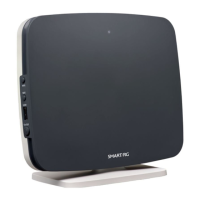

 To Next Page