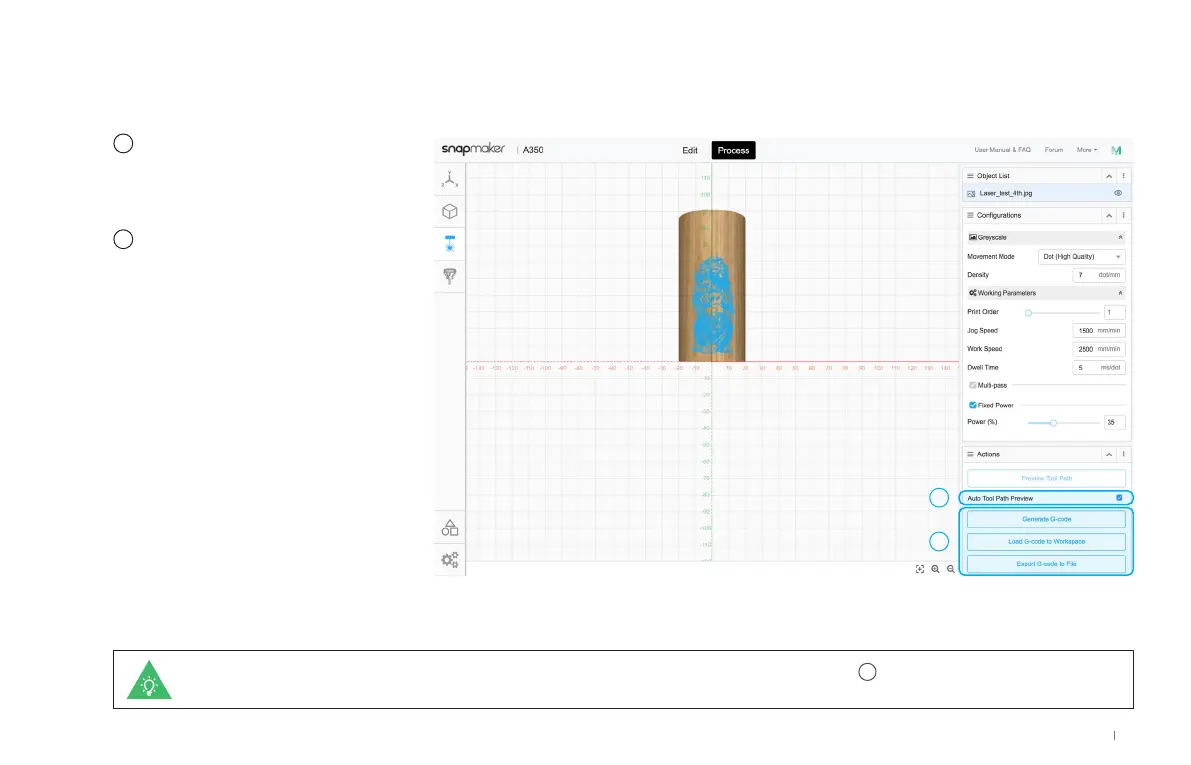
If your machine is turned on, you can export the G-code file via Wi-Fi. After clicking Generate G-code in step
6
, click Load G-code to Workspace >
Connect Luban to your machine via Wi-Fi > Send to Device via Wi-Fi > Receive the G-code file on the Touchscreen.
5
6
Use the default parameters in
Configurations, and tick Auto
Tool Path Preview to check the
finished work before engraving.
Click Generate G-code and
Export G-code to File to save
the G-code file to your USB flash
drive.
5
6
43
Quick Start Guide



 To Next Page