12
snom D7 User Manual Getting to Know your Expansion Module
Getting to Know Your Expansion Module
The function keys on the expansion module(s) are configured and work like function keys with LEDs
on the phone itself. The settings are stored on the phone and will remain stored there when the
expansion module is disconnected; if the expansion module is replaced by another module, the
settings will by used by that module. For more information on the available functions and on how to
program and use the keys, please refer to the phone's manual, chapter "Programming the Function
Keys". You can download the manual at http://wiki.snom.com.
Display Layout
10
11
12
13
14
15
16
17
18
1
2
3
4
5
6
7
8
9
10
11
12
13
14
15
16
17
18
1
2
3
4
5
6
7
8
9
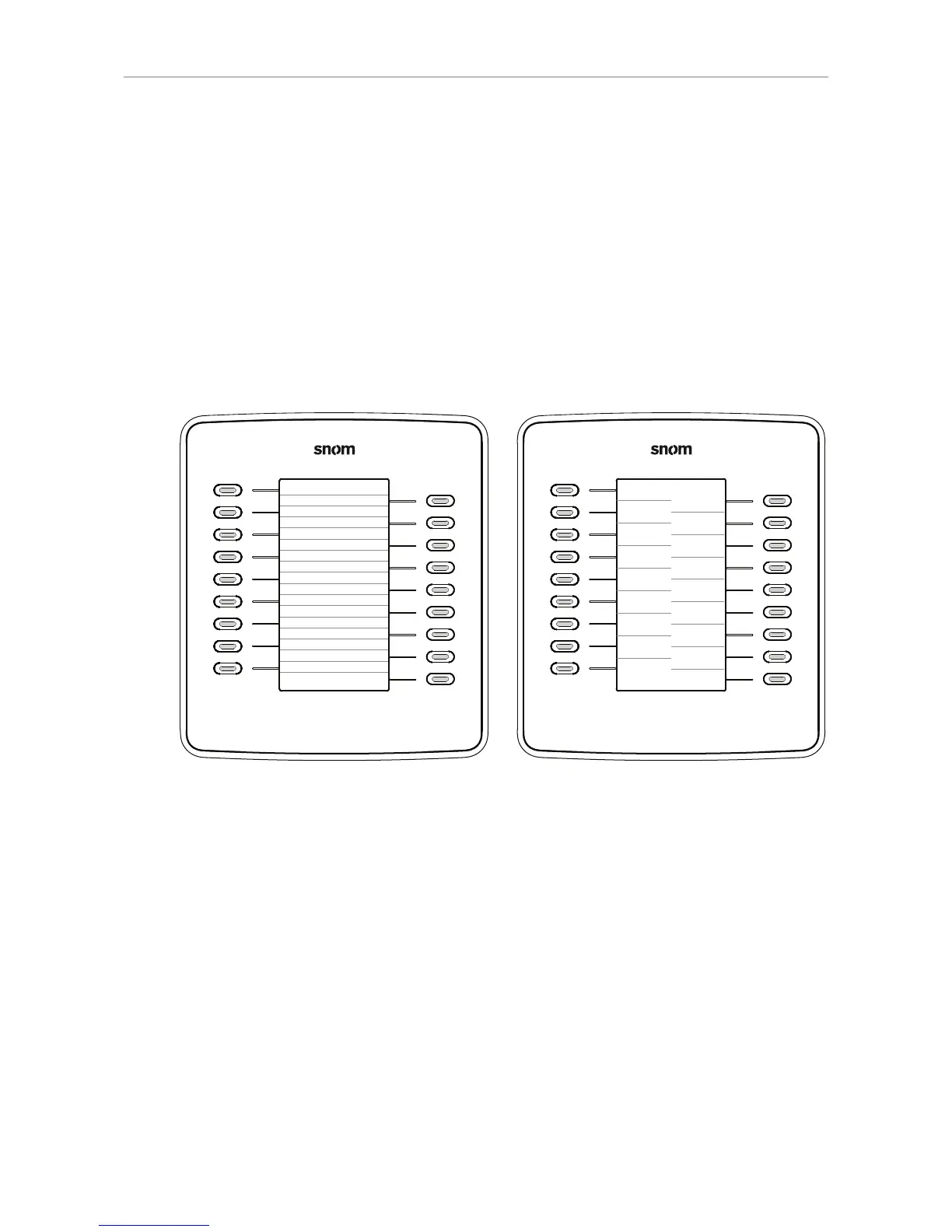
Fig. 16 Fig. 17
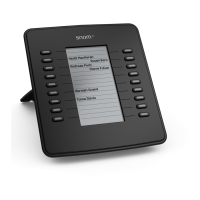
Function keys 1 to 9 are situated on the left, 10 to 18 on the right side of the display. A portion of the
display area is allocated to each key, either arranged in lines, as shown in Fig. 16, or in tiles, as shown
in Fig. 17. The default setting is lines.
Changing the setting:
1. Open the Settings menu of the phone that the module is connected to.
2. Press "1" to open the Preferences menu.
3. Press "5" to open the Display menu.
4. Press "3" to open Expansion Modules.
5. Press "1" to open Appearance.
6. Press "1", "2", or "3" to change the display layout of the respective expansion module.
◦ For example, if the display layout for module 1 is indicated as "lines" (Fig. 18 and 19), pressing
"1" will change and save the display layout for module 1 as "tiles" (Fig. 20 and 21).


 To Next Page