Why does the Shift, Caps Lock, or Ctrl key affect the data output from my Socket CHS?
- DDaniel MartinSep 1, 2025
You are using the CHS in HID mode as a Keyboard class device. Determine how your computer implements HID keyboard devices.
Why does the Shift, Caps Lock, or Ctrl key affect the data output from my Socket CHS?
You are using the CHS in HID mode as a Keyboard class device. Determine how your computer implements HID keyboard devices.
How to resolve error message saying SocketScan 10 can’t connect to an unknown Socket device?
This error message appears because the CHS is already paired to another device. Unpair the CHS (see Appendix F for instructions) and delete any “Unknown devices” in the Bluetooth paired devices list.
What to do if SocketScan 10 reports the Friendly Name of the last CHS connected and I cannot modify settings?
This issue is known to occur in SocketScan 10 for Windows XP and Vista. To resolve it, close and restart SocketScan 10, then reconnect.
Why does my Socket Scanner display odd behaviors when I scan a barcode?
In HID mode, the CHS will only properly read printable ASCII characters. Non-printable ASCII characters or extended characters cannot be interpreted by the scanner. Use the SocketScan 10 SDK to develop a custom application that supports non-printable ASCII characters.
How to fix the SocketScan 10 system tray icon not appearing after installation?
This issue arises if Bluetooth was not fully initialized before launching SocketScan 10. Ensure Bluetooth is enabled. Open SocketScan 10 Settings by navigating to: Your local drive:\Program Files\Socket Mobile\SocketScan 10\Bin\Windows. Click on SocketScan Settings.exe. Make sure Use keyboard wedge and Show keyboard wedge icon in task tray are selected and click OK.
How to resolve SocketScan 10 error 'failed to set the scanner configuration mode'?
If you receive this message, and the CHS is connected to Toshiba Bluetooth stack, and SocketScan 10 is running, ignore the message and click OK. The Scanner Settings application will launch and work properly.
What to do if I get an error message saying the installed version of the SocketScan 10 application could not be determined?
This error occurs because you installed SocketScan 10 while logged into a different account. Log into the account you used during the initial installation. Alternatively, install SocketScan 10 for each user account that will use the CHS.
What to do if I am using the Socket Scanner in SPP mode and get the “CHS not connected” icon in the system tray and can’t trigger the scanner or scan any barcodes?
If you see the “CHS not connected” icon and can’t scan, it means your PC is not connected to the CHS. Ensure the CHS is powered on, within range, and has sufficient battery. Try reconnecting the devices.
Lists available 1D scanner models with casing options.
Details compatible operating systems and devices for the CHS.
Explains the two Bluetooth connection profiles and their pros/cons.
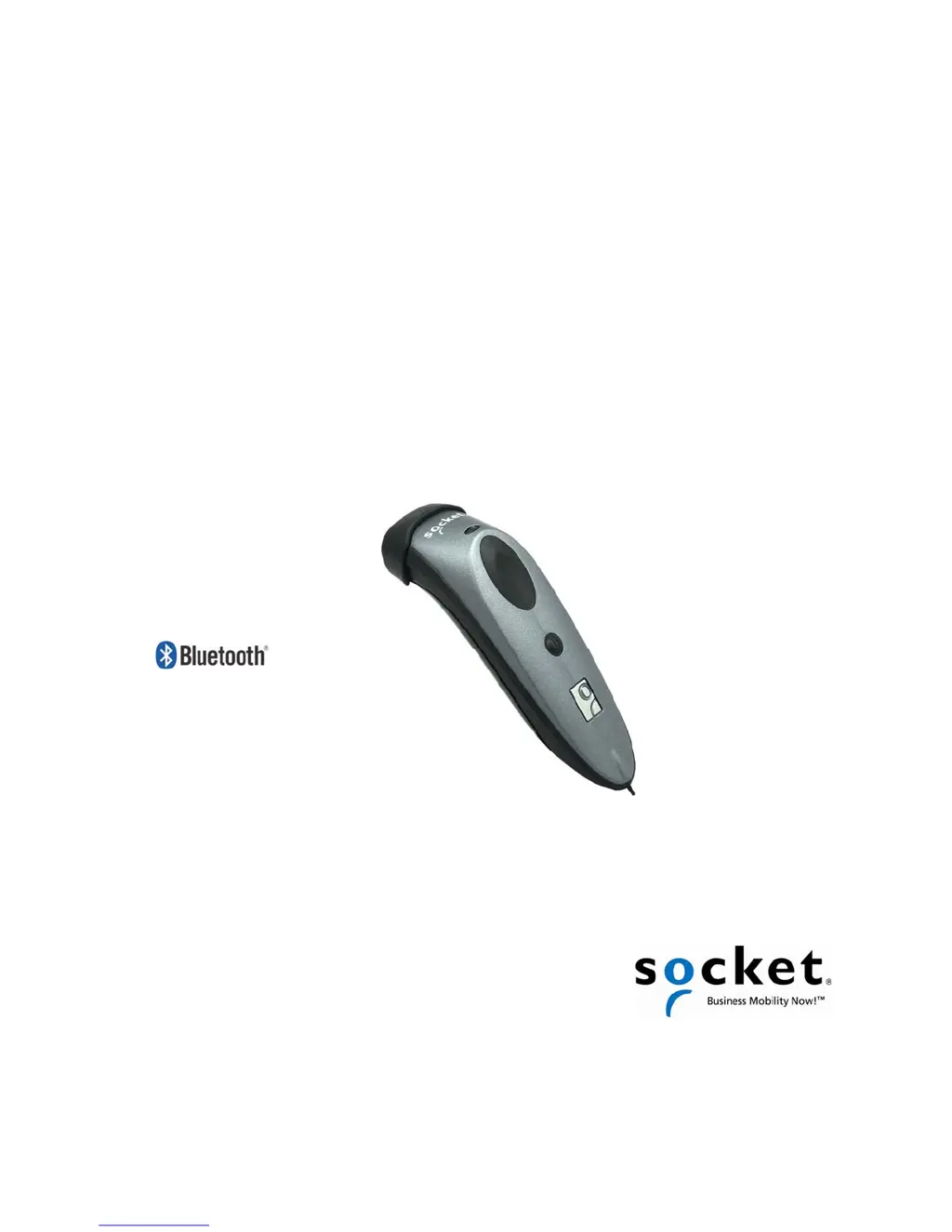
Describes the physical components and design of the CHS scanner.
Explains the meaning of LED lights and audible beeps for device status.
Step-by-step guide to install batteries and secure the scanner tether.
Guides on charging the CHS before first use.
Presents the two connection modes (HID and SPP) for Windows PCs.
Guides users on connecting the CHS via Bluetooth HID mode for PC.
Guides users on installing SocketScan 10 for PC connection via SPP mode.
Explains how to configure SocketScan 10 settings for COM port, keyboard wedge, etc.
Presents the two connection modes (HID and SPP) for Windows Mobile.
Connects the CHS to Windows Mobile devices using Bluetooth HID mode.
Installs SocketScan 10 software for SPP mode connection on Windows Mobile.
Configures SocketScan 10 settings for COM port and other options on Windows Mobile.
Lists Apple devices compatible with the CHS scanner.
Instructions for pairing the CHS with iOS devices and Mac computers.
Presents the two connection modes (HID and SPP) for Android devices.
Connects the CHS to Android devices using Bluetooth HID mode.
Installs SocketScan 10 for SPP mode connection on Android devices.
Customizes scanner behavior, data suffixes, and symbologies on Android.
Connects CHS to BlackBerry PlayBook using Bluetooth HID mode.
Installs SocketScan 10 for SPP mode connection on BlackBerry smartphones.
Guides pairing CHS with BlackBerry smartphones using Socket EZ Pair.
Details the dimensions, weight, and materials of the CHS models.
Lists OS compatibility and supported Bluetooth profiles for CHS.
Covers interface standards, protocol, radio range, security, and RF power.
Provides advice on achieving optimal barcode scanning performance.
Guidelines for maintaining the scanner and avoiding damage.
Information on RF energy compliance and potential effects.
Specifies requirements for barcode label printing surfaces for readability.
Illustrates typical scanning distances for different barcode sizes for CHS 7C.
Illustrates typical scanning distances for different barcode sizes for CHS 7E/7NRx.
Illustrates typical scanning distances for different barcode sizes for CHS 7M/7P.
Provides scan codes to configure CHS 7C for HID mode and specific functions.
Provides scan codes to configure CHS 7C for SPP mode and specific functions.
Provides scan codes to configure CHS 7E/7M/7P/7NRx for HID mode.
Provides scan codes to configure CHS 7E/7M/7P/7NRx for SPP mode.
Procedure to reset the CHS to its original factory settings.
Steps to disconnect the CHS from its paired device.
Instructions for installing SocketScan 10 software using CAB files on Windows Mobile.
How to create and scan barcodes for quick SPP mode connection.
Common issues and solutions applicable across all operating systems.
Specific problems and fixes related to PC connections and SocketScan 10.
Solutions for connection and software issues on Windows Mobile devices.
Addresses common connectivity problems with Android devices.
Resolves issues encountered when using the CHS with BlackBerry devices.
Accessing online resources like FAQs and articles for support.
Details the product warranty period, exclusions, and conditions.
Outlines the legal agreement for using the SocketScan software.
Provides safety information and compliance details for the CHS laser scanner.