© Softing Industrial Automation GmbH 11
Chapter 4 - IT Settings
4 IT Settings
In the IT Settings web server view you configure the part of the device which connects with the common
network. Especially the OPC UA Server provided by the device should be available in the common network.
IT Network Configuration
OPC UA Server
MQTT Broker Configuration
4.1 IT Network Configuration
The IT Network Configuration view provides the means to configure the various network settings of the IT
Ethernet interface.
MAC
MAC address of the Ethernet interface (read only)
Host
Host name used for registration by the DHCP server
Depending on the configuration of your local DHCP and DNS servers it is possible to reach the device by this
host name in your network.
IPv4 Address
IPv4 address of the Ethernet interface
If DHCP is disabled, a static IP address can be assigned.
Subnet Mask
Network mask of the IPv4 address in decimal dotted notation, e.g. 255.255.255.0
Default Gateway
Default router address to be used in the common network
Obtain an IP Address from a DHCP Server
If enabled, the device should obtain network settings by DHCP for the IT Ethernet interface. If disabled,
static settings are used (see above).
By default network setting by the DHCP server is enabled.
DNS Address
IP address of the Domain Name Server to be used by the dataFEED Gateway
This setting might be overwritten by the DHCP server.
IPv6
(Read-only) IPv6 address(es) of the IT Ethernet interface, as assigned by IPv6 autoconf.
The IPv6 information is only shown, if the used network is configured to use IPv6. Up to 16 IPv6 addresses
can be assigned to the IT Ethernet interface.
Note
If you re-configure the IP settings of the Ethernet interface used for configuration, you need to re-
connect afterwards using the new configured IP address.
Saving and applying settings
1. Click the Save button to save your settings.
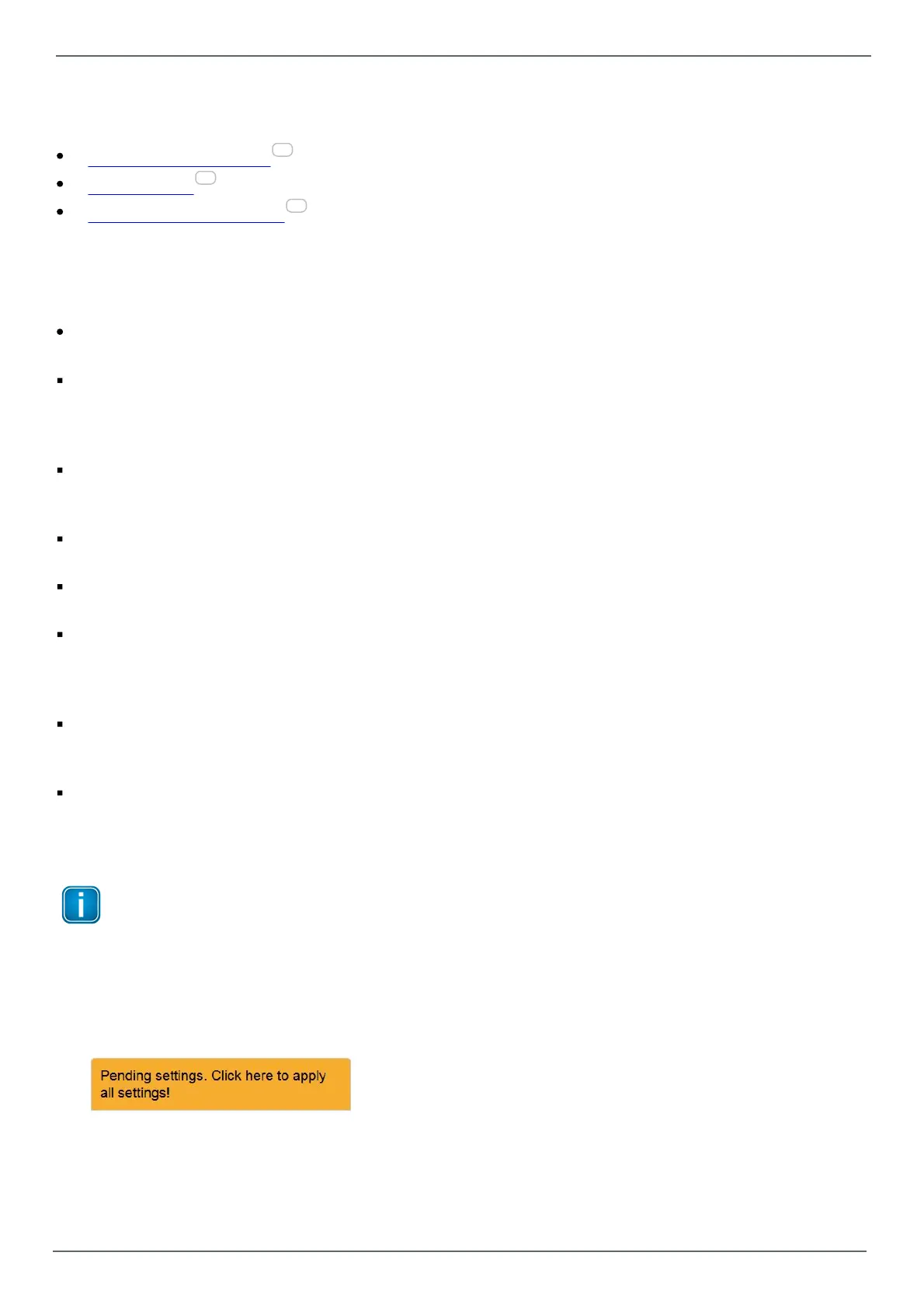
A hint will appear reminding you that the application of some other settings is pending:
2. Click at this link. Your settings will be applied.
Depending on the number of modified settings this process may take some time before being completed.
3. A message in the upper window part will inform you about the successful modification(s).
11
12
15


 To Next Page