© Softing Industrial Automation GmbH 23
Chapter 4 - IT Settings
Local Network Proxy Settings
The successful authentication at a local network proxy is required for connecting to the Internet in case of a
firewall configuration. The required information has to be given in the following input fields:
Local Network Proxy (host:port)
Enter the full hostname and port number of your local network proxy, e.g. proxy.example.net:8080.
Local Network Proxy User
Enter the authentication name of your local network proxy.
Local Network Proxy Password
Enter the authentication password of your local network proxy.
Click the Set Local Network Proxy button for storing the local network proxy settings in the device for later use by
the iot-edge-reverse-proxy program.
4.5 Azure IoT Edge OPC Publisher
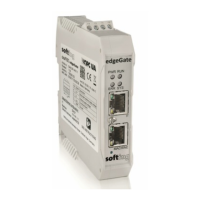
The Azure IoT OPC Publisher view allows to configure Azure Iot Edge OPC Publisher as provided by Microsoft at
the website https://github.com/Azure/iot-edge-opc-publisher.
Note
The Azure Iot Edge OPC Publisher configuration only applies to the edgeGate product!
For controlling Azure Iot Edge OPC Publisher in edgeGate the following input fields and buttons are provided:
Application-name / Device-Id
Enter the application name into this input field. The entry is used by Azure IoT Edge OPC Publisher as device
ID within Microsoft Azure IoT Hub and within its own certificate for OPC UA authentication.
OPC Publisher options
Enter the further (optional) command line parameters for Azure Iot Edge OPC Publisher into this input field
(starting with the connection string).
The complete list of supported command line parameters is available at the https://github.com/Azure/iot-
edge-opc-publisher/tree/2.3.2#command-line-options website.
Azure IoT OPC Publisher
o Start button
Pressing the Start button allows to start Azure Iot Edge OPC Publisher on edgeGate using the provided
command line parameters. If Azure Iot Edge OPC Publisher has not been stopped before, it will be re-
started with the given parameters also upon re-start of the device.
o Stop button
Pressing the Stop button allows to stop Azure Iot Edge OPC Publisher on edgeGate.
Check Connection Status
o The Get Status button allows to check and display the IoT Hub connection status.
Upload publishednodes.json
o Use the Browse... button to select a publishednodes.json configuration file for upload.
Reset Publisher settings
o The Reset OPC Publisher button allows to to reset the Azure Iot Edge OPC Publisher configuration. This
also deletes the list of published nodes in edgeGate.


 To Next Page