© Softing Industrial Automation GmbH 35
Chapter 5 - Machine Settings
5.2.4 SINUMERIK 840D Settings
The Siemens Settings view allows to configure a SINUMERIK 840D connection.
Note
This description only applies to the uaGate 840D product!
The following settings are available:
Machine Access
A SINUMERIK 840D connction is defined by the following settings:
Connection Name
Connection name to be used
Special characters are not supported.
IPv4 Address
IPv4 address of the SINUMERIK 840D to which the connection should be established
Connection Types to enable
Using the NCU and PLC check boxes the connection to the NCU and the PLC part of the SINUMERIK 840D can
be enabled or disabled.
Saving and applying settings
1. Click the Save button to save your settings.
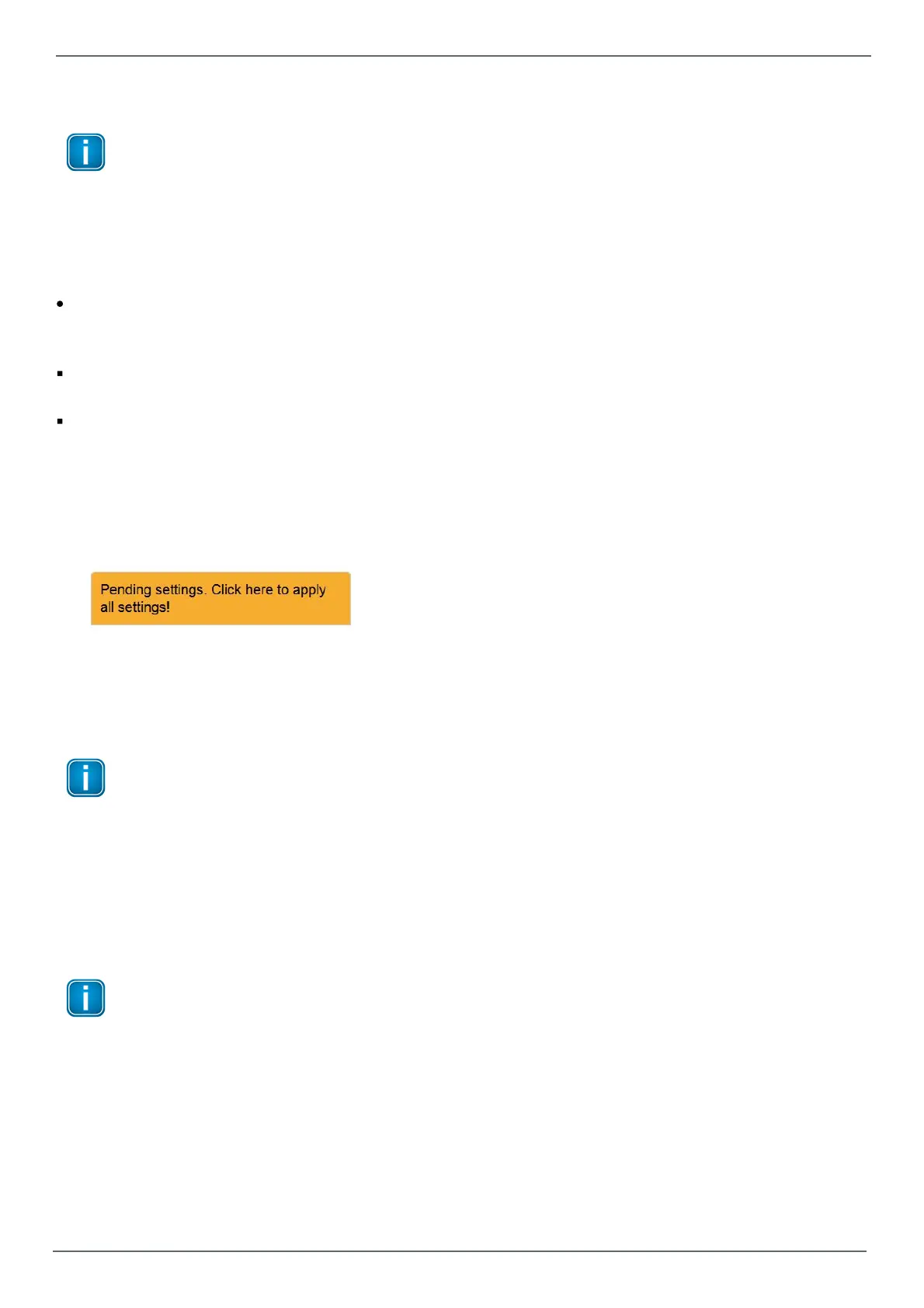
A hint will appear reminding you that the application of some other settings is pending:
2. Click at this link. Your settings will be applied.
Depending on the number of modified settings this process may take some time before being completed.
3. A message in the upper window part will inform you about the successful modification(s).
5.2.4.1 Symbol Import-NCU
Note
This description only applies to the uaGate 840D product!
A default symbol file is already included in uaGate 840D. It is activated once a connection has been configured.
By importing an AWL format symbol file the namespace can be changed.
1. Click the Browse... button in the Select File section and select the AWL file to be imported
2. Click the Import button to import the AWL file into uaGate 840D. The imported symbols will replace the
already existing symbols.
Note
An alarm symbol is automatically added at the root level of the namespace. It is used to display
NCK alarms.
If the imported symbol file also contains an alarm symbol this is overwritten by the automatically
generated alarm symbol.
5.3 Symbol View
This page displays either the filtered namespace of the configured PLC or the namespace of the imported symbol
file(s) in a hierarchical view.


 To Next Page