30
© Softing Industrial Automation GmbH
dataFEED Gateway - User Manual
Saving and applying settings
1. Click the Save button to save your settings.
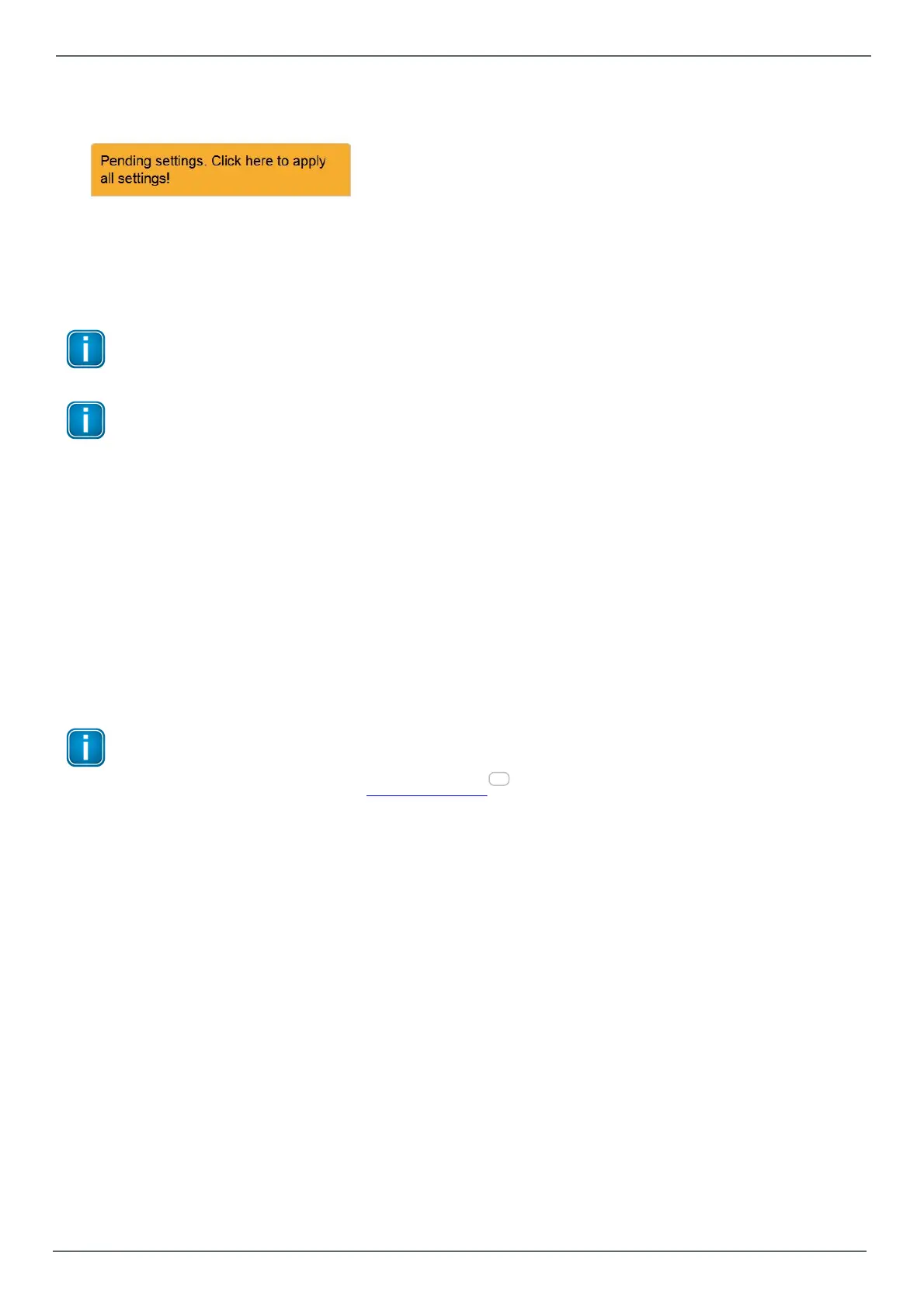
A hint will appear reminding you that the application of some other settings is pending:
2. Click at this link. Your settings will be applied.
Depending on the number of modified settings this process may take some time before being completed.
3. A message in the upper window part will inform you about the successful modification(s).
5.2.3.1 Symbol Import
Note
This description only applies to the edgeGate and uaGate MB products!
Note
The symbolic names for Modbus items have to be provided in an ASCII text file. The file is built up
by lines, each defining a symbol name and the corresponding Modbus item.
The line starts with the symbolic name, followed by the equal sign = and the Modbus item
definition. Hierarchy levels can be defined using the dot ..
Example of a Modbus symbol file:
M0_0=RX12288.0
M0_1=RX12288.1
M0_2=RX12288.2
M1_0=RX12289.0
M2_0=RX12290.0
Number_of_Jobs=RI12288
The Symbol Import view allows to import the symbolic names for a connected Modbus PLC.
Note
For importing a Modbus symbol file properly the corresponding Modbus connection has to be
configured in a first step (see Modbus Settings ).
1. Click the Browse... button in the Select File section. Select the symbol file to be imported.
2. Click the Import button to load the symbol file into the dataFEED Gateway.
The imported symbols will replace the already existing symbols.
29


 To Next Page