Load and Save Presets
You can call up factory presets, as well as save your
own ones. A preset can contain the entire chan-
nel strip, or one or several sections, so that you for
instance can create an equalizer + compressor preset.
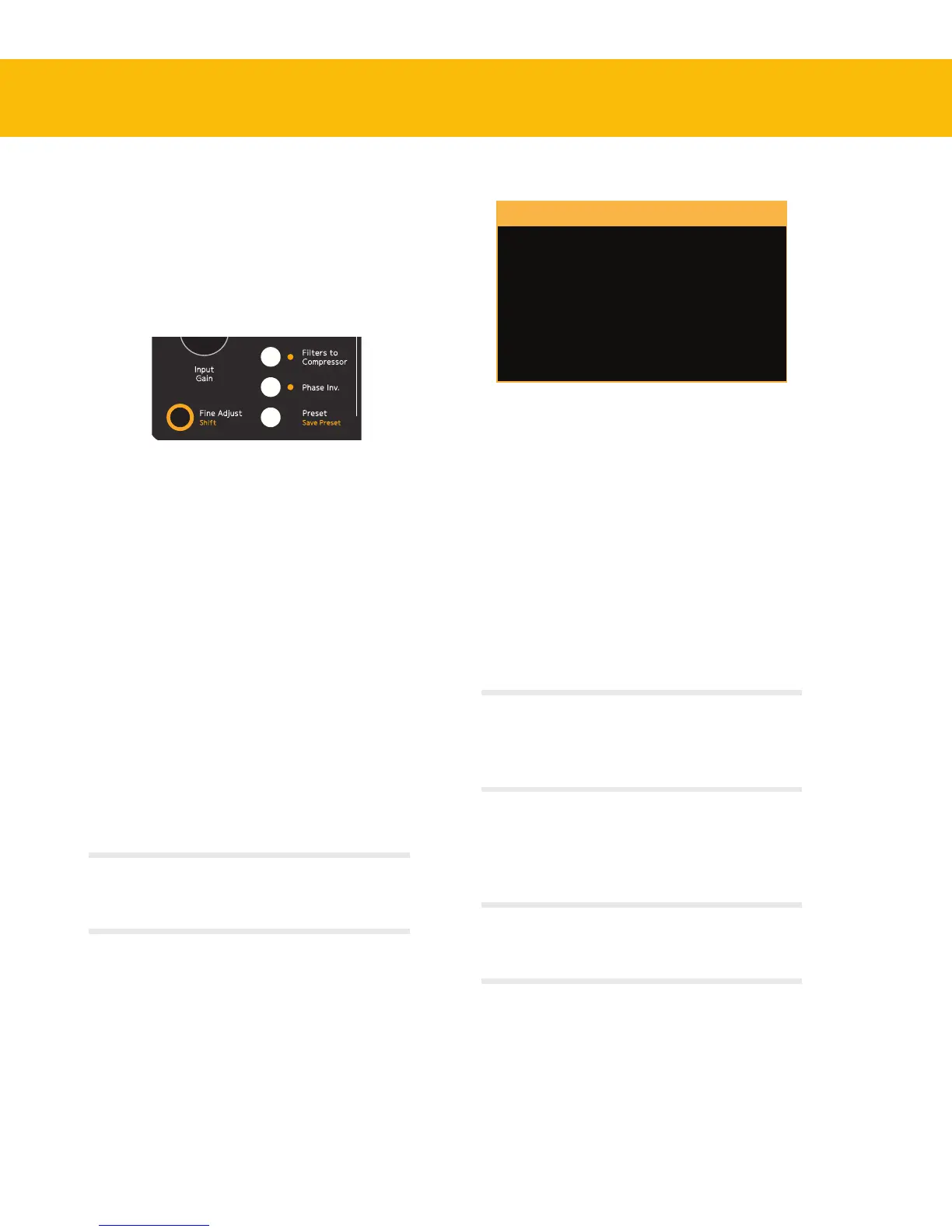
Access presets with the Preset button, or save your
current settings by pressing Shift + Preset.
Load Preset
1. Press the Preset/Save Preset button to call up
a list of entire channel strip presets. A dialog
window will open in the On-Screen Display
to show you a list of available presets for the
channel strip you have loaded into the selected
channel.
2. Select the category by using the Output Vol-
ume/Select knob:
: the entire strip
: just the Shape section
: just the EQ section
: just the compressor.
: presets saved by the user.
For example, loading an Equalizer preset will only over-
write the current equalizer’s setting, and will not aect
the rest of the channel.
3. Select the preset by using the Output Volume/
Select knob.
4. Conrm your selection by pressing Solo/OK
or cancel the preset selection by pressing Mute/
Cancel.
SELECT TYPE OF PRESET
Scroll with OUTPUT VOLUME, confirm with OK (Solo),
cancel with CANCEL (Mute)
Factory Channel Strip
Factory Shape
Factory Equalizer
Factory Compressor
User Presets
Presets are easily loaded from the Console1 hard-
ware and shown on the On-Screen Display.
Save Preset
To save your current setting as a preset:
1. Hold Shift and press Preset/Save Preset.
2. If you want to save the entire channel strip as a
preset, just press Solo/OK.
3. If you want to save just one or several sections,
select those with the on/o buttons. Press Solo/
OK when done.
It’s easy to create a, say, EQ + Compressor preset: just
select the EQ and Compressor after pressing Save Preset.
Loading such preset will only overwrite the current EQ
and Compressor, nothing else!
4. You will be prompted to name your new preset
and save it. It will now appear in the list of
available if you call one up, as
outlined above.
When saving a preset Console1 will open a separate le
browser window and close the On-Screen Display. Click on
Display On to see the On-Screen Display again.


 To Next Page