EasyManua.ls Logo

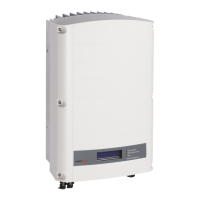
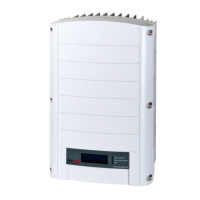
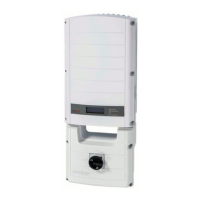
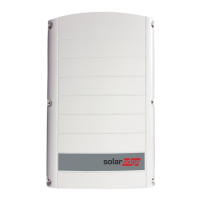
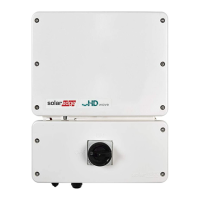
SolarEdge SE3680H - User Manual

SolarEdge SE3680H
90 pages
Print Icon
To Next Page IconTo Next Page
Loading...
Installation Guide
EV Charging Single Phase
Inverter
with SetApp Configuration
For Europe, APACand South Africa
Version 1.5

Table of Contents

Other manuals for SolarEdge SE3680H

Questions and Answers

  • R
    Robert CampbellSep 18, 2025
    What to do if SolarEdge SE3680H displays 'Under Voltage Press Charge Now'?
    • J
      Jill CooperSep 22, 2025
      If your SolarEdge Inverter displays 'Under Voltage Press Charge Now', press the Charge Now pushbutton on the Connection Unit or tap Charge Now on the EV Charger tab of the Monitoring App.
  • K
    Kristy WhiteAug 25, 2025
    What to do if SolarEdge SE3680H displays 'Pairing failed'?
    • A
      Anthony WheelerAug 25, 2025
      If the SolarEdge Inverter displays 'Pairing failed' and the power optimizers are shaded, and if you connected the inverter to the monitoring platform, retry pairing remotely when there is sunlight. Make sure to leave the inverter ON/OFF/P switch ON and that S_OK appears in the status screen.
  • V
    vbarnettAug 25, 2025
    How to fix No Internet connection on SolarEdge SE3680H Inverter?
    • E
      Elizabeth JensenAug 26, 2025
      If your SolarEdge Inverter displays 'No Internet connection', it means the ping to google.com failed. You should connect a laptop and check for internet connection. If internet access is unavailable, contact your IT admin or your internet provider. For Wi-Fi networks, ensure that user-name and password are as defined in the internet provider AP/ router.
  • J
    johnny08Aug 26, 2025
    How to troubleshoot 'LAN cable disconnected' error on SolarEdge SE3680H?
    • S
      Stephen MarshAug 27, 2025
      If your SolarEdge Inverter displays 'LAN cable disconnected', it means there is a physical connection fault. Check the cable pin- out assignment and cable connection.
  • Q
    qfowlerSep 23, 2025
    What to do if SolarEdge SE3680H Inverter displays 'Ground Fault (RCD) Press Charge Now'?
    • B
      bandrewsSep 23, 2025
      If your SolarEdge Inverter displays 'Ground Fault (RCD) Press Charge Now', press the Charge Now pushbutton on the Connection Unit.
  • G
    gravesanaSep 23, 2025
    How to fix EVSE Comm. Error on SolarEdge SE3680H Inverter?
    • V
      Valerie DuffySep 23, 2025
      To fix the 'EVSE Comm. Error' on your SolarEdge Inverter, check that the internal connections on the communication board are properly done.
  • D
    Dwayne RogersSep 10, 2025
    What to do if SolarEdge SE3680H shows 'Internal Error Disconnect from EV'?
    • A
      Anna ArnoldSep 10, 2025
      If your SolarEdge Inverter displays the message 'Internal Error Disconnect from EV', disconnect the EV Charger cable from the vehicle. Then, turn the inverter AC circuit breaker OFF and then ON again. Finally, reconnect the EV Charger Cable to the vehicle.
  • R
    robertandersonSep 12, 2025
    What to do if SolarEdge Inverter displays 'Ground Disconnected Disconnect from EV'?
    • M
      Misty MooreSep 12, 2025
      If the SolarEdge Inverter shows 'Ground Disconnected Disconnect from EV', disconnect the EV Charger cable from the vehicle.
  • D
    Dr. Keith WheelerSep 3, 2025
    What to do if SolarEdge SE3680H Inverter displays 'Over Voltage Press Charge Now'?
    • J
      Jennifer HoodSep 4, 2025
      If your SolarEdge Inverter displays 'Over Voltage Press Charge Now' it is because the EV Charger AC voltage is too high. Press the Charge Now pushbutton on the Connection Unit or tap Charge Now on the EV Charger tab of the Monitoring App.
  • T
    Tammy ValenzuelaSep 1, 2025
    How to fix 'String voltage is 0V' on SolarEdge SE3680H?
    • G
      Glen BennettSep 1, 2025
      If your SolarEdge Inverter displays 'String voltage is 0V', it means a power optimizer output is disconnected. Connect all power optimizer outputs.

Summary

Handling and Safety Instructions

Safety Symbols Information

Explains the meaning of various safety symbols used within the document.

Important Safety Instructions

Chapter 1: Introducing the SolarEdge Power Harvesting System

Power Optimizer

Describes DC-DC converters that maximize power harvesting at the module level.

Monitoring Platform

Explains the platform for monitoring technical and financial performance of SolarEdge sites.

EV Charging Single Phase Inverter

Details the inverter's function in converting DC to AC and EV charging capabilities.

Installation Procedure

Installation Equipment List

Lists the standard tools and equipment recommended for installing the SolarEdge system.

Inverter Transport and Storage

EV Charging Safety Instructions

Chapter 2: Installing the Power Optimizer

Safety

Outlines essential safety notes and warnings applicable when installing power optimizers.

Installation Guidelines

Provides guidelines for installing power optimizers, including string length and cable rules.

Chapter 3: Installing the Inverter

Inverter Package Contents

Lists the items included in the inverter package for installation.

Identifying the Inverter

Explains how to identify the inverter using its serial number and electrical ratings.

Inverter Interfaces

Shows the connectors and interfaces on the inverter and connection unit.

Connection Unit Interface

Details the EV charger connector, LED indicator, and other ports on the connection unit.

Inverter Interface

Describes the ON/OFF/P switch and inverter LED indicators for status.

DIP Switches

Explains how to set the circuit breaker rating DIP switches on the connection unit.

Buzzer

Details the buzzer indications for different EV charger events like connection and errors.

Mounting the Inverter

Provides instructions and clearance requirements for mounting the inverter.

Chapter 4: Connecting the AC and the Strings to the Connection Unit

Selecting a Residual Current Device (RCD)

Guides on selecting and configuring Residual Current Devices for system protection.

Chapter 5: Activating, Commissioning and Configuring the System

Step 1: Activating the Installation

Instructions for activating the installation using the SetApp mobile application.

Step 2: Commissioning and Configuring the Installation

Steps for commissioning and configuring inverter settings via the SetApp.

Setting Country, Grid and Language

How to configure country, grid, and language settings for inverter compliance.

Pairing

Procedure for pairing the inverter with power optimizers and system components.

Communication

Details on configuring communication settings for monitoring platform connectivity.

Power Control

Information on power control options like Grid Control and Energy Manager.

Step 3: Verifying Proper Activation and Commissioning

Steps to verify the proper activation and commissioning of the SolarEdge system.

Viewing System Status

How to access and interpret the system status screen for inverter settings and operation.

Main Inverter Status

Details on the main inverter status screen, including power, voltage, and connectivity.

Site Status

Shows the accumulated status of all inverters connected in a chain and the leader inverter status.

Communication Status

Displays the status of various communication options like LAN, RS485, Wi-Fi, and Cellular.

Inverter Energy Status

Shows the total energy produced by the inverter over different periods.

Meter Status

Details the status of production and export meters connected to the inverter.

EV Charging Status

Displays the EV charging status, mode, and energy added to the EV.

Reporting and Monitoring Installation Data

Instructions for connecting the site to the monitoring platform for data reporting.

The Monitoring Platform

Explains the features and benefits of the SolarEdge monitoring platform.

Creating Logical and Physical Layout using Installation Information

Guides on creating logical and physical layouts for system components in the platform.

Designer

Information on using the Designer tool for inverter and optimizer selection and report generation.

Mapper Application

Details on using the smartphone app to scan components and create a PV site map.

Physical Layout Editor

Instructions for accessing the site creation page and mapping physical layouts.

Using a Paper Template

How to use a physical layout template and stickers for mapping PV site components.

Chapter 6: Setting Up Communication to the Monitoring Platform

Communication Options

Lists the available communication types for transferring monitored information.

Ethernet

Instructions for establishing an Ethernet connection for LAN communication.

RS485

Details the available RS485 ports for connecting multiple devices.

Wi-Fi

How to use Wi-Fi connection for linking the inverter to the monitoring platform.

Cellular

Information on using a cellular connection for wireless monitoring via a plug-in.

Communication Connectors

Describes the functionality of the communication gland openings for various connection types.

Creating an Ethernet (LAN) Connection

Step-by-step guide to connect the inverter to the monitoring platform via Ethernet.

Creating an RS485 Bus Connection

Instructions for connecting multiple inverters in a bus configuration using RS485.

Verifying the Connection

Steps to check if the communication connection to the monitoring server is successfully established.

Appendix A: Errors and Troubleshooting

Identifying Errors

Methods to identify system errors indicated by LEDs, codes, or the monitoring platform.

EV Charger-related Troubleshooting

Troubleshooting steps for common errors related to the EV charger function.

Troubleshooting Communication

Guides for troubleshooting communication issues with Ethernet and RS485 connections.

Troubleshooting RS485 Communication

Specific steps to troubleshoot RS485 communication problems, like leader not found.

Additional Troubleshooting

General troubleshooting steps for network and modem connectivity issues.

Power Optimizer Troubleshooting

Appendix B: Replacing and Adding System Components

Fuse Replacement

Procedure for replacing the fuse located in the inverter.

Replacing an Inverter

Step-by-step guide for replacing an existing inverter with a new one.

Replacing the Connection Unit

Instructions for replacing the connection unit of the inverter system.

Appendix C: Connecting the Energy Meter To the Inverter

Energy Meter DIP Switches

Details on setting DIP switches for Modbus address and RS485 termination.

Energy Meter ID DIP Switches

Configuration of Modbus addresses for the energy meter using DIP switches.

Energy Meter Termination DIP Switches

Configuration of RS485 wiring termination using DIP switches on the energy meter.

Appendix D: SafeDC

Technical Specifications - EV Charging Single Phase Inverter (Europe & APAC)

Inverter Specifications

Technical data for inverter AC/DC output, voltage, current, efficiency, and compliance.

INSTALLATION SPECIFICATIONS

Specifications related to cable diameter, cross-section, dimensions, and weight.

Default Trip Limits and Times According to IEEE1547

Default voltage and frequency trip limits and clearing times compliant with IEEE1547.

EV Charger and EV Charger Cable Specifications

Technical details for the EV charger, its charging modes, and cable specifications.

Mechanical Specifications

Provides dimensional drawings and specifications for the inverter unit.

Support Contact Information

Contact details and required information for technical support with SolarEdge products.

SolarEdge SE3680H Specifications

General IconGeneral
AC Output Power3680 W
Protection RatingIP65
Rated AC Power3680 W
AC Frequency50/60 Hz
Max. Input DC Voltage480 Vdc
Number of MPP Trackers1
Warranty12 years
CoolingConvection
Operating Temperature Range-25°C to 60°C
AC Voltage220/230 V

Related product manuals