The Standard Signal Modes for PC Monitor
Resolution Vertical Frequency Horizontal Frequency Clock Frequency Polarity
(H V) (kHz) (Hz) (MHz) (Vert./Hor.)
640 480 31.469 59.94 25.175 -/-
640 480 37.861 72.809 31.5 -/-
640 480 37.5 75 31.5 -/-
720 400 31.469 70.087 28.322 -/+
800 600 35.156 56.250 36 +/+
800 600 37.879 60.317 40 +/+
800 600 48.077 72.188 50 +/+
800 600 46.875 75 49.5 +/+
1024 768(Optimal) 48.363 60.069 65 -/-
1024 768 56.476 70.069 75 -/-
1024 768 60.023 75.029 78.75 +/+
When you use it as a PC monitor, depending on signals of a PC, it may not display
picture normally even though it is set for standard mode resolution.
5-2. Setting Picture
- Brightness : Adjust screen brightness
- Contrast : Adjust screen contrast
- Phase :
In case picture is not optimally set after auto-adjustment, use Phase function.
- H. Size : Adjust the Size of the screen.
- H. Position : Adjust the H position of the screen.
- V. Position : Adjust the V position of the screen.
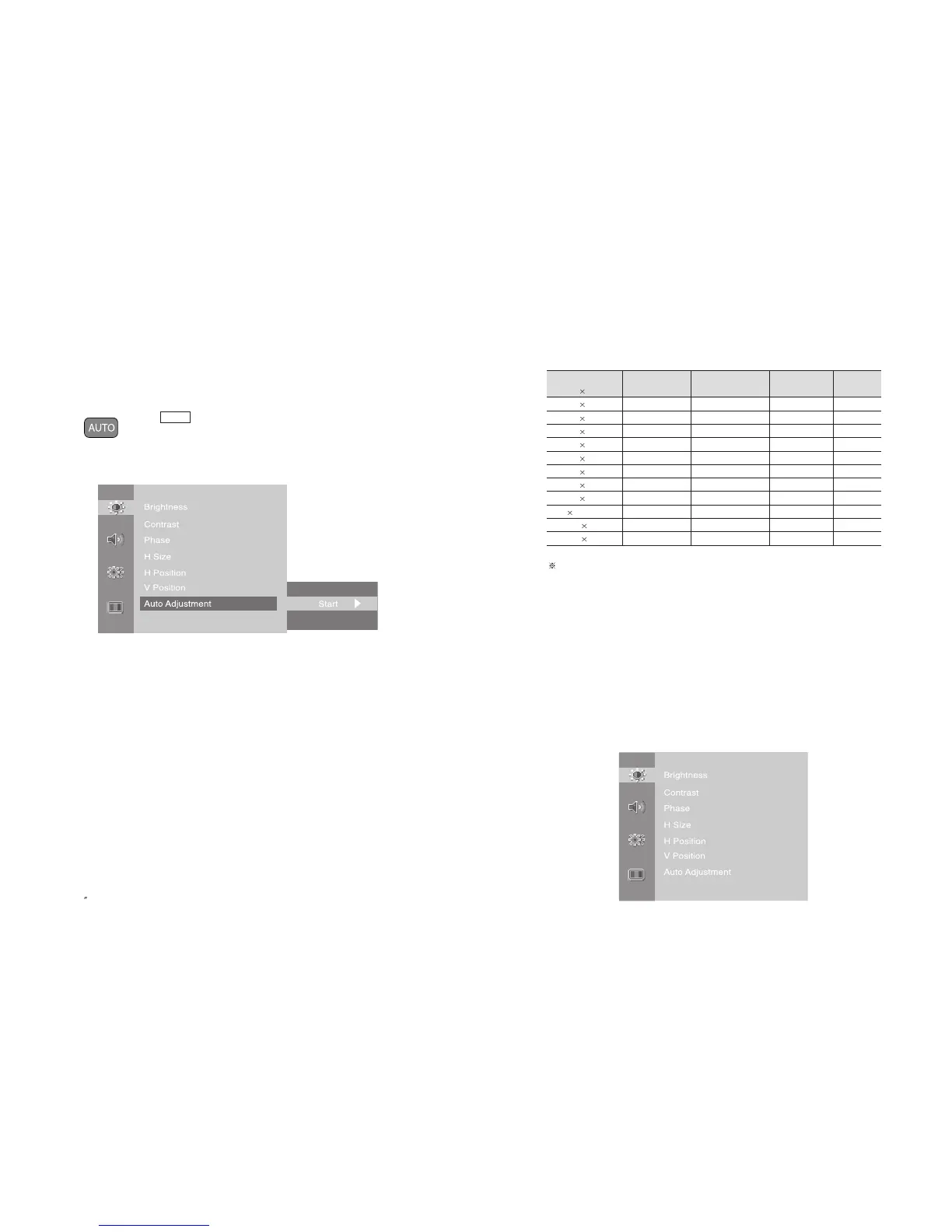
- Auto Adjustment : Automatically resets its all settings to optimize the picture quality.
49
PAL/SECAM
EN 48
15 TFT-LCD TV
5-1. Auto Adjustment
When the set is connected to a PC, the MODE should be set as PC RGB Mode.
- Press button on the remote control synchronize the TV set
with the PC.
- When it is used as PC monitor
Optimal Resolution : 1024 x 768 @ 60Hz
- Picture may not be displayed properly in any resolution other than the optimal
resolution.
- Even though it is automatically adjusted, it may display picture depending on signals
from a PC and in this case, It is then recomended to use Auto Adjustment function.
- Also, it can be set in OSD menu by using JOG button.
AUTO



 To Next Page