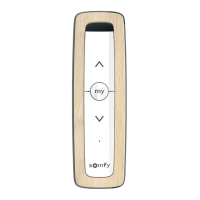
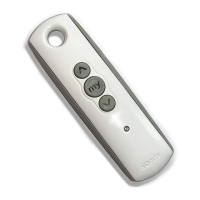
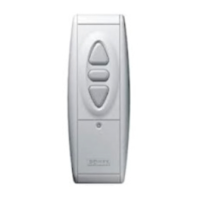
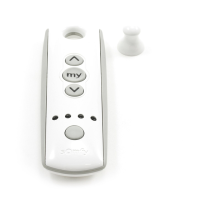
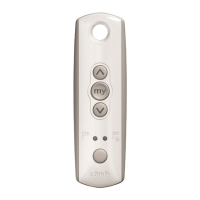
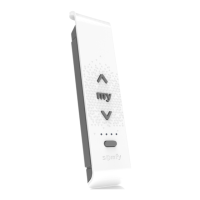
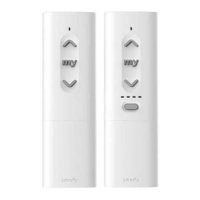
The Somfy Ysia 1 Zigbee and Ysia 5 Zigbee are radio remote control points designed to manage Zigbee-compatible window coverings and ON/OFF products. The Ysia 1 Zigbee controls a single group of one or more Zigbee products, while the Ysia 5 Zigbee can control up to five groups of one or more Zigbee products.
Function Description:
These control points allow users to operate their Zigbee devices through a simple interface. The primary functions include:
- Up/Down Control: Raising or lowering window coverings, or switching ON/OFF lights and plugs. For venetian blinds, pressing and holding the Up or Down button allows for slat tilting.
- Stop/My Button: Briefly pressing the "my" button stops the motorized product. Pressing it twice successively moves the product to a pre-set favorite position.
- Favorite Position (my) Saving/Modification: Users can set a preferred position for their motorized product by placing it in the desired position and then pressing the "my" button for 5 seconds.
- Channel Selection (Ysia 5 Zigbee only): The Ysia 5 Zigbee features a channel selector and associated LEDs (1-4, and all for channel 5) to switch between up to five groups of products. A short press displays the selected channel, and successive presses change it.
Installation and Commissioning:
The Ysia Zigbee control points can be set up in two primary ways:
- With a Control Point (TaHoma ready solution):
- Adding Control Points: To add a new control point to an existing network, press and hold the PROG button on the new control point until the light turns off (after the third red blink), indicating it's ready to join. Then, briefly press the PROG button on an existing control point (close to the new one). The LED on the new control point will turn green, signifying a shared network.
- Adding a Drive: To pair a motorized product, press and hold the PROG button on the drive until it moves up and down (its LED will blink orange). Then, briefly press the PROG button on the control point. The drive will briefly move up and down, confirming pairing.
- With the TaHoma pro application (recommended for both TaHoma ready and TaHoma switch solutions):
- A Somfypro account is required. The TaHoma pro application is downloadable for free from Apple Store (iOS 15.0 or later) and Google Play Store (Android OS 8.0 or later).
- The application guides users through pairing control points to drives, adding new control points, or new drives. Settings are not possible if the control point batteries are too low.
- Network Resetting: To reset the network, press and hold the PROG button on a control point until the second red blink (for TaHoma switch, it leaves the network and scans for a hub solution) or until the third red blink and the indicator light turns off (for TaHoma ready, it leaves the network and is ready to join another remote network).
Important Technical Specifications:
- Frequency Range: 2.405 GHz - 2.480 GHz.
- Maximum e.r.p.: < 100 mW (US and Canada), < 10 mW (other countries).
- Power Supply: 2 x AAA LR03 batteries (1.5 V each).
- Operating Temperature: 0°C (+32°F) to +48°C (+118.4°F).
- Radio Range: Approximately 50 m in open field conditions (optimal). The range may vary depending on the environment and network configuration.
- FCC/ISED Compliance: DWN-YSIA1, DWN-YSIA5. Complies with Part 15 of FCC Rules and Industry Canada's license-exempt RSSs. Operation is subject to two conditions: (1) device may not cause interference, and (2) device must accept any interference, including undesired operation.
- CE/UKCA Compliance: Declared in compliance with Radio Directive 2014/53/EU and UK Radio Equipment Regulations S.I. 2017 N°1206.
Usage Features:
- Feedback LED Behavior:
- Green LED: Indicates correct process.
- Heartbeat: Control point sending an order.
- ON for 2 seconds: Acknowledgment received (e.g., "my" position registered, factory reset, network pooling finished, bind/unbind OK).
- Orange LED: Indicates settings mode.
- Slow blinking: Control point in setting mode with a drive.
- Regular blinking: For TaHoma Ready, scanning to join a network or ready to join another.
- Fast blinking: For TaHoma switch, scanning to join a network and polling for binding.
- Red LED: Indicates an error.
- Blinking 3 times: Error signal (e.g., ACK error, channel empty, "my" registration error, binding/unbinding error).
- Wall Mounting: The control point comes with a wall bracket that can be fixed to a flat surface using an M3-type screw. Adhesive tape can also be used (not supplied).
Maintenance Features:
- Battery Installation/Replacement: Insert 2 x AAA LR03 batteries (1.5 V) according to polarity markings. Ensure terminals are not short-circuited. The TaHoma pro application indicates low battery levels, prompting replacement. There is no battery level indicator on the control point itself.
- Troubleshooting: If the product does not operate (no LED reaction), the battery may be low and needs replacement. If issues persist, contact a professional.
- Replacing a Lost or Broken Control Point: Contact a drive and home automation professional for assistance.
Safety and Liability:
Users must consult the Safety Instructions document provided in the product box and available online at www.somfy.info before installation and use. Key safety warnings include:
- DANGER: Risk of explosion if batteries are replaced with an incorrect type.
- CAUTION: Do not use an electric screwdriver for wall mounting. Settings are impossible if control point batteries are too low.
- ATTENTION: Keep the control point away from motorized products during setup to avoid unintended modifications to motor settings.

 Need help?
 General



 To Next Page