SonicWALL NSA 240 Getting Started Guide Page 37
Verifying WAN (Internet) Connectivity
Complete the following steps to confirm your Internet
connectivity.
1. In the Windows interface, select Start > Run.
2. Enter “cmd” in the Open field and click the OK button.
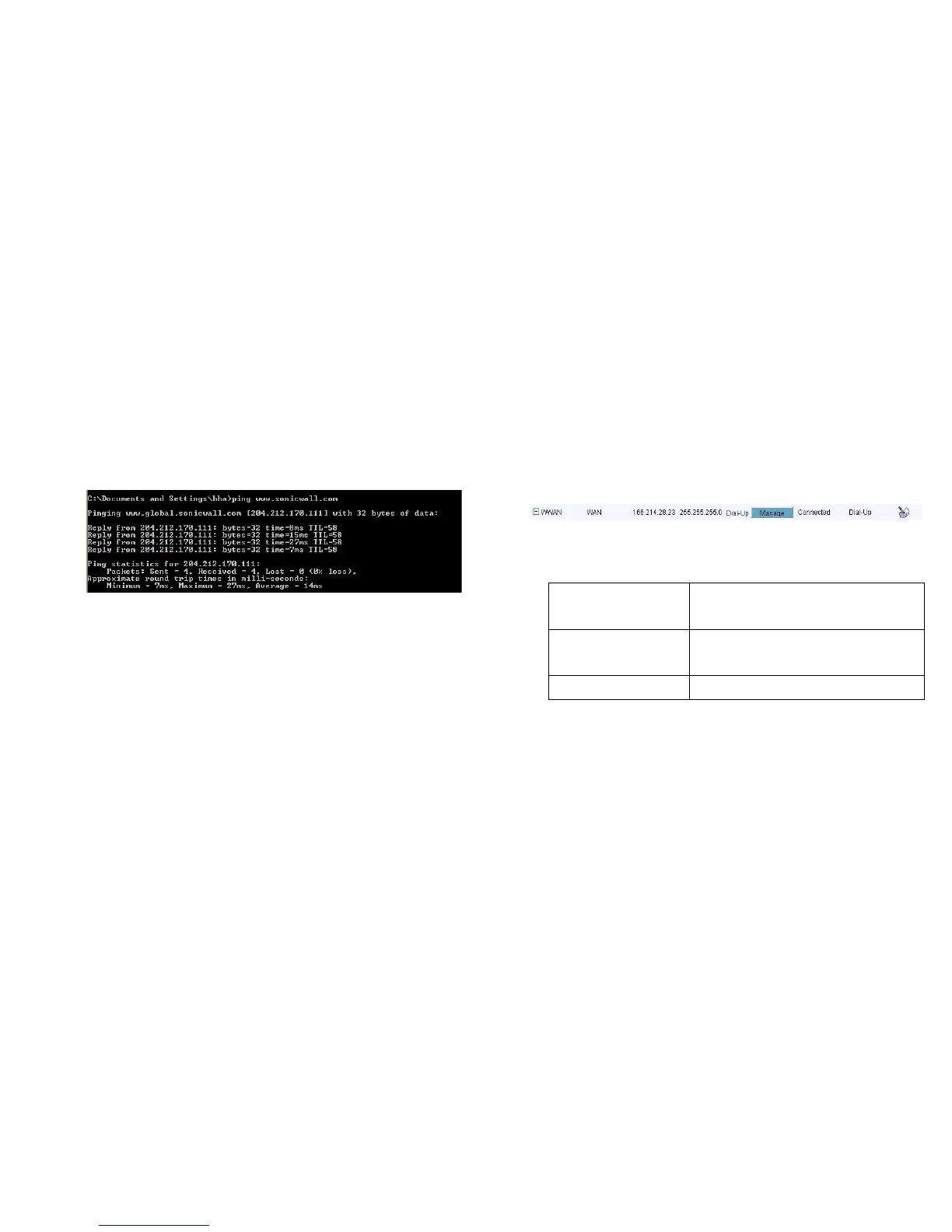
3. At the prompt, type the command “ping
www.sonicwall.com” and press Enter on the keyboard.
If the ping times out, you may have to renew your computer’s IP
address.
If the ping is successful, use a computer connected to the LAN
(1) port to launch a new Web browser.
4. Navigate to a website, such as:
<http://www.sonicwall.com/>
If the website displays, your SonicWALL NSA 240 is configured
correctly as your gateway device.
Viewing the WWAN Connection Status
The Network > Interfaces page allows you to view the current
WWAN connection status.
1. Log into the SonicWALL NSA 240 appliance management
interface.
2. Navigate to Network > Interfaces.
3. In the Interface Settings section, the WWAN interface line
displays the current status as follows:
The following messages describe the status of the WWAN
interface:
On hook Indicates that the WWAN card is present
but not
yet connected.
Connected and
starting PPP
authentication
Indicates that the WWAN card is associated
and currently attempting a connection to the
WWAN network.
Connected Indicates an active connection.


 To Next Page