Page 52 Creating a NAT Policy
Creating Address Objects
The Network > Address Objects page allows you to create
and manage your Address Objects. You can view Address
Objects in the following ways using the View Style menu:
• All Address Objects – displays all configured Address
Objects.
• Custom Address Objects – displays Address Objects
with custom properties.
• Default Address Objects – displays Address Objects
configured by default on the SonicWALL security
appliance.
To add an Address Object:
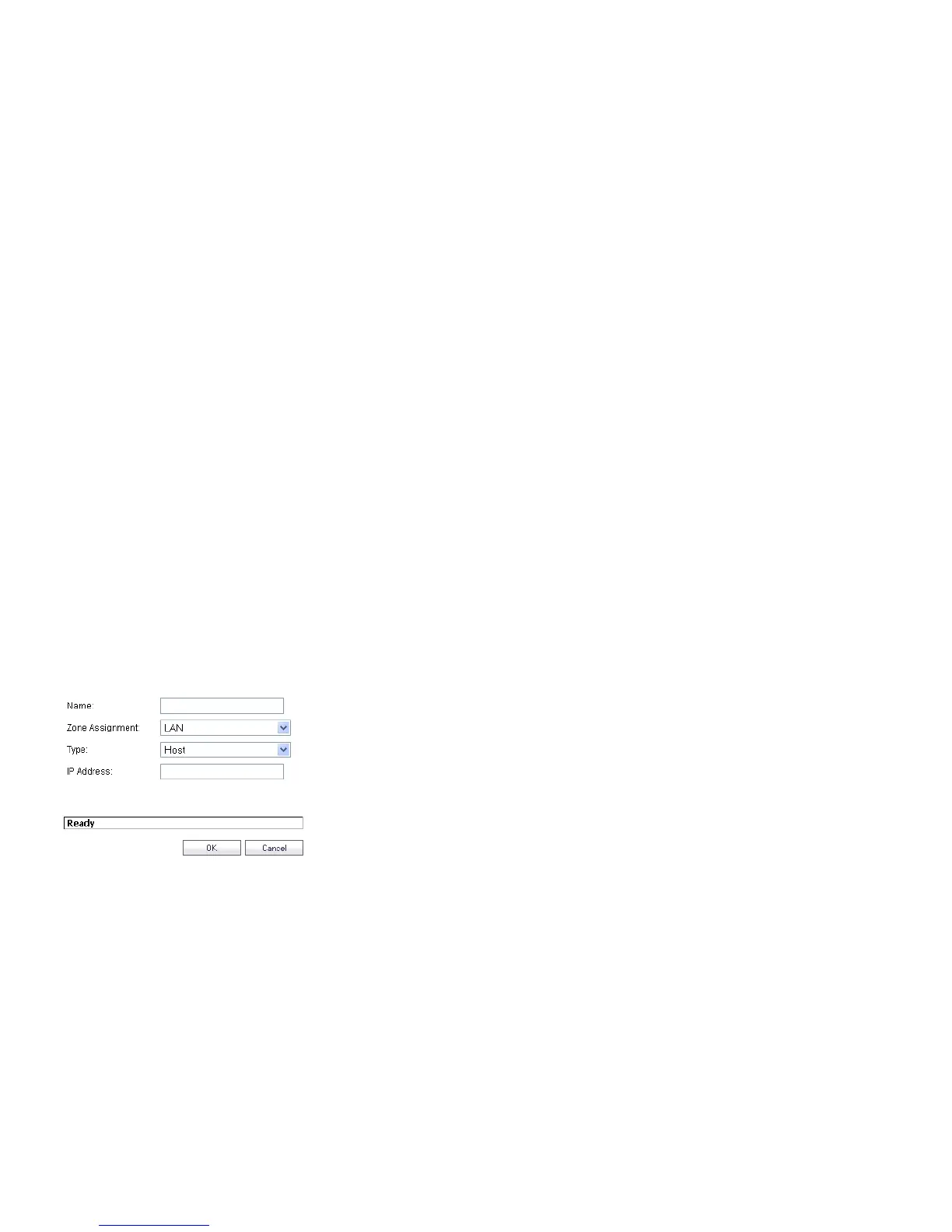
1. Navigate to the Network > Address Objects page.
2. Below the Address Objects table, click Add.
3. In the Add Address Object dialog box, enter a name for
the Address Object in the Name field.
4. Select the zone to assign to the Address Object from the
Zone Assignment drop-down list.
5. Select Host, Range, Network, MAC, or FQDN from the
Type menu.
-For Host, enter the IP address in the IP Address field.
-For Range, enter the starting and ending IP addresses
in the Starting IP Address and Ending IP Address
fields.
-For Network, enter the network IP address and
netmask in the Network and Netmask fields.
-For MAC, enter the MAC address and netmask in the
Network and MAC Address field.
-For FQDN, enter the domain name for the individual
site or range of sites (with a wildcard) in the FQDN
field.
6. Click OK.


 To Next Page