[31] Adjusting the picture/screen/sound quality to your preferences | Adjusting the
picture/screen/sound quality to your preferences
Adjusting the picture quality
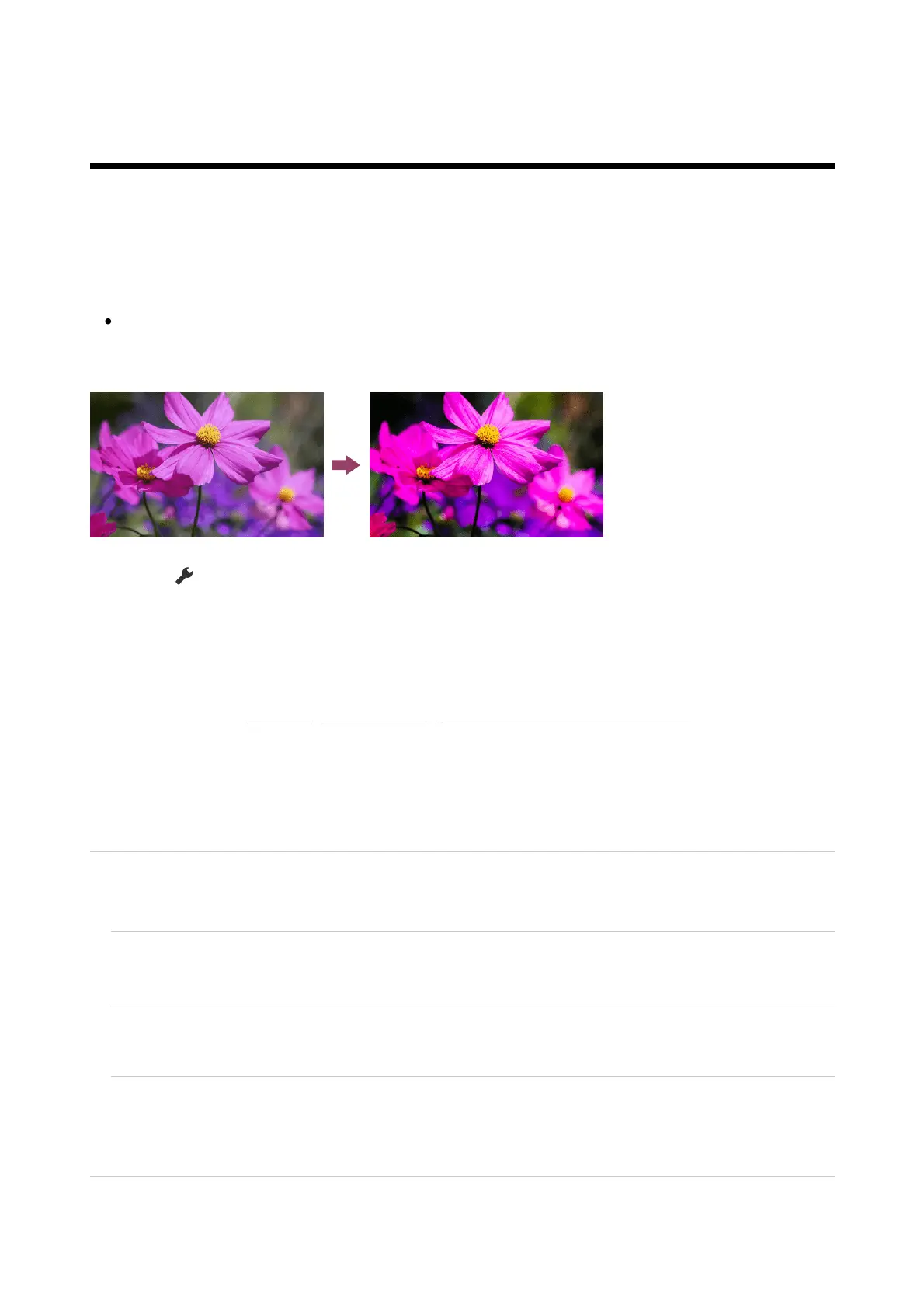
You can configure various settings related to the TV display such as colour and brightness for
picture quality, or screen size.
Note
The actual display may vary or some settings may not be available depending on your
model/country/region and the content you are watching.
Press the (Quick Settings) button on the remote control, then select [Settings] — [Display
& Sound] — [Picture & Sound] — the desired option.
You can change the following settings.
You can set the picture quality according to the [Content type].
For details, refer to Selecting the Content type based on the current content.
Picture
Adjust the picture settings such as Brightness, Colour, and Hue.
Basic
You can set the following.
Picture mode
Change the picture quality according to the content you are watching such as movies.
Reset picture settings for ***
Reset the picture settings for the current picture mode to the factory default.
*** calibrated mode
Adjusts the picture to a quality close to that intended by the content creator when watching
supported video streaming content and supported apps.
Brightness
Adjust the backlight to display the brightest whites and deepest blacks.




 To Next Page