Printing
images
directly
using
a
PictBridge
compliant
printer
Stage
1:
Preparing
the
camera
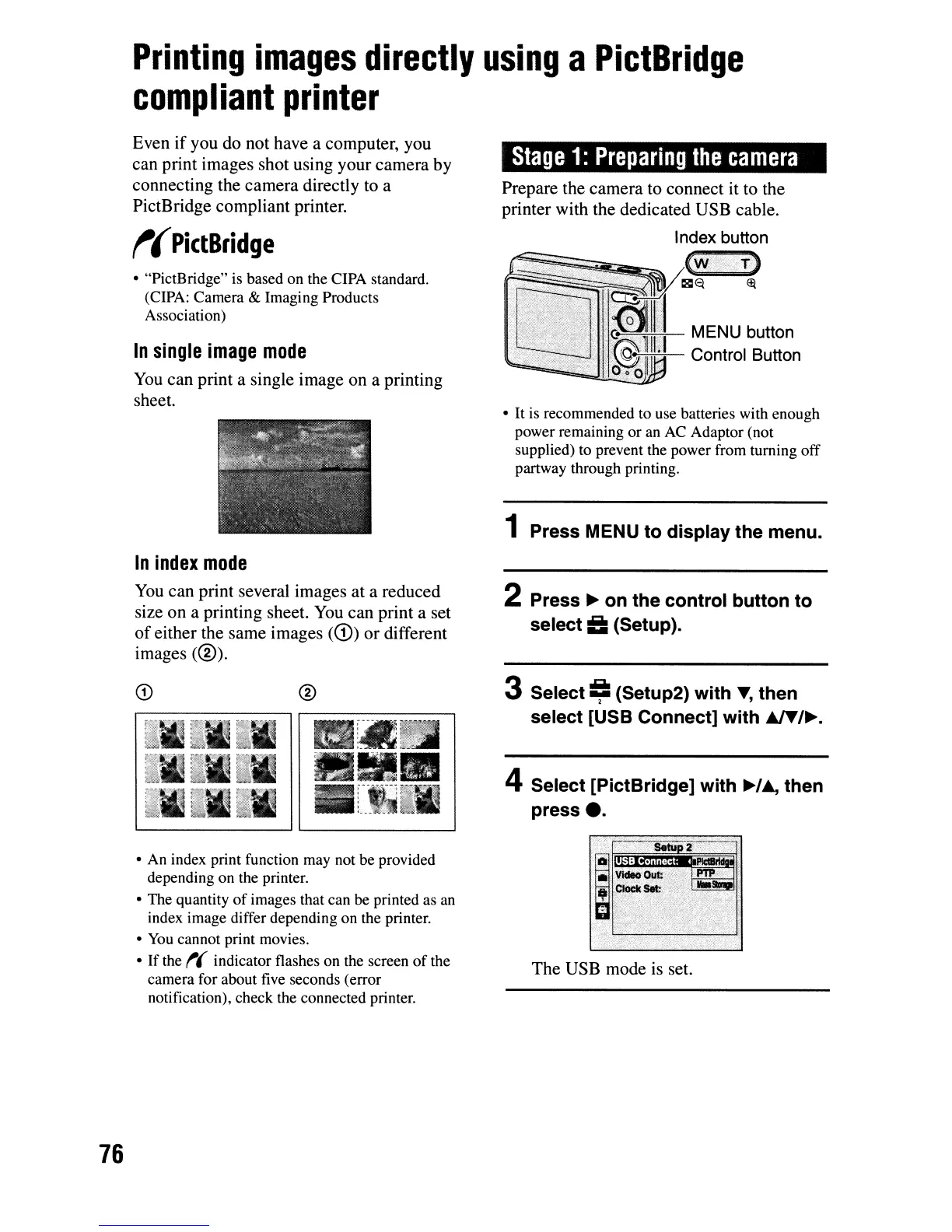
1 Press MENU to display the menu.
•
It
is
recommended to use batteries with enough
power remaining
or
an AC Adaptor (not
supplied) to prevent the power from turning off
partway through printing.
Prepare the camera to connect it to the
printer with the dedicated USB cable.
Index button
T)
In
single
image
mode
You
can print a single image on a printing
sheet.
• "PictBridge" is based on the CIPA standard.
(CIPA: Camera & Imaging Products
Association)
Even if you do not have a computer, you
can print images shot using your camera by
connecting the camera directly to a
PictBridge compliant printer.
t(
PictBridge
In
index
mode
You
can print several images at a reduced
size on a printing sheet.
You
can print a set
of
either the same images
(CD)
or different
images
(®).
• An index print function may not be provided
depending on the printer.
• The quantity
of
images that can
be
printed as an
index image differ depending on the printer.
•
You
cannot print movies.
•
If
the
t(
indicator flashes on the screen
of
the
camera for about five seconds (error
notification), check the connected printer.
.'
.'
The USB mode is set.
4 Select [PictBridge] with
~/..,
then
press
e.
-.
SetuD02'
'
;
•
~.I.='~~g,~
.
.Clock~:
...
..
~
-" '
".
3 Select
~
(Setup2) with
~,
then
select [USB Connect] with
AlT/~.
2 Press
~
on the control button to
select
II
(Setup).
®
CD
76



 To Next Page
 Loading...