19
Getting Started
DCR-HC32/HC42 2-584-906-11(1)
Step 8: Selecting the aspect ratio (16:9 or 4:3)
of the recording picture
(DCR-HC42)
By recording in the 16:9 (wide) mode,
you can enjoy wide-angle, high-resolution
pictures.
• If you intend to view pictures on a wide
TV, recording in the 16:9 (wide) mode is
recommended.
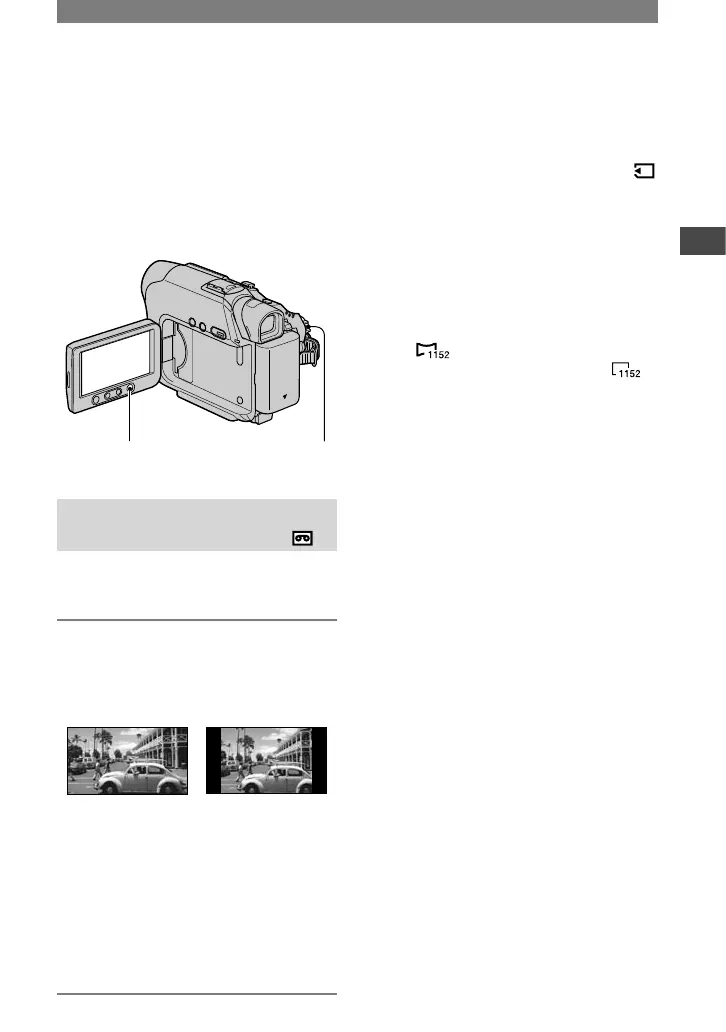
WIDE SELECT
button
POWER switch
Selecting the aspect ratio for
recording movies on a tape
Be sure to set the POWER switch to
CAMERA-TAPE.
Press WIDE SELECT repeatedly to
select the desired screen aspect
ratio.
16:9* 4:3*
* When viewing on the LCD screen. It may be
different in the viewfinder.
• Differences in the angle of view between 4:3
and 16:9 vary depending on the zoom position.
• If you play back a picture on a TV, set [TV
TYPE] for playback in the aspect ratio of the
TV (p. 34).
• When viewing pictures recorded in 16:9 aspect
ratio with [TV TYPE] set to [4:3], pictures may
appear rough depending on the subject (p. 34).
Recording a moving picture or still
image on the “Memory Stick Duo”
Set the POWER switch to [CAMERA-
MEMORY].
The aspect ratio of the picture switches
to 4:3.
Press WIDE SELECT repeatedly to
select the desired screen aspect ratio.
• Still images will be fixed to image size 1152 ×
648 ( ) in the 16:9 (wide) mode. In the 4:3
mode, you can select up to 1152 × 864 ( ).
• If you record movies (MPEG MOVIE EX) in
the 16:9 (wide) mode, black bands appear at
the top and bottom of the picture when they are
played back.
• For the number of recordable pictures, see page
45.


 To Next Page