39
Advanced Recording Operations
You can manually adjust and set the white balance. This adjustment makes white
subjects look white and allows more natural color balance. Normally white balance is
automatically adjusted.
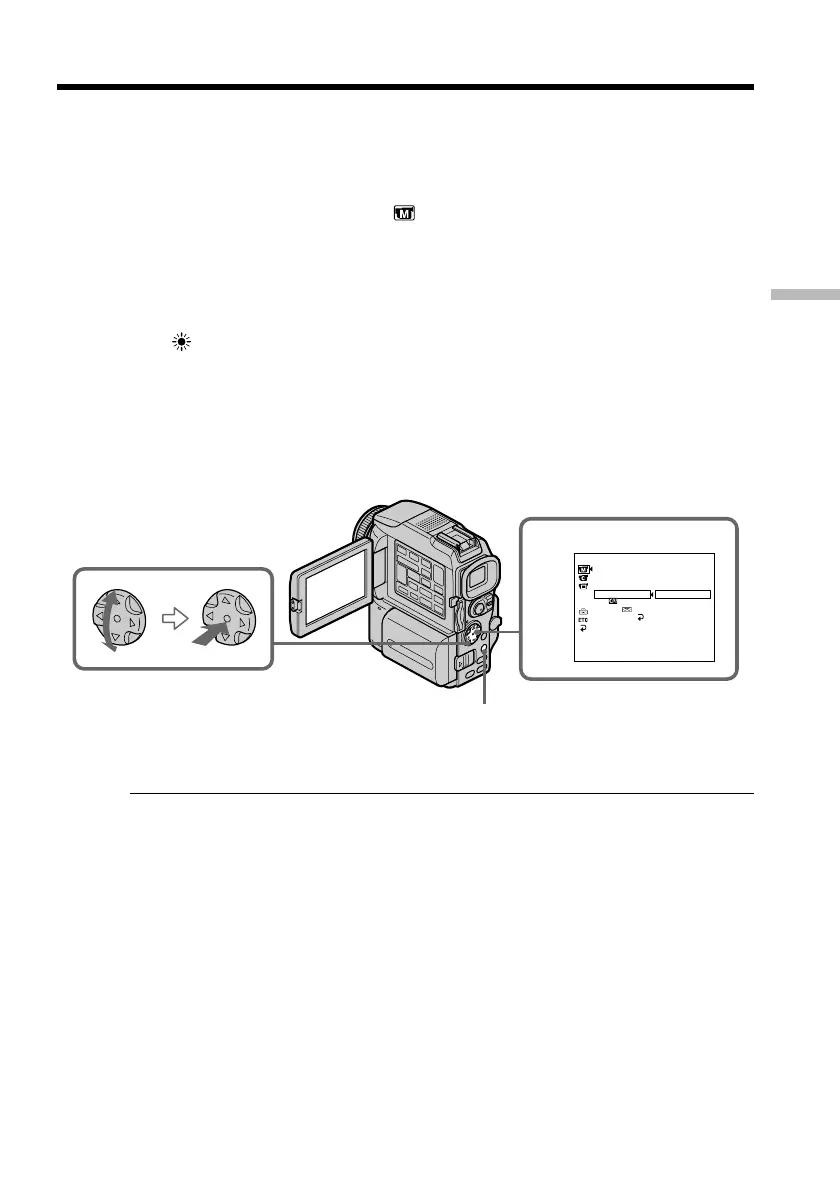
(1) Set the POWER switch to CAMERA or MEMORY. Press MENU, then select
and decide upon WHT BAL in
with the control button (p. xx).
(2) Select and decide upon the desired white balance mode with the control
button.
HOLD :
Recording a single-colored subject or background
OUTDOOR :
•Recording a sunset/sunrise, just after sunset, just before sunrise, neon signs, or
fireworks
•Under a color matching fluorescent lamp
n INDOOR :
•Lighting condition changes quickly
•Too bright place such as photography studios
•Under sodium lamps or mercury lamps
To return to the automatic white balance mode
Set WHT BAL to AUTO in the menu settings.
If the picture is being taken in a studio lit by TV lighting
We recommend that you record in the n indoor mode.
When you record under fluorescent lighting
Use the automatic white balance or hold mode.
Your camcorder may not adjust the white balance correctly in the n indoor mode.
In the automatic white balance mode
Point your camcorder at a white subject for about 10 seconds after setting the POWER
switch to CAMERA to get a better adjustment when:
– You detach the battery for replacement.
– You bring your camcorder to the outdoors from the interior of a house holding the
exposure, or vice versa.
In the hold white balance mode
Set the white balance to AUTO and reset to HOLD after a few seconds when:
– You change the PROGRAM AE mode.
– You bring your camcorder to the outdoors from the interior of a house, or vice versa.
Adjusting the white balance manually
MANUAL SET
AUTO
HOLD
PROGRAM AE
P
E FFEC T
DEFFECT
W
HT BAL
I NDOOR
OUTDOOR
A U T O S H T R
RETURN
[
MENU
]
:
END
1
MENU


 To Next Page