EasyManua.ls Logo

Sony DPP-FP35 - User Manual

Sony DPP-FP35
52 pages
Print Icon
To Next Page IconTo Next Page
Loading...
2-682-260-11 (2)
2006 Sony Corporation
Operating Instructions
Before operating this printer, please read
this manual thoroughly and retain it for
future reference.
Owner’s Record
The model and serial numbers are
located on the bottom. Record the serial
number in the space provided below.
Refer to these numbers whenever you
call upon your Sony dealer regarding this
product.
Model No. DPP-FP35
Serial No.
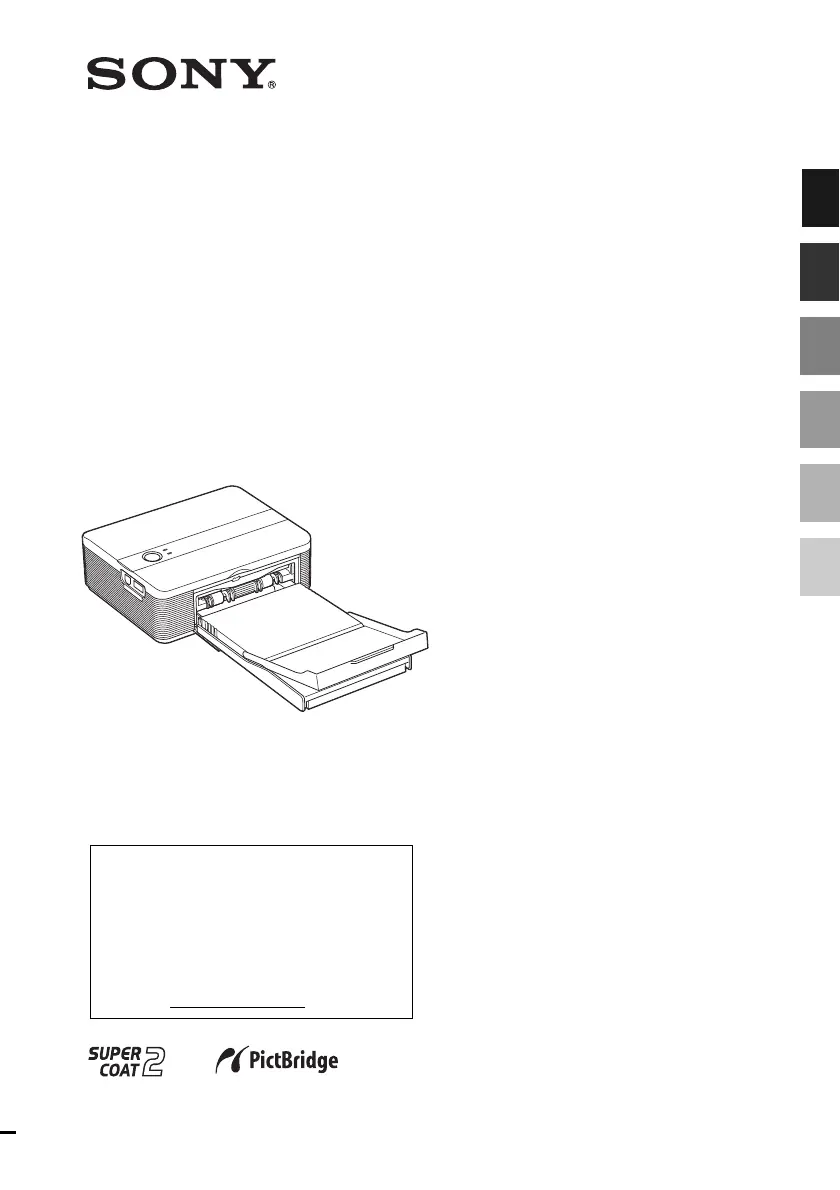
Digital Photo
Printer
DPP-FP35
Before you begin
Preparations
Printing from a PictBridge
camera (PictBridge mode)
Printing from a PC
(PC mode)
Troubleshooting
Additional information

Other manuals for Sony DPP-FP35

Questions and Answers

  • J
    Justin BuckAug 17, 2025
    What to do if my Sony Printer does not respond to the printing order from the PC?
    • J
      James GarciaAug 17, 2025
      If your Sony Printer isn't responding, first check the ERROR indicator. If it's lit or flashing, try these steps: 1. Turn the printer off and on. 2. Disconnect the AC power adapter, wait 5-10 seconds, and reconnect it. 3. Restart your computer. Also, try removing and reconnecting the USB cable. Ensure that a PictBridge-compliant digital camera and the PC are not connected to the printer simultaneously; remove the cable from the PICTBRIDGE connector before reconnecting the PC.
  • S
    Shane CrawfordAug 20, 2025
    Why are my printed pictures inferior in quality on my Sony DPP-FP35?
    • B
      Benjamin GomezAug 20, 2025
      The printed pictures may be of lower quality for several reasons: * The printer might be printing a preview image instead of the primary image saved by your digital camera. * The print cartridge may be dusty; wipe the plastic part to remove any dust. * Fingerprints on the printing surface (shiny side) can cause imperfections, so avoid touching it. * Using print paper more than once can damage the printer. * AdobeRGB image files that do not support DCF 2.0 will be printed in vague colors without color corrections.
  • T
    Tonya BrowningAug 22, 2025
    How to fix the issue when the printer driver cannot be installed for my Sony Printer?
    • S
      Scott AllenAug 23, 2025
      To fix printer driver installation issues, follow these steps: * Restart your computer and try the installation again. * Exit all applications before installing the driver. * Double-click 'My Computer,' then the CD-ROM icon, and follow the installation instructions. * Reinstall the USB driver if it wasn't installed correctly.
  • S
    sarah59Aug 26, 2025
    What to do if my Sony Printer prints images with borders even with the borderless print option?
    • A
      amandalopezAug 26, 2025
      If your Sony Printer is printing images with borders despite selecting the borderless option, try these solutions: * If your application allows setting a print range, ensure the image is set to print fully within that range, even if it extends beyond. * Increase the value in the 'Enlarge/Reduce' text box located in the 'Paper/Output' tab of the 'Sony DPP-FP35 Properties' dialog box. * If borders persist on the right and bottom, check the 'Upper left reference' option.
  • H
    hchapmanAug 28, 2025
    What to do if I cannot insert the print cartridge smoothly into my Sony DPP-FP35?
    • L
      Laura SteeleAug 28, 2025
      If the print cartridge doesn't click into place, remove it and re-insert it. If the ink ribbon is slack, wind it in the direction of the arrow to remove the slack.
  • S
    sara40Aug 31, 2025
    Why is my image not printed in correct colors with my Sony DPP-FP35 Printer?
    • D
      Danielle CampbellAug 31, 2025
      Incorrect colors during printing can occur because: * The Exif Print setting in the 'Color reproduction/Picture quality' section is only compatible with Picture Motion Browser. Uncheck 'Exif Print' when printing from other applications. * The ICM setting may only work with ICM-compliant applications. Verify that your software supports ICM.
  • M
    Marc WareSep 2, 2025
    What to do if my Sony Printer paper is not ejected?
    • K
      Kyle PrinceSep 3, 2025
      If the print paper is not ejected, it may be jammed. Remove the print paper and resume printing. If you cannot remove the print paper, follow the procedures shown in 'If paper jams' and remove jammed paper from the printer.
  • J
    Jon HawkinsSep 5, 2025
    What to do if my Sony Printer stops printing midway?
    • J
      James AustinSep 6, 2025
      If printing stops midway, the paper may be jammed. See 'If paper jams' and remove jammed paper from the printer. If jammed paper cannot be removed, contact the Sony service facilities.
  • F
    Frank WrightSep 8, 2025
    What to do if I cannot remove the print cartridge from my Sony DPP-FP35?
    • T
      Troy GlennSep 8, 2025
      To remove the print cartridge, keep the paper tray inserted, turn the printer off and then on again. After the initial motion stops, try removing the cartridge. If this doesn't work, contact Sony service.
  • J
    Jamie WalkerSep 12, 2025
    Why the PICTBRIDGE indicator of my Sony DPP-FP35 Printer does not light?
    • J
      James HansenSep 12, 2025
      To resolve the issue with the PICTBRIDGE indicator not lighting: * Ensure the cable is correctly connected. * Press the power switch to turn on the indicator (yellow-green). * Check the homepage for your digital camera. * Remove any non-PictBridge-compliant devices like USB mice. * Disconnect and reconnect the digital camera and printer, or power cycle both. * Connect the cable after printing is complete. * Do not connect a PictBridge camera and PC to the printer simultaneously; remove the PC's USB cable.

Summary

Preparations

Preparing the print pack

Explains how to prepare the print paper and cartridge for printing.

Loading the print cartridge

Provides step-by-step instructions for installing the print cartridge.

Inserting the print paper

Guides the user on how to load print paper into the tray.

Connecting the AC power source

Details how to connect the printer to a power outlet.

Printing from a PictBridge camera (PictBridge mode)

Printing images from the digital camera

Explains how to print photos directly from a PictBridge-compliant camera.

Printing from a PC (PC mode)

Installing the software

Guides on installing the necessary software for PC connectivity.

Installing the printer driver

Step-by-step instructions for installing the printer driver.

Installing the Picture Motion Browser

Instructions for installing Sony's photo management software.

Printing photos from the Picture Motion Browser

How to print images using the Picture Motion Browser software.

Troubleshooting

Sony DPP-FP35 Specifications

General IconGeneral
Maximum Print Size4 x 6 inches
Print Resolution300 x 300 dpi
Supported Media TypesPhoto Paper
Print SpeedApprox. 63 seconds per print
Print TechnologyDye Sublimation
ConnectivityUSB
Card ReaderMemory Stick, SD

Related product manuals