EasyManua.ls Logo

Sony DPP-FP55 - User Manual

Sony DPP-FP55
92 pages
Print Icon
To Next Page IconTo Next Page
Loading...
2-682-264-13 (1)
2006 Sony Corporation
Operating Instructions
Before operating this printer, please read
this manual thoroughly and retain it for
future reference.
Owner’s Record
The model and serial numbers are
located on the bottom. Record the serial
number in the space provided below.
Refer to these numbers whenever you
call upon your Sony dealer regarding this
product.
Model No. DPP-FP55
Serial No.
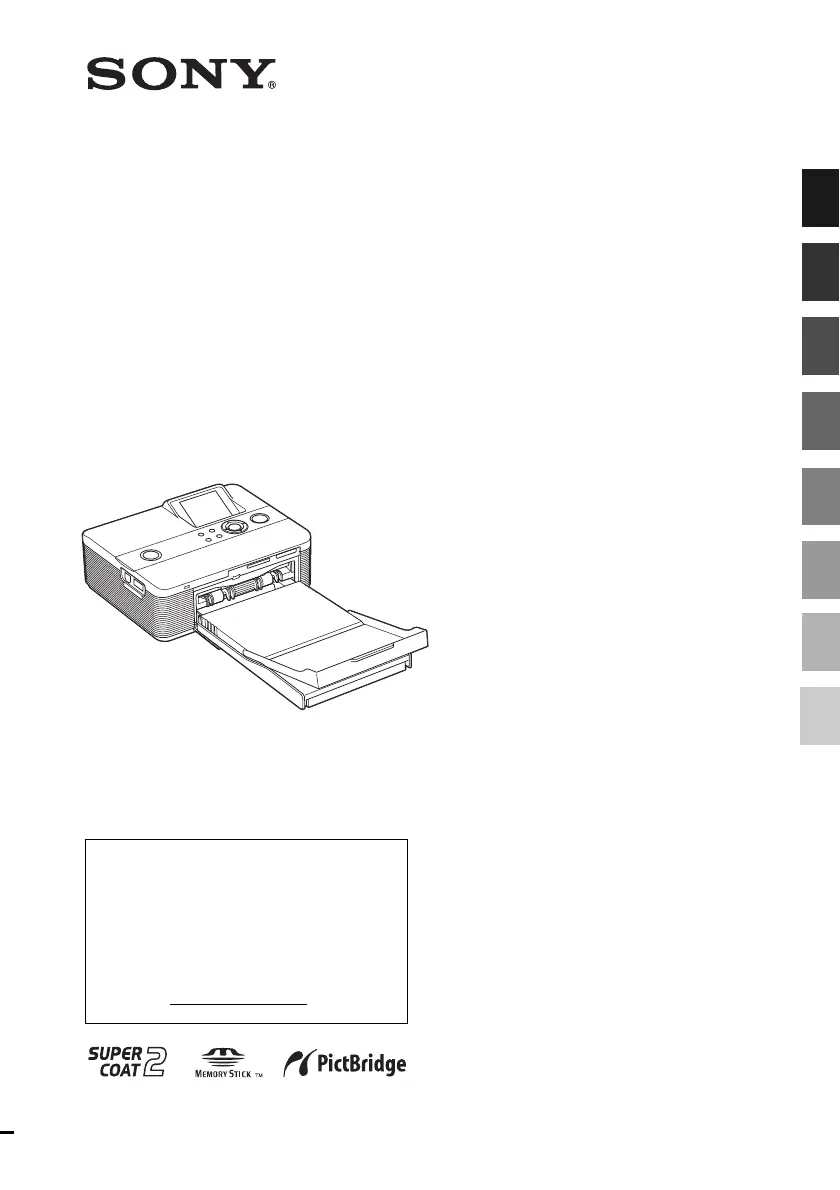
Digital Photo
Printer
DPP-FP55
Before you begin
Preparations
Making basic printing
Making various printing
Printing from a PictBridge
camera
Printing from a PC
Troubleshooting
Additional information

Table of Contents

Other manuals for Sony DPP-FP55

Questions and Answers

  • K
    Kristina PhillipsAug 20, 2025
    Why does my Sony DPP-FP55 paper not feed?
    • J
      Joshua ValdezAug 20, 2025
      Paper feed issues with your Sony printer can arise from several factors. Ensure you're using the correct type of print paper and print cartridge. Verify the paper is loaded correctly in the tray, without exceeding the recommended 20 sheets. Remember to riffle the print paper to prevent sticking, and avoid using bent or folded paper. Using paper not designed for the printer can also cause issues. Finally, the printer may display an error message if it cannot feed the print paper. In this case, remove the paper tray and check for any paper jams.
  • L
    Lisa RodriguezAug 22, 2025
    What to do if printed pictures from Sony Printer are inferior in quality?
    • M
      Melissa BryantAug 22, 2025
      If your Sony printer is producing inferior quality prints, several factors could be at play. If you are using a digital camera, preview images may be lower quality than primary images, so avoid printing those. Small images will result in rough printing quality; consider changing the image size setting on your camera. Enlarging an image too much can also deteriorate print quality. Ensure the plastic part of the print cartridge is clean and free of dust. Handle print paper carefully, avoiding touching the shiny side. Finally, do not attempt to print on used paper, as this will not improve the image.
  • J
    James LopezAug 25, 2025
    What to do if my Sony DPP-FP55 is printing stops midway?
    • A
      Ana BrayAug 25, 2025
      If your Sony printer stops printing midway, it could be due to a few reasons. The image data size might be large, requiring more processing time before printing resumes. Another possibility is a paper jam. If paper is jammed, follow the instructions to remove it from the printer. If the jammed paper cannot be removed, contact the Sony service facilities. Lastly, the thermal head may be overheated, in which case you should leave the printer to cool down before it resumes printing.
  • T
    Theresa RamirezAug 26, 2025
    What to do if I cannot delete an image on Sony DPP-FP55 Printer?
    • N
      njohnsonAug 26, 2025
      If you are unable to delete an image, first release any protection settings on the image and try again. Also, release the DPOF preset with your digital camera. Ensure the write-protect switch is in the write enable position. Note that you cannot delete an image from or format a “Memory Stick-ROM”.
  • G
    georgemcdanielAug 27, 2025
    What to do if I cannot save an image on Sony DPP-FP55 Printer?
    • P
      Phillip LoveAug 28, 2025
      If you cannot save an image, try releasing any protection settings and saving again. Ensure the write-protect switch is in the write enable position. Consider deleting unnecessary images or using a new memory card with sufficient free space, then try saving the image again.
  • Y
    yedwardsAug 29, 2025
    How to fix Sony DPP-FP55 LCD screen displaying no images?
    • J
      Julie JordanAug 29, 2025
      If your Sony Printer's LCD screen isn't displaying images, it might be because the printer is in PictBridge/PC mode when connected to a PictBridge camera or PC. In this mode, images won't appear on the screen. When using a memory card or external device, the image display priority is “Memory Stick,” then “SD Card,” and finally “External Device.” Make sure to insert the memory card or external device properly and that it contains recorded images. Follow any on-screen messages for troubleshooting.
  • C
    christina60Aug 31, 2025
    Why is the file name not displayed correctly on my Sony Printer?
    • K
      Kenneth RamirezAug 31, 2025
      If the file name isn't displayed correctly on your Sony printer, it may be due to the file name including characters other than alphanumeric characters. For files created with a PC application, only the first 8 characters of the file name will be displayed.
  • R
    Ralph CoxSep 2, 2025
    Why are there blank areas in the Edit menu of my Sony DPP-FP55 Printer?
    • A
      Amber PattonSep 2, 2025
      Blank areas in the Edit menu of your Sony printer can appear if an image is extremely stretched vertically or horizontally. Also, the standard aspect ratio of a digital camera image is 3:4. When editing or printing in postcard size, the image may be saved as a more horizontal print, resulting in black areas at the top and bottom.
  • P
    Paul HughesSep 3, 2025
    Why does the print paper emerges partially during printing in process with Sony DPP-FP55 Printer?
    • J
      jill50Sep 3, 2025
      The print paper may emerge a few times during printing. Do not touch nor pull the emerged paper. Wait for the print paper to be fully ejected after printing ends. As the print paper emerges from the rear a few times during printing, make sure to spare enough space behind the printer during printing.
  • P
    Pamela ChavezSep 5, 2025
    What to do if the date cannot be printed on my Sony DPP-FP55 Printer?
    • K
      kimberlyfisherSep 5, 2025
      To print the date, ensure that “Date Print” is set to “On” in the Set Up menu. Also, confirm that the image is compatible with the DCF standards.

Summary

Preparations

Checking the Contents of the Package

List of included accessories to verify upon unboxing the printer.

Preparing the Print Pack

Instructions on how to prepare and use print paper and cartridges for printing.

Loading the Print Cartridge

Step-by-step guide for correctly inserting the print cartridge into the printer.

Inserting the Print Paper

Procedure for loading print paper into the printer's paper tray.

Connecting the AC Power Source

How to connect the printer to an electrical outlet using the provided AC adapter.

Inserting a Memory Card

Instructions for inserting various types of memory cards into the printer's slots.

Printing from a PictBridge Camera

Printing from a PC

Installing the Software

Step-by-step guide for installing the printer driver and bundled software on a PC.

Troubleshooting

If Trouble Occurs

General troubleshooting steps for common printer issues and symptoms.

If an Error Message Appears

Explanation of error messages and their corresponding solutions.

If Paper Jams

Instructions for resolving paper jam errors and removing jammed paper.

Sony DPP-FP55 Specifications

General IconGeneral
Maximum resolution300 x 300 DPI
Video capabilityYes
Mac compatibilityNo
Dimensions (WxDxH)175 x 137 x 60 mm
Power requirements120-240V
Compatible operating systemsWindows Me/2000/XP
Printing sizes10 x 15 cm
Paper tray media typesPhoto paper
Bundled softwarePicture Motion
USB 2.0 ports quantity1
Compatible memory cardsMS Duo, MS Pro, MS PRO Duo, SD
DisplayLCD
Display diagonal2 \
Market positioningHome & office
Weight and Dimensions IconWeight and Dimensions
Weight1000 g

Related product manuals