40
GB
4
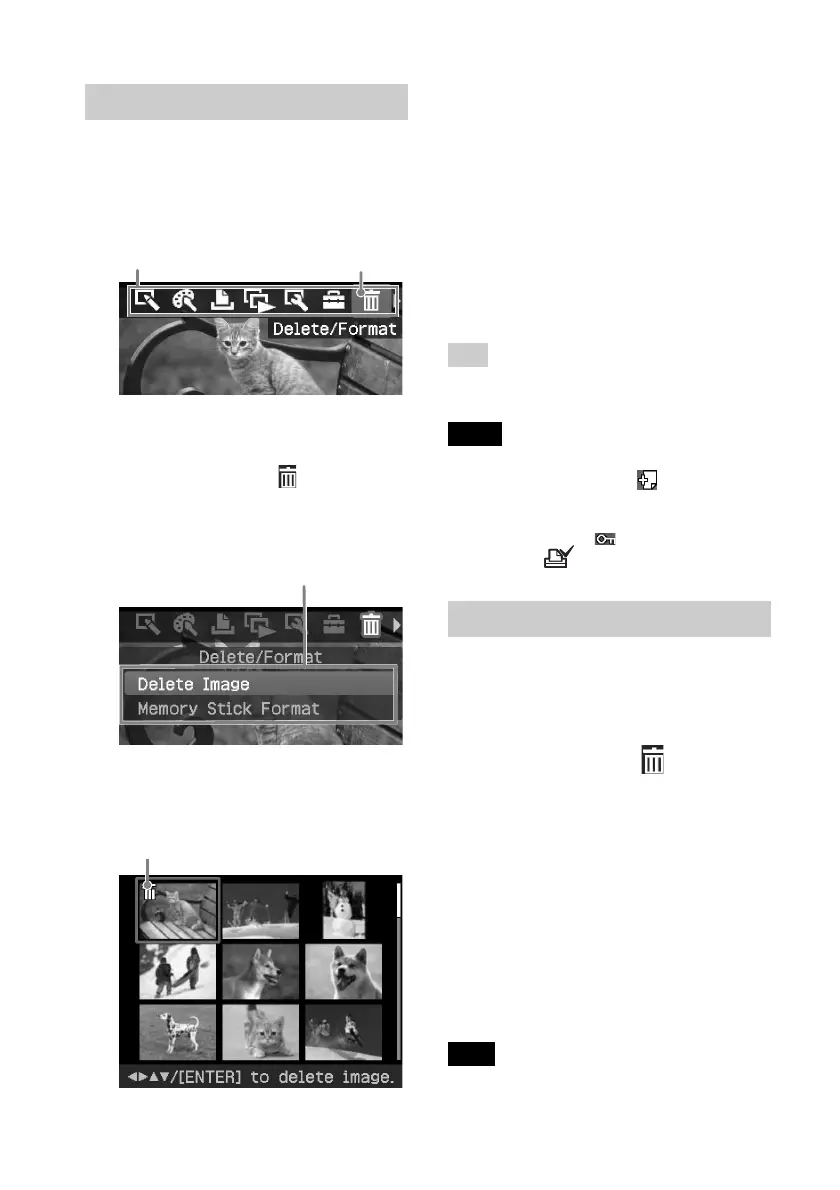
Press g/G/f/F to move the trash
icon to the image you want to
delete, then press ENTER.
A confirmation dialog box is
displayed.
5
Press g/G to select “OK” and
press ENTER.
The selected image is deleted. To
delete other images, repeat steps 4
through 5.
Tip
To exit the Delete/Format menu, press MENU
or CANCEL.
Notes
• When you delete an image with the
associated file indication ( ), the associated
motion or e-mail file will be also deleted.
• You cannot delete a protected image with the
protect indication ( ) or a waiting-to-print
indication (
) displayed.
Formatting a “Memory Stick”
You can format a “Memory Stick”.
1
Press MENU.
The menu bar is displayed.
2
Press g/G to select (Delete/
Format) and then press ENTER.
The Delete/Format menu is
displayed.
3
Press f/F to select “Memory Stick
Format” and press ENTER.
The confirmation dialog box is
displayed.
4
Press g/G to select “OK” and
press ENTER.
The “Memory Stick” is formatted.
Note
When you format a “Memory Stick”, all the
images inside are deleted.
Deleting selected images
You can select and delete images on a
memory card.
1
Press MENU.
The menu bar is displayed.
Menu bar Delete/Format menu icon
To exit the menu mode, press MENU.
The previous window is displayed.
2
Press g/G to select (Delete/
Format) and then press ENTER.
The Delete/Format menu is
displayed.
Delete/Format menu
3
Press f/F to select “Delete
Image” and press ENTER.
The image list is displayed.
Trash icon



 To Next Page