29
GB
Making various printing
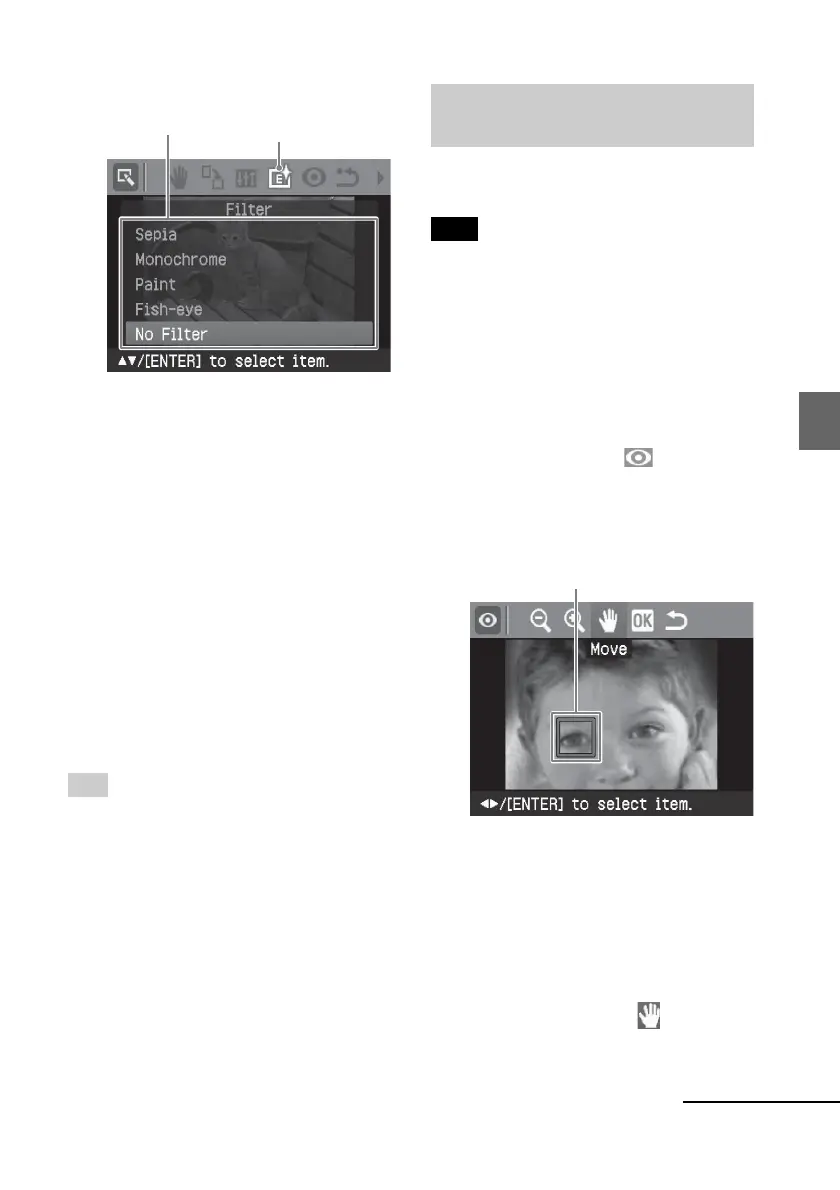
The Filter menu is displayed.
Filter menu Filter icon
3
Press f/F to select the desired
filter you want to add to the
image.
• Sepia: Changes the image like an
old photograph with faded colors.
• Monochrome: Changes the image
into a black and white picture.
• Paint: Makes the image look like a
painted picture.
• Fish-eye: Makes the image look like
a photo taken with a fish-eye lens.
• No Filter: No special filter on the
image (default setting).
4
Press ENTER.
The filter takes effect.
Tip
To print the image previewed, press PRINT
(page 30).
Reducing the red-eye
phenomenon
You can reduce the red-eye phenomenon
of a subject shot using a flash.
Note
If you perform additional editing, such as
enlarging, reducing the image size,
rotating or moving an image, after the red-
eye reduction adjustment, the red-eye
reduction may not take effect. Perform the
red-eye reduction after these editorial
operations.
1
Display the Edit menu (page 26).
2
Press g/G to select (Red-eye
reduction) and then press ENTER.
The adjustment frame appears on the
image, which indicates the range for
red-eye reduction adjustment.
Adjustment frame
3
Adjust the position and size of the
adjustment frame.
Make the red-eye reduction
adjustment for the right and left eyes
separately.
To move the adjustment frame
1 Press g/G to select (Position)
and press ENTER.
Continued



 To Next Page