31
GB
Making various printing
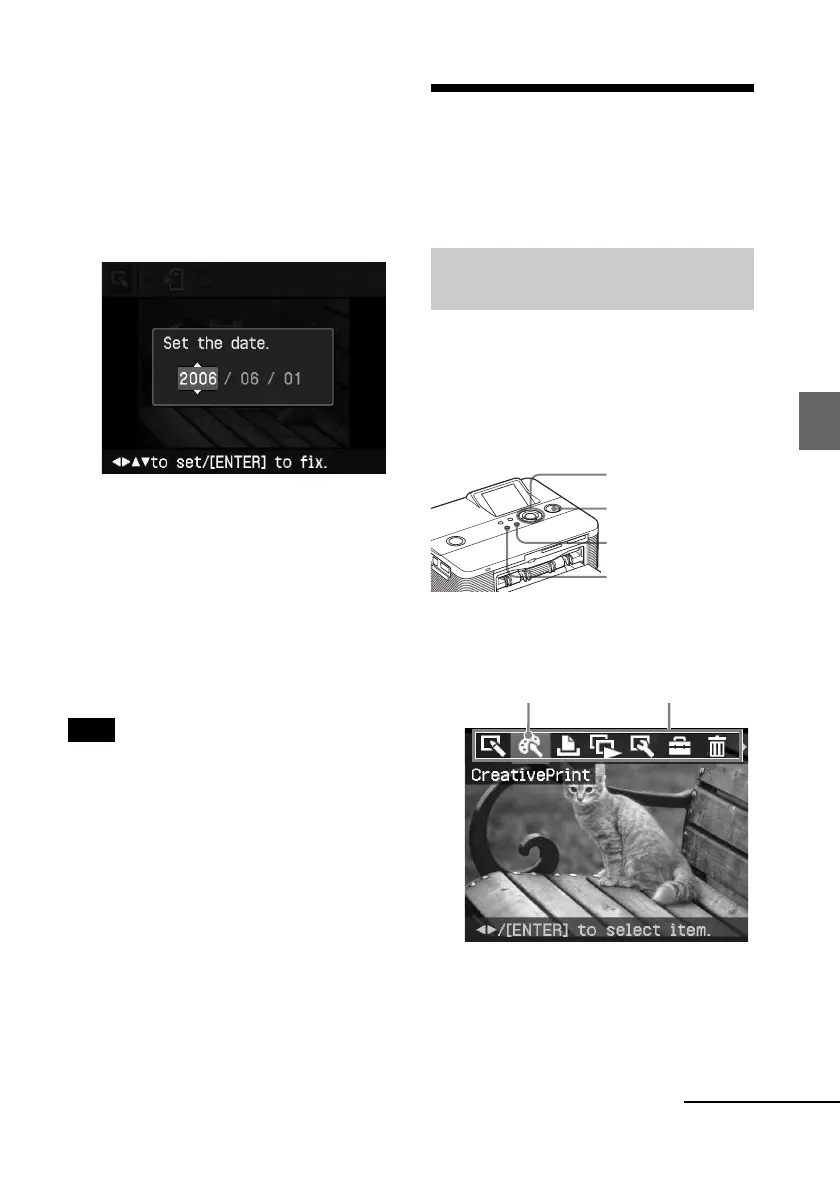
The dialog box for setting date is
displayed. You can save the date with
the image.
2
Set date.
Press f/F to select the number and
press g/G to select the day, month or
year. Then press ENTER.
The edited or Creative Print image is
saved as a new image. The dialog box
to notify the new image numbers
(folder number-file number) is
displayed.
For example, when “100-0001” is
displayed, “100” is folder number and
“0001” is file number.
3
Press ENTER.
Note
While saving the image, do not turn off the
printer or remove a memory card from the
printer. The memory card may be damaged.
Making split images
and a calendar
(Creative Print)
Displaying the Creative Print
menu
You can display the Creative Print menu
and make a calendar or split images prints
using the images of a memory card or an
external device.
Buttons to be used in Creative Print
g/G/f/F/ENTER
PRINT
CANCEL
MENU
1
Press MENU.
The menu bar is displayed.
Creative Print menu icon Menu bar
To exit the menu mode
Press MENU. The previous window
is displayed.
Continued



 To Next Page