Emma User Guide 22
6. If you have not used the service before, the Confirm download window is
shown, click OK. Otherwise go to step 8.
7. When the download is finished the service will start to run.
8. When the service is running different prompts will be shown in the Service
log in Service Details. Some of these need your attention. If this is the case,
an attention icon is shown in Connector Overview. Make your choices if the
prompts ask you to.
9. In the message window that tells you that the service was successful, click
Done.
Note: After you have run a service successfully you get the suggestion
"Automatically run this service…" in Service details. Mark the checkbox if you
want this. This is useful if you want to run the same service on many devices/
phones.
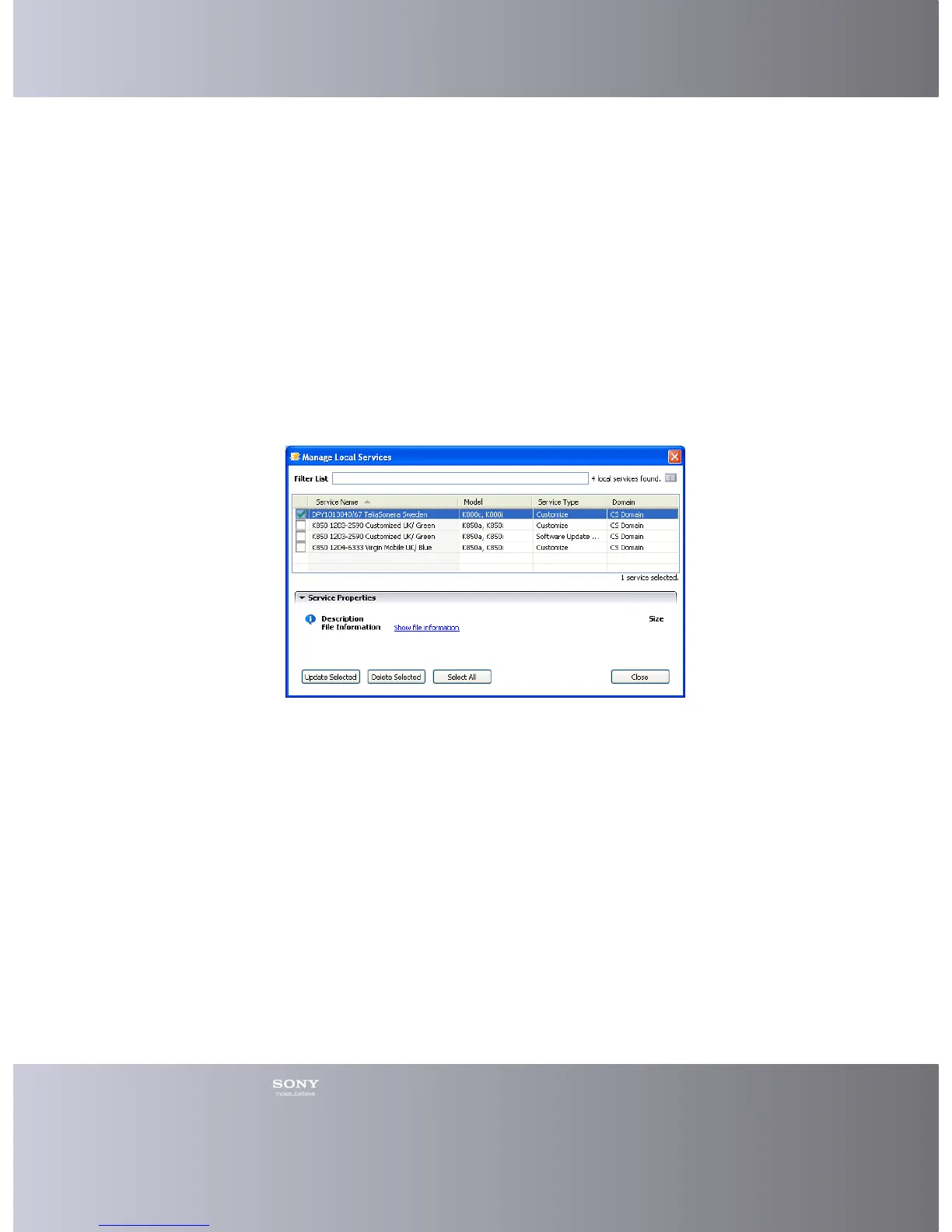
Managing Local Services
You can update and remove services that you have downloaded to your computer.
1. Click Tools > Manage Local Services in the Main menu.
2. In the Manage local services, all services that are stored locally are shown.
3. You can filter the list by entering any number of characters in the field Filter list.
4. Choose a service by clicking in its checkbox. You can choose several services.
5. To update a service, click Update Selected. To remove a service, click Delete
Selected.
6. If you choose to update a service and there is an available update, the Confirm
download window is shown, click Yes. If you choose to remove a service the
Confirm Delete window is shown, click OK.
Downloading Services
You can download most services to your computer. After a service has been
downloaded it is available in the Manage Local Services window.





 To Next Page