EasyManua.ls Logo

Sony ICF-SW30 - Setting the Clock Functions; Configuring Local Time; Configuring World Time

Sony ICF-SW30
11 pages
Print Icon
To Next Page IconTo Next Page
To Previous Page IconTo Previous Page
Loading...
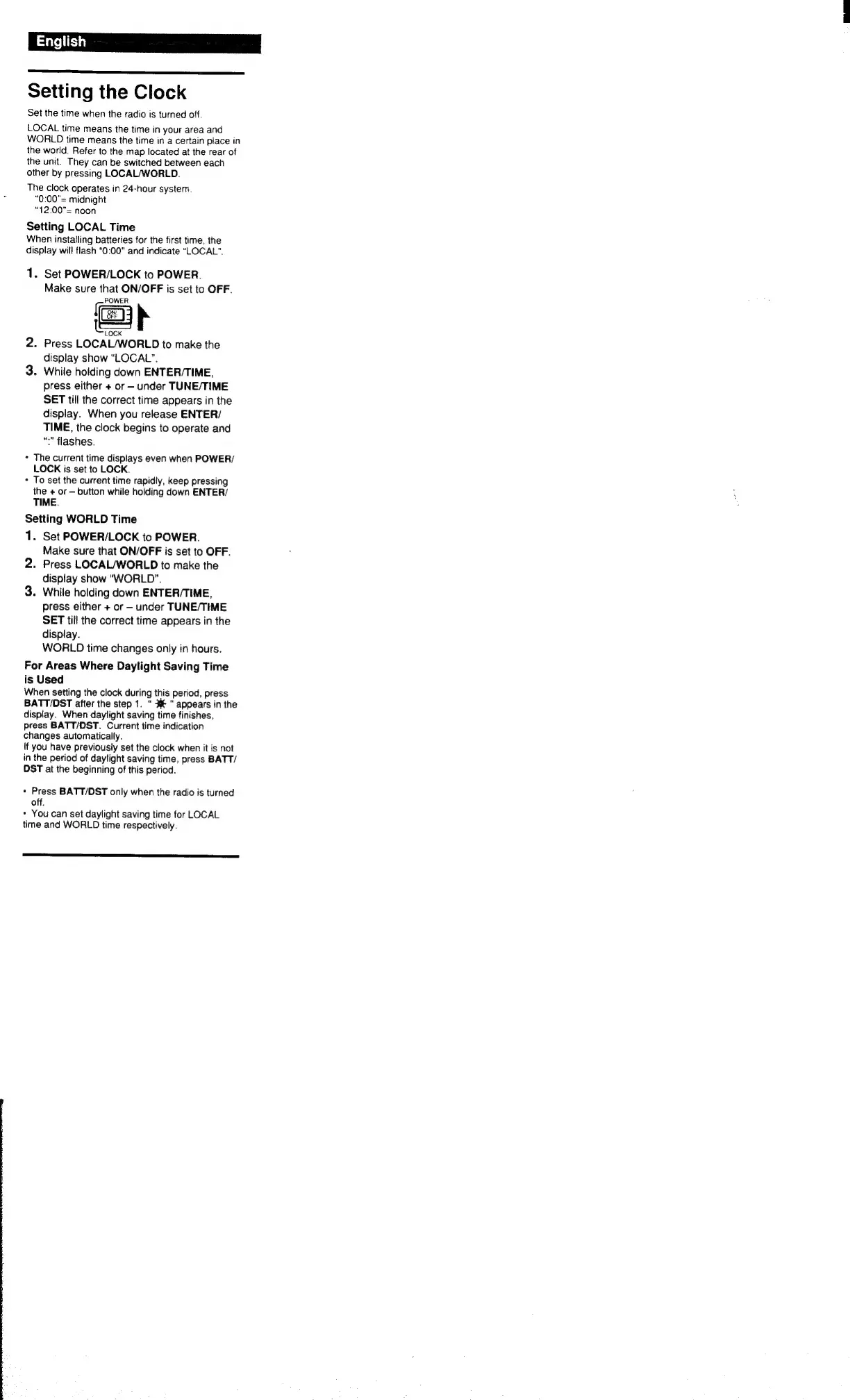
Setting
the
Clock
Set
the
time
when
the
radio
is
turned
off.
LOCAL
time
means
the
time
in
your
area
and
WORLD
time
means
the
time
in
a
certain
place
in
the
world.
Refer
to
the
map
located
at
the
rear
of
the
unit.
They
can
be
switched
between
each
other
by
pressing
LOCAL/WORLD.
The
clock
operates
in
24-hour
system.
“0:00"=
midnight
“12:00"=
noon
Setting
LOCAL
Time
When
installing
batteries
for
the
first
time,
the
display
will
flash
“0:00"
and
indicate
“LOCAL”.
1.
Set
POWER/LOCK
to
POWER.
Make
sure
that
ON/OFF
is
set
to
OFF.
POWER
ie
ee
—_
LOCK
.
Press
LOCAL/WORLD
to
make
the
display
show
“LOCAL”.
While
holding
down
ENTER/TIME,
press
either
+
or
under
TUNE/TIME
SET
till
the
correct
time
appears
in
the
display.
When
you
release
ENTER/
TIME,
the
clock
begins
to
operate
and
“”
flashes.
+
The
current
time
displays
even
when
POWER/
LOCK
is
set
to
LOCK.
+
To
set
the
current
time
rapidly,
keep
pressing
the
+
or
button
while
holding
down
ENTER/
TIME.
Setting
WORLD
Time
1.
Set
POWER/LOCK
to
POWER.
Make
sure
that
ON/OFF
is
set
to
OFF.
2.
Press
LOCAL/WORLD
to
make
the
display
show
“WORLD”.
3.
While
holding
down
ENTER/TIME,
press
either
+
or
under
TUNE/TIME
SET
till
the
correct
time
appears
in
the
display.
WORLD
time
changes
only
in
hours.
For
Areas
Where
Daylight
Saving
Time
is
Used
When
setting
the
clock
during
this
period,
press
BATT/DST
after
the
step
1.
#€
"
appears
in
the
display.
When
daylight
saving
time
finishes,
press
BATT/DST.
Current
time
indication
changes
automatically.
If
you
have
previously
set
the
clock
when
it
is
not
in
the
period
of
daylight
saving
time,
press
BATT/
DST
at
the
beginning
of
this
period.
o
nN
+
Press
BATT/DST
only
when
the
radio
is
turned
off.
»
You
can
set
daylight
saving
time
for
LOCAL
time
and
WORLD
time
respectively.

Related product manuals