Help Guide
print.html[3/31/2021 7:15:59 AM]
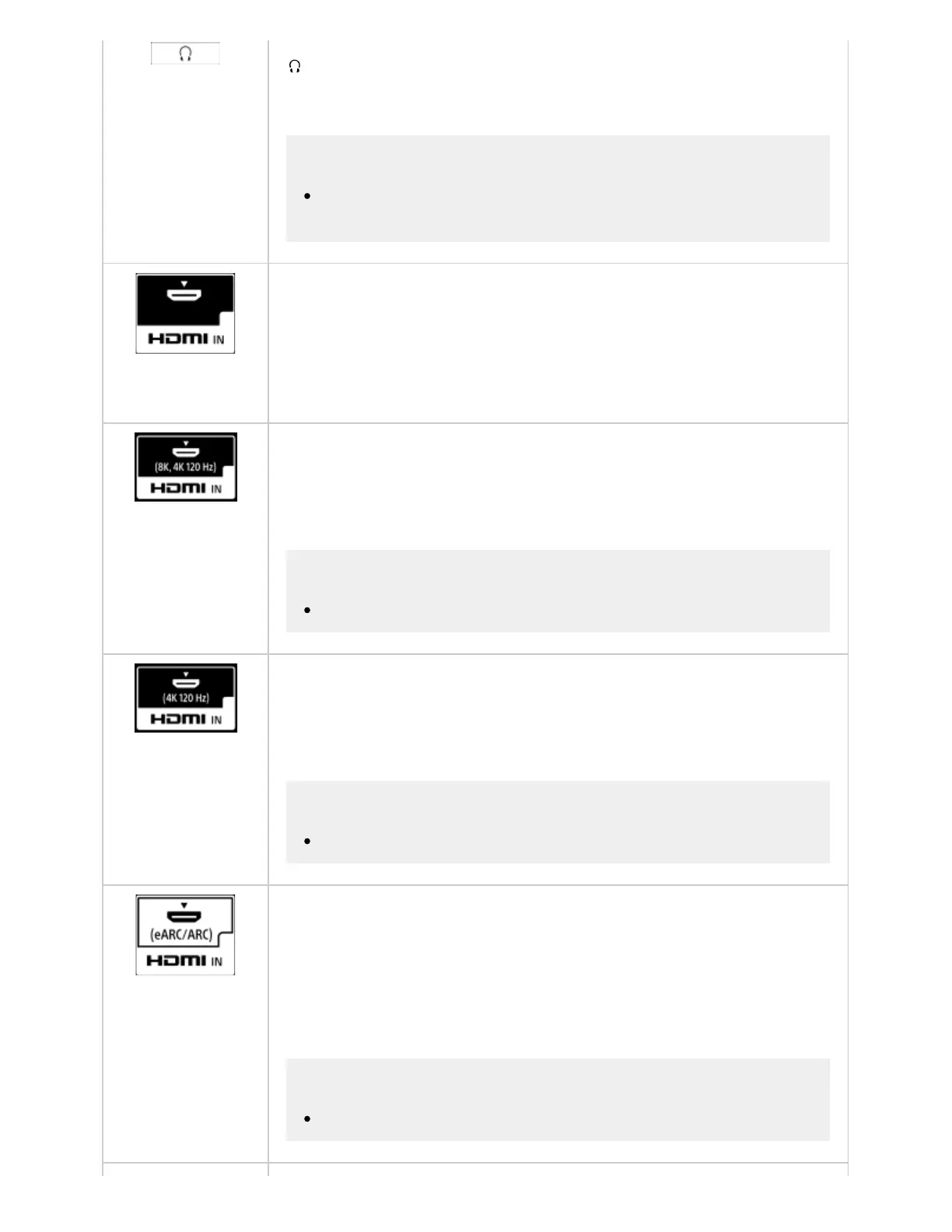
(Headphone)
Connects to the headphone jack to listen to sound from the TV. Supports 3-pole stereo
mini jack only.
Note
You cannot output sound from both the headphone and the TV speakers at the
same time.
HDMI IN
Connects to the HDMI device. The HDMI interface can transfer the digital video and
audio on a single cable. To enjoy high quality 4K contents, connect a Premium High
Speed HDMI Cable(s) and follow the instructions displayed on the screen to set the
[HDMI signal format] of the HDMI IN port.
HDMI IN (8K, 4K 120 Hz)
If you use an HDMI device that supports video output in 8K or 4K 100/120 Hz, connect
the Ultra High Speed HDMI Cable, and follow the instructions displayed on the screen
to set the [HDMI signal format] of the HDMI IN port.
Note
4K 100 Hz support depends on your country/region.
HDMI IN (4K 120 Hz)
If you use an HDMI device that supports video output in 4K 100/120 Hz, connect the
Ultra High Speed HDMI Cable, and follow the instructions displayed on the screen to
set the [HDMI signal format] of the HDMI IN port.
Note
4K 100 Hz support depends on your country/region.
HDMI IN (eARC/ARC)
To connect an audio system that supports eARC (Enhanced Audio Return Channel) or
ARC (Audio Return Channel), connect to the HDMI port labeled “eARC/ARC” on the
TV. It is a feature that sends audio to an audio system that supports eARC/ARC
through an HDMI cable. If the audio system does not support eARC/ARC, you need to
connect with DIGITAL AUDIO OUT (OPTICAL).
Note
When connecting with eARC, use an HDMI cable with Ethernet.
™
™
™


 To Next Page