21
Menu Adjustment
Sony KV-DA29M90 Group E6 (GB, CT, CS)_2-515-454-11 (1)
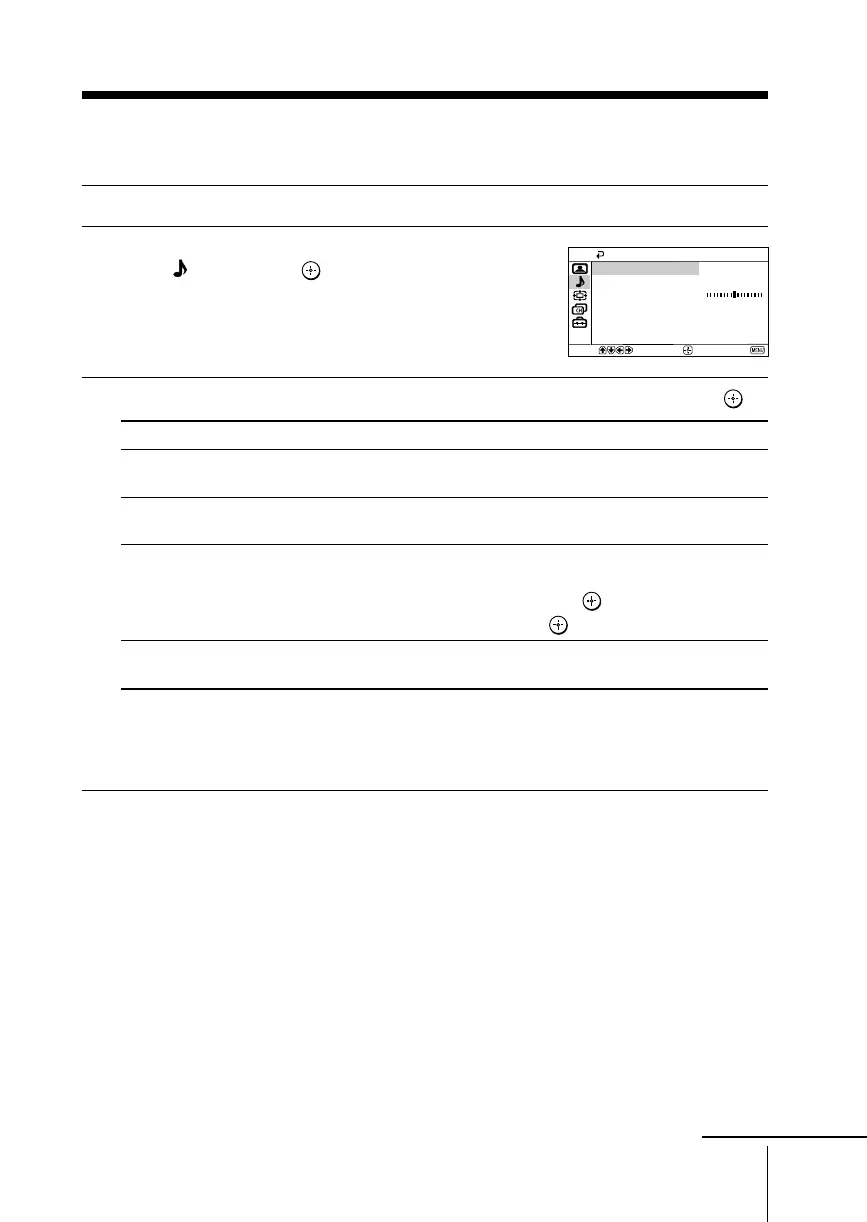
x Changing the “Sound” setting
The “Sound” menu allows you to adjust the sound settings.
1
Press MENU.
2
Press V or v to select the “Sound”
icon (
), then press .
3
Press V or v to select the desired item (e.g., “Sound Mode”), then press .
Select To
“Sound Mode” choose either “Dynamic”, “Drama”, “Soft” or “Personal”*
(see page 12).
“Balance” Press v or B to emphasize the left speaker.
Press V or b to emphasize the right speaker.
“Intelligent Volume” adjust the volume of all program numbers and video inputs
automatically.
Press V or v to select “On”, then press .
To cancel, select “Off”, then press .
“Surround” choose either “TruSurround”, “WOW”**, “Simulated” or “Off”
(see page 11).
*You can adjust the setting to your personal preference in the “Sound Adjustment”
option only when the “Personal” mode is selected (see page 22).
** BBE High Definition Sound is fully activated maximizing the sound effect in the WOW
mode.
Note
• “Intelligent Volume” is not selectable when “TruSurround” is selected.
Select
End
Sound
Balance
Sound Adjustment
Sound Mode: Dynamic
Off
Off
Confirm
Intelligent Volume:
Surround:
continue





 To Next Page