23
Menu Adjustment
Sony KV-DA29M90 Group E6 (GB, CT, CS)_2-515-454-11 (1)
x Changing the “Wide Screen” setting
The “Wide Screen” menu allows you to view the picture with optimal effect
when receiving wide-mode (16:9) picture signal.
1
Press MENU.
2
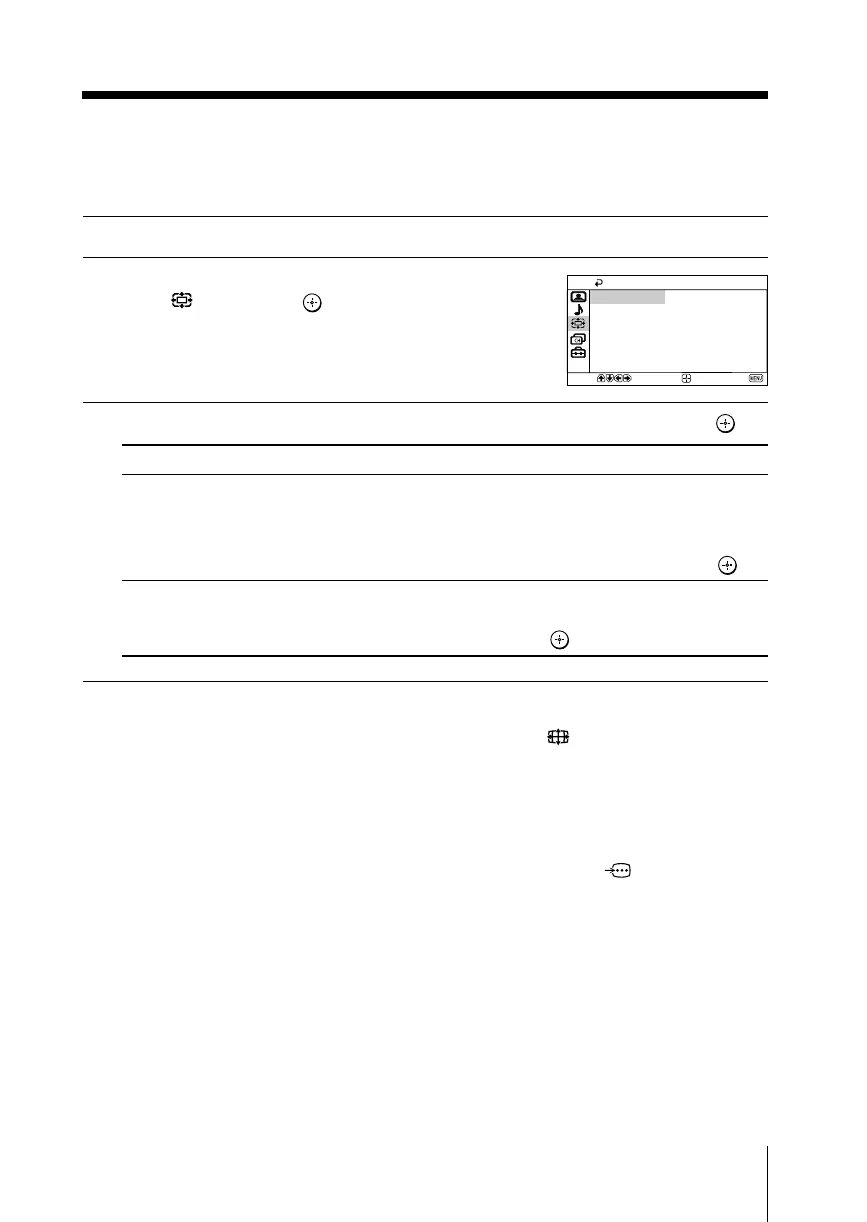
Press V or v to select the “Wide Screen”
icon ( ), then press .
3
Press V or v to select the desired item (e.g., “Wide Mode”), then press .
Select To
“Wide Mode” change the size of the picture when receiving wide-mode (16:9)
picture signal.
Choose “16:9”.
To restore the normal picture size, select “4:3”, then press .
“Auto Wide” display the picture in optimum wide screen automatically
when you choose “On”.
To cancel, select “Off”, then press
.
Tip
•You can also change to wide-mode picture size by pressing the button on the remote
control (see page 10).
Notes
•“Wide Mode” is not selectable for HD (1080i, 720p) input signals. For HD (1080i, 720p) input
signals, your TV will always display wide mode picture.
• “Auto Wide” is only available when receiving 576i, 480p and 480i input signals and does not
function when receiving signals through G/B/R/HD/VD terminals of
2 (component
video input 2).
Select
End
Wide Screen
Auto Wide :
Wide Mode:
On
4:3
Confirm



 To Next Page