masterpage:Left
filename[D:\MVC-CD1000 kaihan\3062473121\3062473121MVCCD1000UC\02GB-
MVCCD1000UC\05bas.fm]
36
model name1[MVC-CD1000]
[3-062-473-12(1)]
2
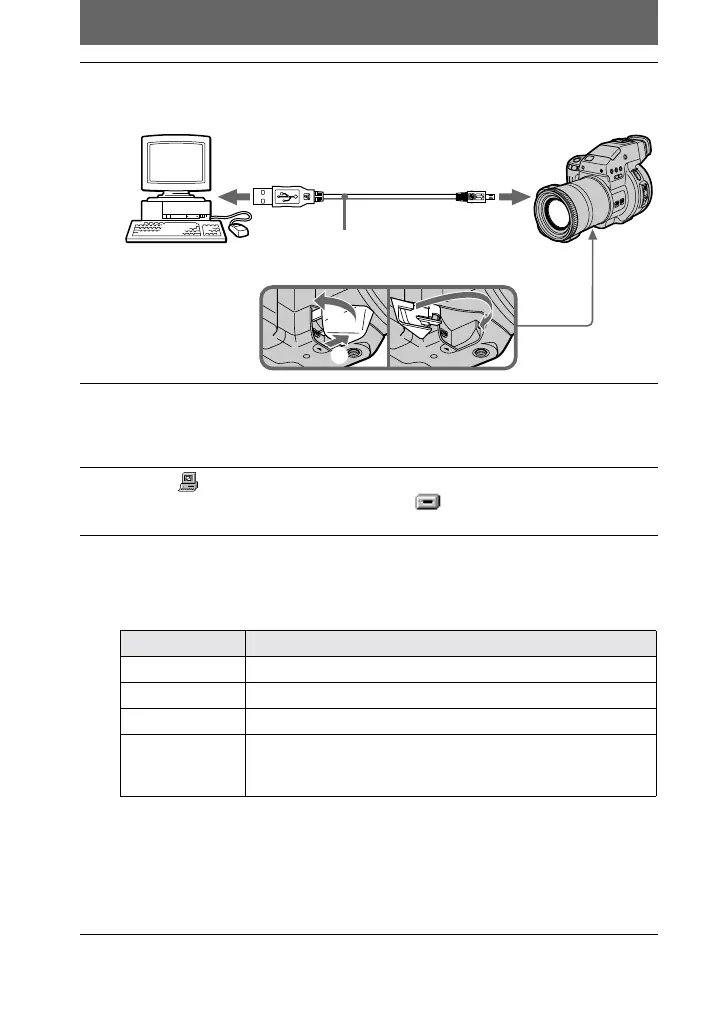
Connect the DIGITAL I/O jack on your camera with the USB
connector on your personal computer using the supplied USB
cable.
3
Insert a disc into your camera, connect the AC power adaptor to
your camera and then to a wall outlet (mains), and turn on the
power of your camera.
“PC MODE” appears on the LCD screen or on the viewfinder of the camera.
4
Open [ My Computer] on Windows 98 and double click the
newly recognized drive. (Example: [ Removable Disk (D:)])
The folders inside the disc are displayed.
5
Select and double-click the desired image/sound file from the
folder.
For the detailed folder and file name, see “Image file storage destinations and
image file names” (page 39).
∗ Copying a file to the hard disk of your personal computer before viewing is
recommended. If you play back the file directly from the “disc,” the image and sound
may break off.
∗∗When these file names are described in capital letters to distinguish the small letter “l”
and the number “1,” these are shown as follows: 100MSDCF, MOML0001,
MOMLV100, IMCIF100.
1
2
to the USB connector
Personal computer
USB
cable
to the DIGITAL I/O jack
Push in until the
plug clicks into
place
Desired file type Double-click in this folder
Still image “Dcim” folder t “100msdcf” folder** t
Image file
Moving image*
“Mssony” folder
t
“Moml0001” folder**
t
Image file
Audio*
“Mssony” folder
t
“Momlv100” folder**
t
Audio file
E-mail image
Tiff image
(uncompressed)
“Mssony” folder
t
“Imcif100” folder**
t
Image file
01cov.book Page 36 Wednesday, July 19, 2000 10:33 AM



 To Next Page
 Loading...