95
Editing with another VCR
filename[010addo.fm] model name1[SLV-N81] model name2[SLV-N71]
[3-065-551-11 (1)]
Additional Operations
Operation (when recording on this VCR)
To stop editing
Press the x STOP buttons on both VCRs.
Tip
• To cut out unwanted scenes while editing, press X PAUSE on this VCR when an unwanted
scene begins. When it ends, press X PAUSE again to resume recording.
Note
• If you start recording following the procedure above, the VCR won’t start recording with the
APC function. To record a tape with the APC function, press z REC again during recording
pause in step 3 so that the VCR analyzes the tape. Then, press X PAUSE after the APC
indicator stops flashing to start recording. If you press X PAUSE before
the APC indicator
stops flashing, the APC function is canceled.
Before you start editing
• TurnonyourTVandsetittothe
video channel.
• Press INPUT SELECT or
CHANNEL +/– to display “L2” (or
“L1”) in the display window.
• Press SP/EP to select the tape speed,
SP or EP.
1
Insert a source tape with its safety tab removed into the other (playback) VCR.
Search for the point to start playback and set it to playback pause.
2
Insert a tape into this (recording) VCR. Search for the point to start recording
and press X PAUSE.
3
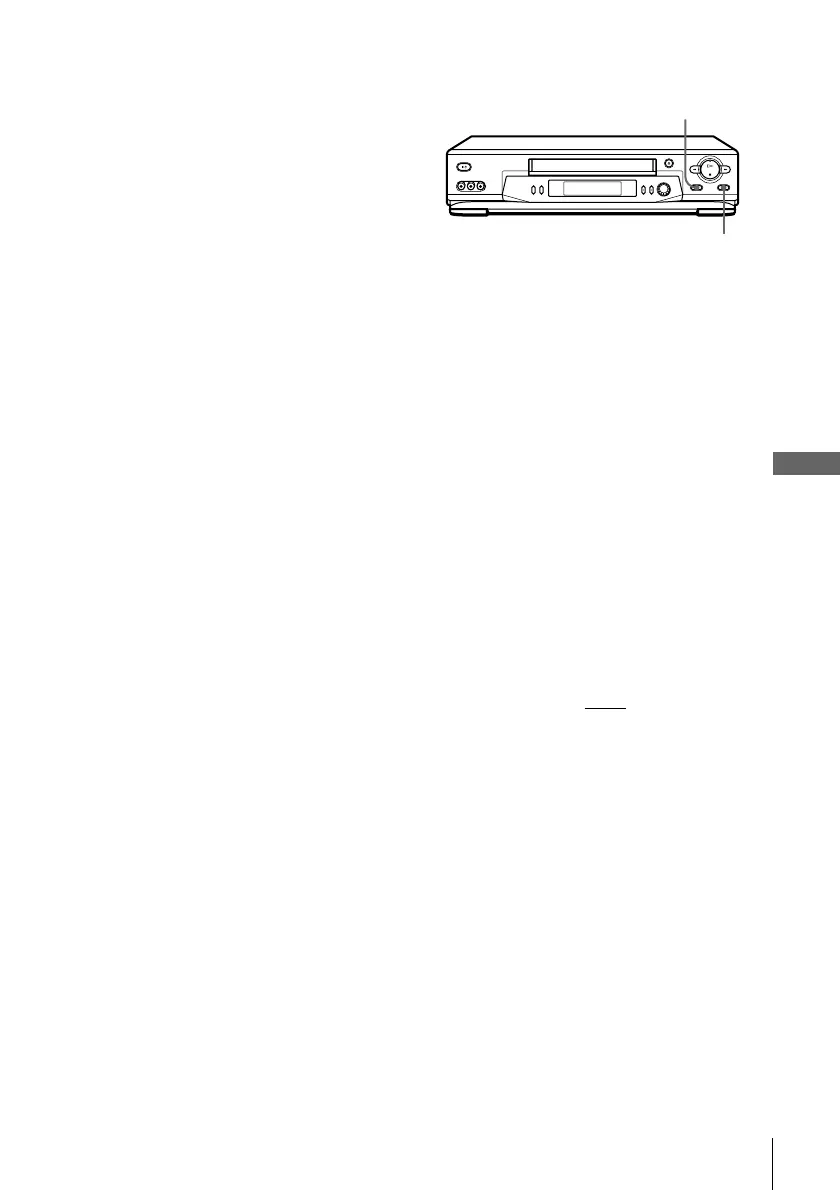
Press z REC on this VCR to set it to recording pause.
4
To start editing, press the X PAUSE buttons on both VCRs at the same time.
z REC
X PAUSE



 To Next Page