The wireless connection status is displayed in the status bar. See Details.
For more technical notes, see Details.
Case B: A WPS-compatible Wi-Fi router with PIN input
If your WPS-compatible Wi-Fi router does not support push-button configuration, connect by
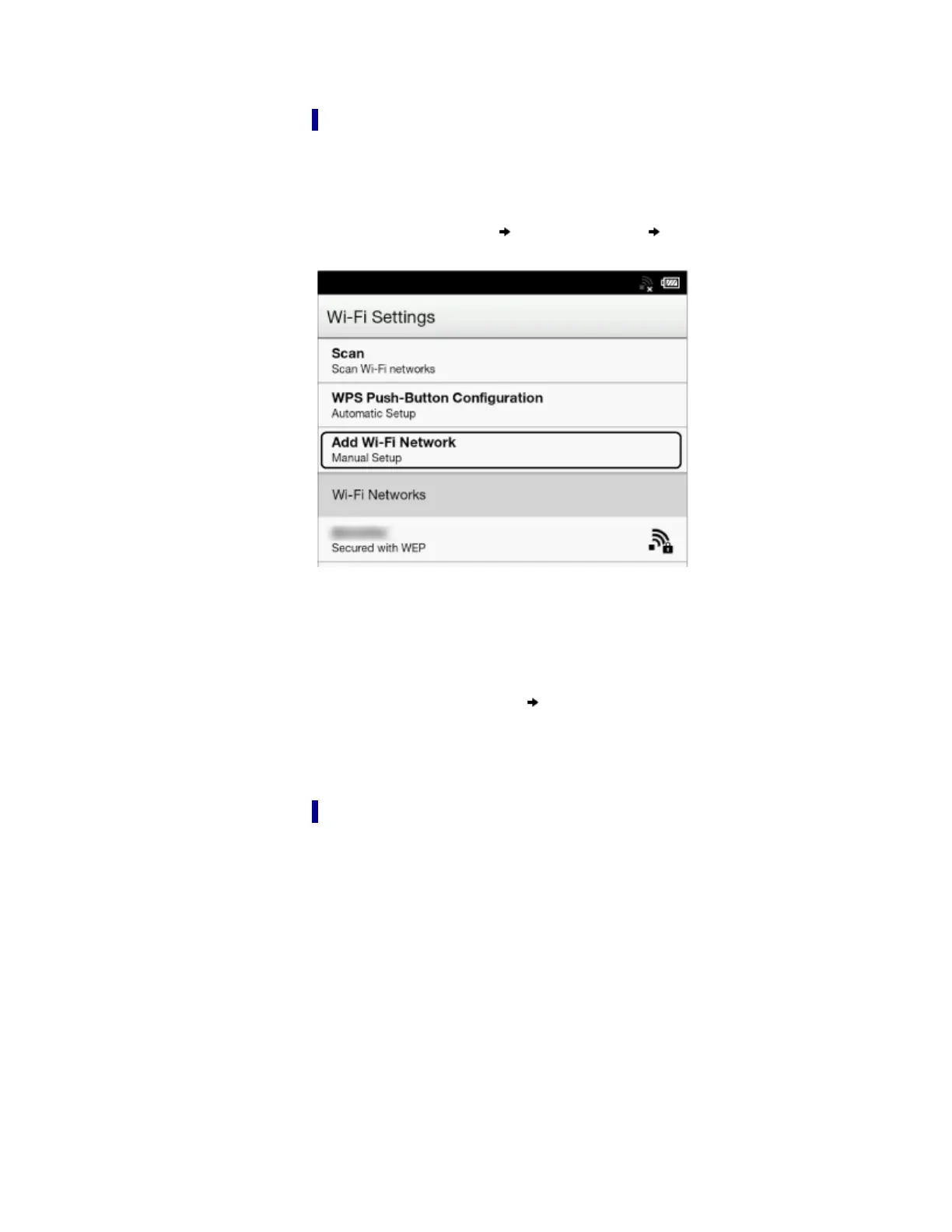
using a PIN (Personal Identification Number). Make sure to turn on [Wi-Fi] and tap [Wi-Fi
Settings] on the [Wireless Network Settings] screen. Alternatively, you can turn on [Wi-Fi] by
tapping the status bar and tapping [Wi-Fi Settings].
1. Tap [Add Wi-Fi Network]
[WPS PIN Method] [Start ].
A PIN will be shown on the screen of the Reader.
Enter the PIN into your Wi-Fi router. Refer to your Wi-Fi router’s instruction manual for
further details.
2. After entering the PIN, tap [OK] on the Reader. Your Wi-Fi router’s SSID (Service Set
Identifier) is displayed in the [Wi-Fi Networks] list on the [Wi-Fi Settings] screen.
3. Tap your Wi-Fi router’s SSID
[Connect].
The Reader connects to the wireless network.
The wireless connection status is displayed in the status bar. See Details.
For more technical notes, see Details.
Case C: Connecting to a Wi-Fi router without WPS support
Make sure to turn on [Wi-Fi] and tap [Wi-Fi Settings] on the [Wireless Network Settings] screen.
Alternatively, you can turn on [Wi-Fi] by tapping the status bar and tapping [Wi-Fi Settings].
1. Tap [Scan].
The available access points are listed under [Wi-Fi Networks].






 To Next Page