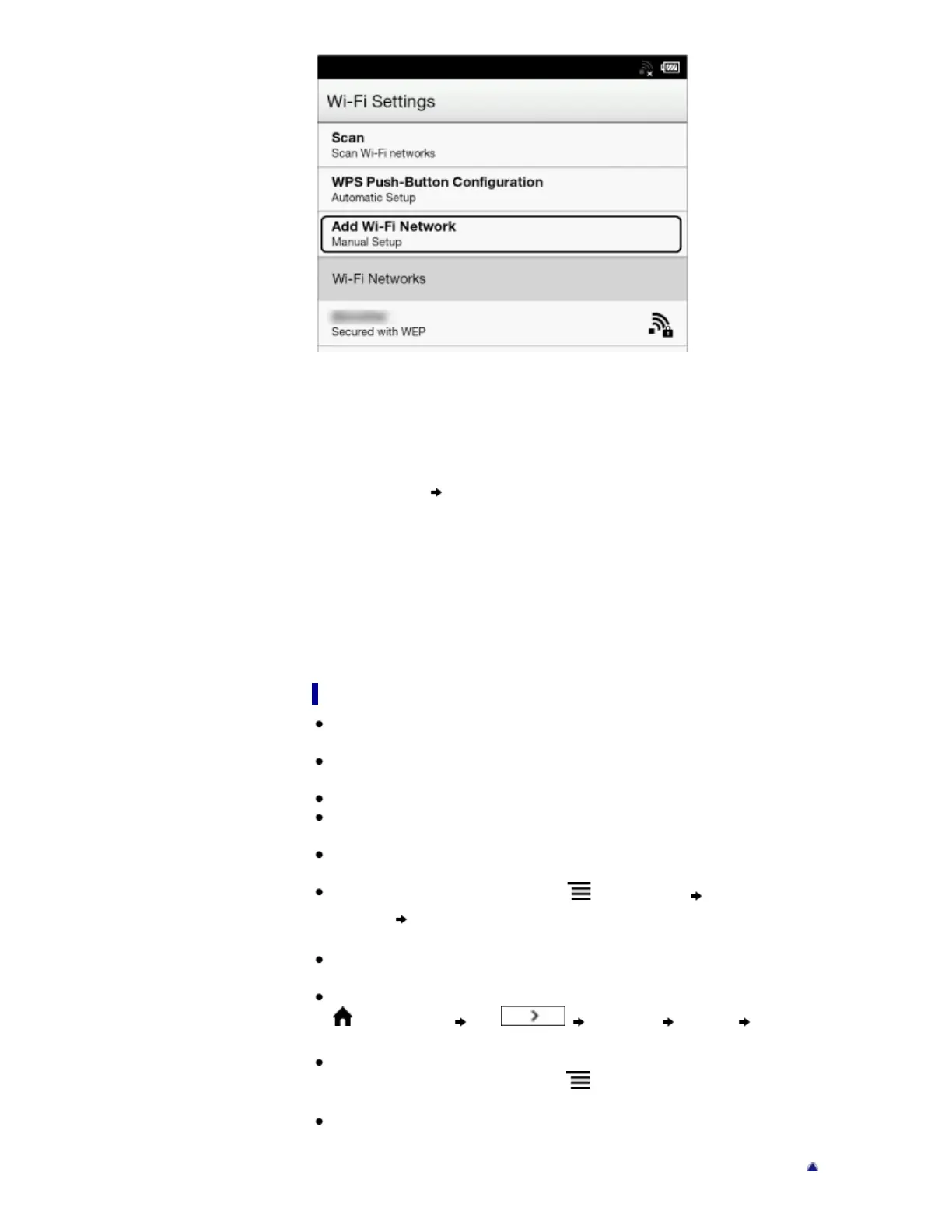
2. Tap [Manual Registration].
3. Tap the [SSID] input area and type in using the on-screen keyboard.
4. Tap the [Security Method] menu (the default value is [Open]), and then tap the supported
security type.
5. Tap the [Password] input area and type in your password using the on-screen keyboard, and
then tap [OK] [Save].
6. Tap the saved network SSID in the [Wi-Fi Networks] list on the [Wi-Fi Settings] screen.
7. If prompted for a password, tap the input area and type in the password using the on-screen
keyboard.
8. Tap [Connect].
The Reader connects to the Wi-Fi network.
The Wi-Fi connection status is displayed in the status bar. See Details.
For more technical notes, see Details.
General notes on Wi-Fi connectivity
Tap and hold a network SSID in the [Wi-Fi Networks] list to display the access point’s status
and related information.
Before connecting to a wireless network, check all requirements, user name and/or password
details with the internet/Wi-Fi service provider.
You can configure up to 20 Wi-Fi network connections.
The Reader does not support certain custom Wi-Fi network security systems. For details,
contact the internet/Wi-Fi service provider.
If you edit the password of a Wi-Fi network to which you are currently connected, the Reader
will attempt to reconnect to the Wi-Fi network using the new password.
To use a static IP address, press the
(Menu) button tap [Advanced] in the [Wi-Fi
Settings]
tap [Use Static IP]. Do not change this setting unless instructed to by a network
administrator, as the Wi-Fi network connection may not be established correctly.
If an access point’s SSID (Service Set Identifier) is private, enter Wi-Fi connection information
manually.
The access point may filter access by MAC address. Check the MAC address by pressing the
(Home) button tap [Settings] [About] [Device Information],
then register the MAC address with the access point to establish a Wi-Fi connection.
When you are connected to a Wi-Fi network, you can also display speed, security and other
Wi-Fi network details by pressing the
(Menu) button and tapping [Connection Information]
in the [Wi-Fi Settings] screen.
An access point, once configured, can be connected to again simply by tapping it in the [Wi-Fi
Networks] list and tapping [Connect].








 To Next Page