EasyManua.ls Logo

Sony SLV-495 - Recording TV Programs Using the Quick Timer; Checking;Chaging;Canceling Timer Settings; Recording Stereo and Bilingual Programs

Sony SLV-495
61 pages
Print Icon
To Next Page IconTo Next Page
To Previous Page IconTo Previous Page
Loading...
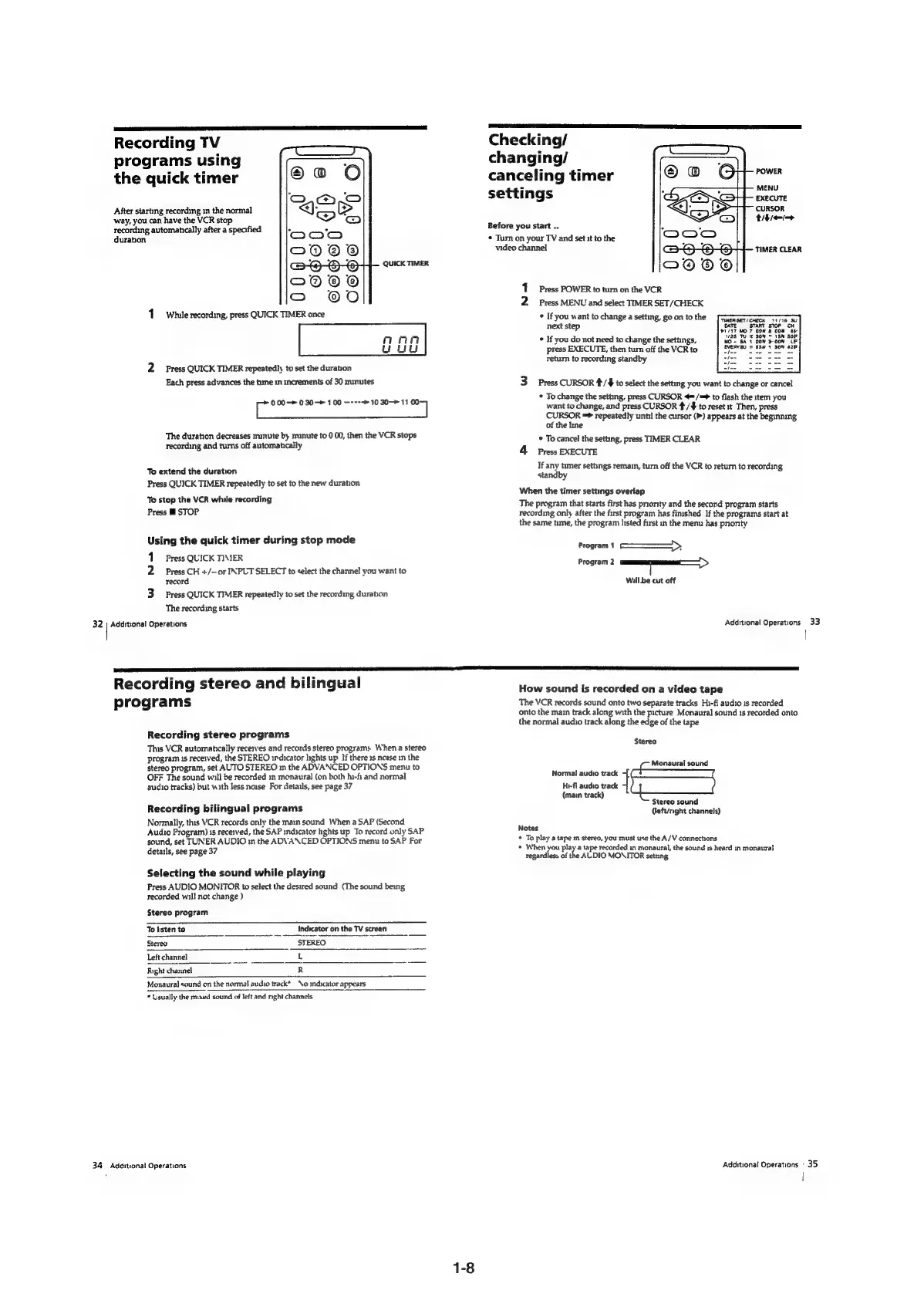
Recording
TV
programs
using
the
quick
timer
After
starting
recording
in
the
normal
way,
you
can
have
the
VCR
stop
recording
automahcally
after
a
specified
duration
QUICK
TIMER
1
While
recording,
press
QUICK
TIMER
once
ca
C3
ca
2
Press
QUICK
TIMER
repeatedly
to
set
the
duration
Each
press
advances
the
time
in
increments
of
30
munutes
Pee
00
—----
10
30>
11
“7
The
duration
decreases
minute
by
munute
to
0
00,
then
the
VCR
stops
recording
and
turns
off
automatically
To
extend
the
duration
Press
QUICK
TIMER
repeatedly
to
set
to
the
new
duration
To
stop
the
VCR
while
recording
Press
™@
STOP
Using
the
quick
timer
during
stop
mode
1
Press
QUICK
TIMER
2
Press
CH
+/-or
INPUT
SELECT
to
<elect
the
channel
you
want
to
record
3
Press
QUICK
TIMER
repeatedly
to
set
the
recording
duration
The
recording
starts
32
|
Additional
Operations
Checking/
changing/
canceling
timer
settings
POWER
MENU
EXECUTE
CURSOR
thier
Before
you
start
..
«
Tum
on
your
TV
and
set
it
to
the
video
channel
TIMER
CLEAR
1
Press
POWER
to
turn
on
the
VCR
2
Press
MENU
and
select
TIMER
SET/CHECK
*
If
you
want
to
change
a
setting,
goontothe
[Fugnesriomec
ine
oo
next
step
DATE
"START
STOP
CH
bis17
MO?
COW
6
COM
6S
*
If
you
do
not
need
to
change
the
settings,
WOo
EAT
OOM
3-00N
LE
press
EXECUTE,
then
turn
off
the
VCR
to
return
to
recording
standby
EVERYSY
11
S5w
1
390%
425
3
Press
CURSOR
*/#
to
select
the
settmg
you
want
to
change
or
cancel
*
To
change
the
setting,
press
CURSOR
¢*/**
to
flash
the
item
you
want
to
change,
and
press
CURSOR
4/$
to
reset
st
Then,
press
CoRR
=>
repeatedly
unt:
the
cursor
(P)
appears
at
the
beginning
of
the
hne
*
To
cancel
the
setting,
press
TIMER
CLEAR
4
Press
EXECUTE
If
any
timer
settings
remam,
turn
off
the
VCR
to
return
to
recording
standby
When
the
timer
settings
overlap
The
program
that
starts
first
has
pnonty
and
the
second
program
starts
recording
only
after
the
first
program
has
fimshed
If
the
programs
start
at
the
same
time,
the
program
hsted
first
in
the
menu
has
prionty
Program
1
S———
>
Program
2
Will.be
cut
off
Additonal
Operations
33
|
el
Recording
stereo
and
bilingual
programs
Recording
stereo
programs
This
VCR
automatically
receives
and
records
stereo
programs
When
a
stereo
program
1s
received,
the
STEREO
indicator
lights
up
If
there
1s
noise
in
the
stereo
program,
set
AUTO
STEREO
in
the
ADVANCED
OPTIONS
menu
to
OFF
The
sound
will
be
recorded
im
monaural
(on
both
hi-fi:
and
normal
audio
tracks)
but
with
less
noise
For
detatls,
see
page
37
Recording
bilingual
programs
Normally,
this
VCR
records
only
the
mam
sound
When
a
SAP
(Secand
Audio
Program)
1s
received,
the
SAP
indicator
hghts
up
To
record
only
SAP
sound,
set
TUNER
AUDIO
in
the
ADVANCED
OPTIONS
menu
to
SAP
For
detarls,
see
page
37
Selecting
the
sound
while
playing
Press
AUDIO
MONITOR
to
select
the
desired
sound
(The
sound
being
recorded
will
not
change
)
Stereo
program
To
listen
to
Indicator
on
the
TV
screen
Stereo
STEREO
~
;
Left
channel
~
L
Right
channel
~
“R
Monaural
sound
on
the
normal
audio
track*
No
indicator
appears
*
Usually
the
mixed
sound
of
left
and
nght
channels
y
8
34
Additional
Operations
How
sound
is
recorded
on
a
video
tape
The
VCR
records
sound
onto
two
separate
tracks
Hi-fi
audio
is
recorded
onto
the
main
track
along
with
the
picture
Monaural
sound
1s
recorded
onto
the
normal
audio
track
along
the
edge
of
the
tape
Stereo
Monaural
sound
Normal
audio
track
i
Hi-fi
audio
track
(main
track)
Stereo
sound
(left/right
channels)
Notes
*
To
play
a
tape
m
stereo,
you
must
use
the
A/V
connections
«
When
you
play
a
tape
recorded
in
monaural,
the
sound
1s
heard
in
monaural
regardless
of
the
AUDIO
MONITOR
setting
Additional
Operations
|
35
|

Table of Contents