EasyManua.ls Logo

Sony SLV-495 - Changing Menu Options; Editing with Another VCR. -++-::-Csecsseesccecererecesetevssveveesensessesenee

Sony SLV-495
61 pages
Print Icon
To Next Page IconTo Next Page
To Previous Page IconTo Previous Page
Loading...
YA
ELE
I
ET
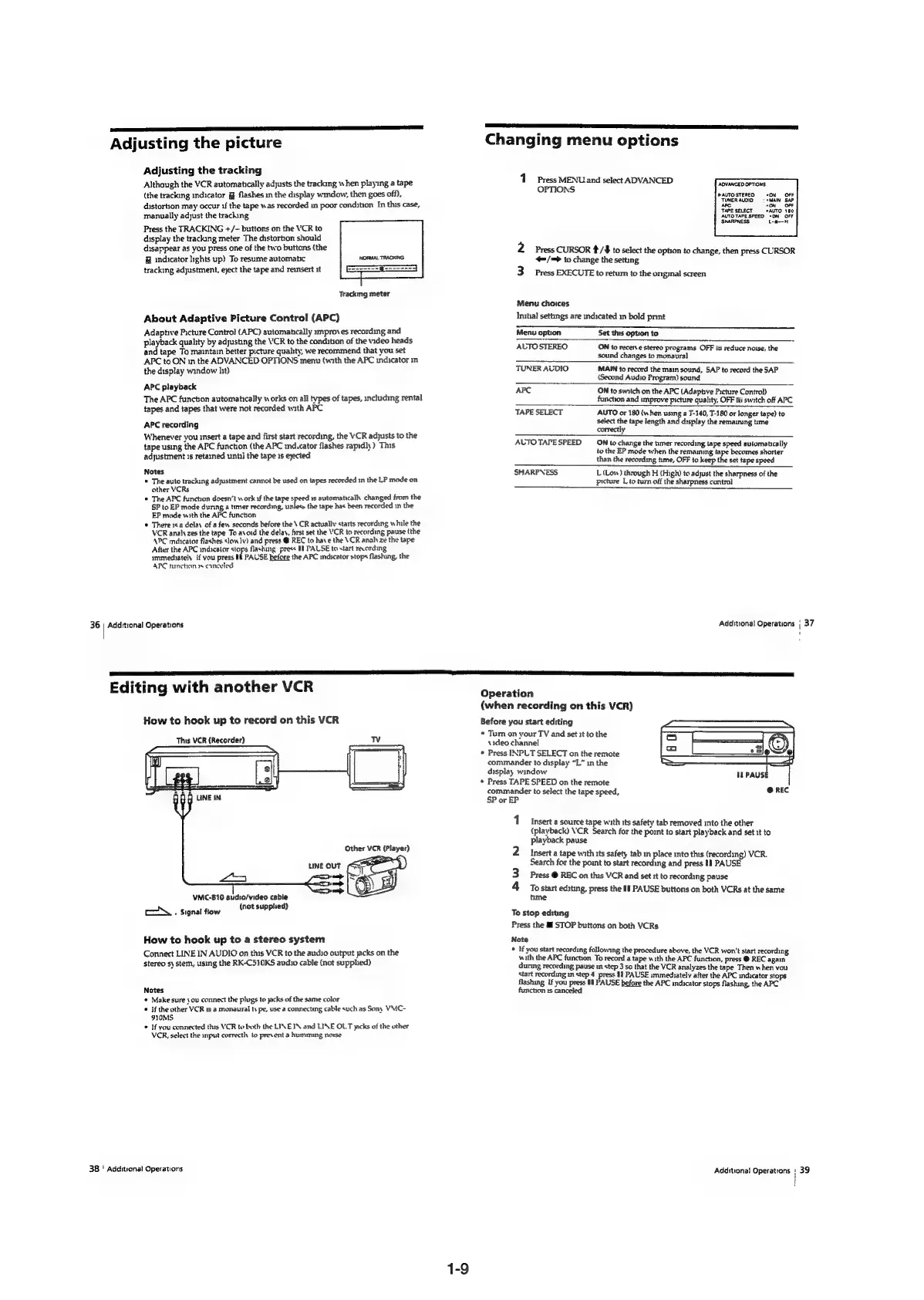
Adjusting
the
picture
Adjusting
the
tracking
Although
the
VCR
automatically
adjusts
the
tracking
when
playing
a
tape
(the
tracking
indicator
%
flashes
in
the
display
window,
then
goes
off),
distortion
may
occur
if
the
tape
was
recorded
in
poor
condition
In
this
case,
manually
adjust
the
tracking
Press
the
TRACKING
+/-
buttons
on
the
VCR
to
display
the
tracking
meter
The
distortion
should
disappear
as
you
press
one
of
the
two
buttons
(the
indicator
lights
up)
To
resume
automatic
tracking
adjustment,
eject
the
tape
and
reinsert
it
NORMAL
TRACKING.
==------=
s----===5
Tracking
meter
About
Adaptive
Picture
Control
(APC)
Adaptive
Picture
Control
(APC)
automancally
improv
es
recording
and
playback
quality
by
adyusting
the
VCR
to
the
condition
of
the
video
heads
and
tape
To
maintain
better
picture
quahty,
we
recommend
that
you
set
APC
to
ON
in
the
ADVANCED
OPTIONS
menv
(with
the
APC
indicator
in
the
display
window
hit)
APC
playback
The
APC
function
automatically
»
orks
on
all
types
of
tapes,
including
rental
tapes
and
tapes
that
were
not
recorded
with
APC
APC
recording
Whenever
you
insert
a
tape
and
first
start
recording,
the
VCR
adjusts
to
the
tape
using
the
APC
function
(the
APC
md.cator
flashes
rapidly)
This
adjustment
1s
retained
unt]
the
tape
1s
ejected
Notes
©
The
auto
tracking
adjustment
cannot
be
used
on
tapes
recorded
in
the
LP
mode
on
other
VCRs
©
The
APC
function
doesn’t
work
if
the
tape
speed
1s
automatically
changed
from
the
SP
to
EP
mode
during
a
timer
recording,
unless
the
tape
has
been
recorded
in
the
EP
mode
with
the
APC
function
*
There
1s.
a
delay
of
a
few
seconds
before
the
\
CR
actually
starts
recording
while
the
VCR
analy
zes
the
tape
To
avoid
the
delay,
first
set
the
VCR
to
recording
pause
(the
APC
mdhcatar
flashes
slow
lv)
and
press
@
REC
to
have
the
VCR
analy
ze
the
tape
After
the
APC
indicator
stops
flashing,
pres
Il
PALSE
to
start
recording
immediately
If
vou
press
fl
PAUSE
before
the
APC
mdicator
stops
flashing,
the
APC
ninchon
1s
canceled
36
|
Additional
Operations
SAA
Se
EES
I 4
rT
a
5
5,
8
Rc
PTS
Changing
menu
options
1
Press
MENU
and
select
ADVANCED
OPTIONS
ADVANCED
OPTIONS:
PAUTOSTEREO
ON
OFF
TUNER
AUDIO.
=
«MAIN
SAP
APC
OFF
‘TAPE
SELECT
AUTOTAPE
SPEED
*ON
OFF
SHARPNESS.
L-a--H
+0N
AUTO
180
Press
CURSOR
#/¥
to
select
the
option
to
change,
then
press
CURSOR
=/=>
to
change
the
setting
Press
EXECUTE
to
return
to
the
original
screen
Menu
choices
Inthal
settings
are
indicated
in
bold
pnnt
Editing
with
another
VCR
How
to
hook
up
to
record
on
this
VCR
This
VCR
(Recorder)
TV
LINE
IN
LINE
OUT
A
>
=>
VMC-810
audio/video
cable
oh
Signal
flow
(not
supplied)
How
to
hook
up
to
a
stereo
system
Connect
LINE
IN
AUDIO
on
this
VCR
to
the
audio
output
jacks
on
the
stereo
sy
stem,
using
the
RK-C510KS
audio
cable
(not
supphed)
Notes
¢
Make
sure
you
connect
the
plugs
to
jacks
of
the
same
color
©
If
the
other
VCR
1s
a
monaural
ts
pe,
use
a
connecting
cable
such
as
Sony
VMC-
910MS
©
If
you
connected
this
VCR
to
both
the
LINE
IN
and
LINE
OLT
jacks
of
the
other
VCR,
select
the
nput
correctly
to
prevent
a
humming
nove
38
|
Additional
Operations
Menu
option
Set
this
option
to
ALTO
STEREO
ON
to
receive
stereo
programs
OFF
to
reduce
noise,
the
>
sound
changes
to
monaural
TUNER AUDIO
MAIN
to
record
the
main
sound,
SAP
to
record
the
SAP
(Second
Audio
Program)
sound
APC
ON
to
suntch
on
the
APC
(Adaptive
Picture
Control)
function
and
improve
picture
quality,
OFF
to
switch
off
APC
TAPE
SELECT
AUTO
or
180
(when
using
a
T-140,
T-180
or
longer
tape)
to
select
the
tape
length
and
display
the
remaining
time
correctly
AUTOTAPESPEED
—ON
to
change
the
timer
recording
tape
speed
automatically
to
the
EP
mode
when
the
remaining
tape
becomes
shorter
than
the
recording
time,
OFF
to
keep
the
set
tape
speed
SHARPNESS
L
(Low)
through
H
(High)
to
adjust
the
sharpness
of
the
picture
L
to
turn
off
the
sharpness
control
Additronal
Operations
;
37
1
Operation
(when
recording
on
this
VCR)
Before
you
start
editing
*
Tum
on
your
TV
and
set
3t
to
the
video
channel
*
Press
INPUT
SELECT
on
the
remote
commander
to
display
“L”
in
the
display
window
*
Press
TAPE
SPEED
on
the
remote
commander
to
select
the
tape
speed,
SP
or
EP
Tt
pause
@
REC
1
Insert
a
source
tape
with
its
safety
tab
removed
into
the
other
(playback)
VCR
Search
for
the
pomt
to
start
playback
and
set
it
to
playback
pause
2
Inserta
tape
with
its
safety
tab
in
place
into
this
(recording)
VCR.
Search
for
the
point
to
start
recording
and
press
#1
PAUSE
3
Press
@
REC
on
this
VCR
and
set
st
to
recording
pause
4
Tostart
ednting,
press
the
I
PAUSE
buttons
on
both
VCRs
at
the
same
time
To
stop
editing
Press
the
li
STOP
buttons
on
both
VCRs
Note
*
If
you
start
recording
following
the
procedure
above,
the
VCR
won't
start
recording
with
the
APC
funchon
To
record
a
tape
with
the
APC
function,
press
@
REC
again
during
recording
pause
in
step
3
so
that
the
VCR
analyzes
the
tape
Then
when
vou
start
recording
in
step
4
press
41
PAUSE
immedhately
after
the
APC
mdicator
stops
flashing
If
you
press
Il
PAUSE
before
the
APC
indicator
stops
flashing,
the
APC
function
ts
canceled
Additional
Operations
|
39
i
I

Table of Contents