95
GB
Other Operations
5 Press V/v repeatedly to select
an input (DVD in the example)
you want to reassign.
6 Press .
7 Press V/v repeatedly to select
the input (SA-CD/CD in the
example) you want to assign as
the component video input
selected in step 5.
8 Press .
If an input is switched to “SA-CD/CD,”
the image from the DVD player will be a
component image.
The input you can assign varies for each
component video input. For details, see
the following “Assignable inputs for
component video input.”
Assignable inputs for
component video input
The initial setting is marked with an
underscore.
Notes
• You cannot reassign more than one component
video input to the same input.
• You cannot use the component video input as the
original input when it has been reassigned to
another input.
Changing the display
You can check the sound field, etc., by
changing the information on the display.
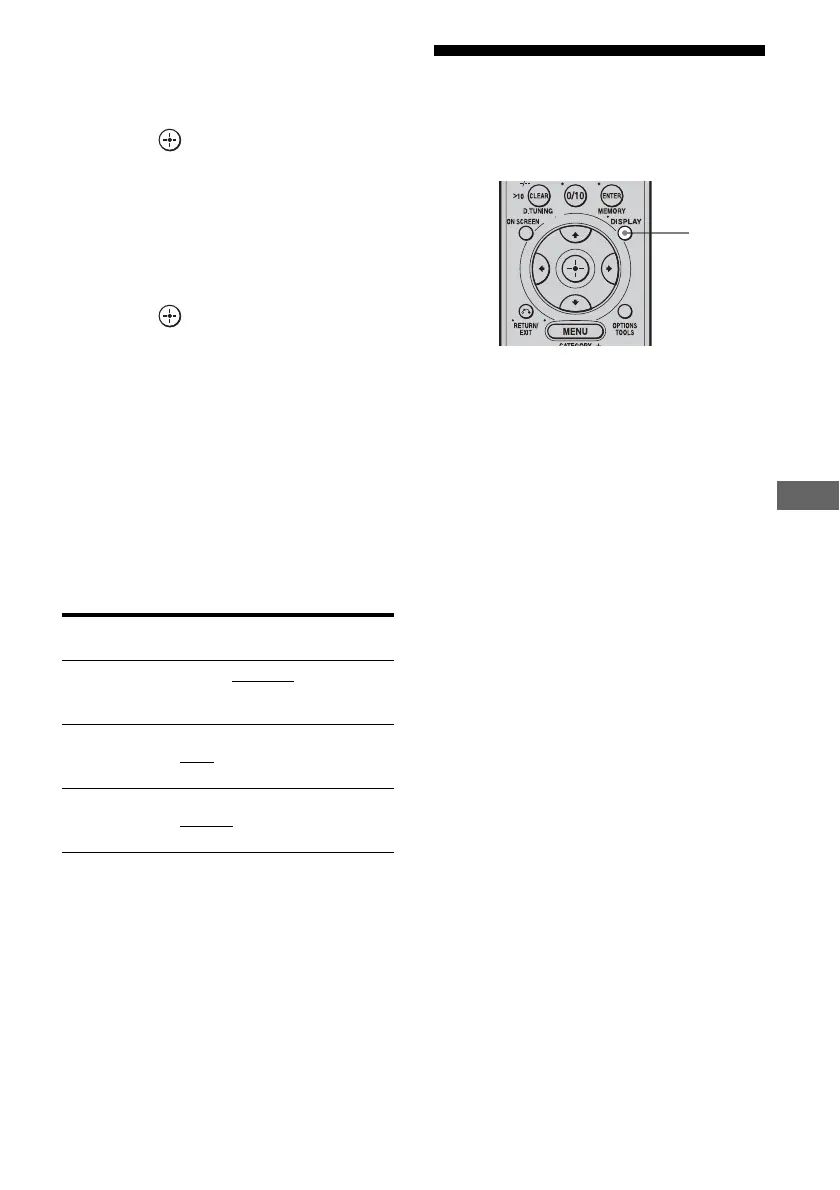
Press DISPLAY repeatedly.
Each time you press DISPLAY, the display
will change as follows.
Station name t Frequency t Sound field
type t Vo l u m e …
FM and AM band
Preset station name and sound field type* y
Frequency and sound field type
* Index name appears only when you have assigned
one to the input or preset station (page 82, 90).
Index name does not appear when only blank
spaces have been entered, or it is the same as the
input name.
Component
video input
Assignable inputs
VIDEO1 NONE, VIDEO 1
, VIDEO 2,
VIDEO 3, TAPE/CD-R,
MD/DAT, SA-CD/CD
DVD NONE, VIDEO 2, VIDEO 3,
DVD
, TAPE/CD-R, MD/DAT,
SA-CD/CD
TV/SAT NONE, VIDEO 2, VIDEO 3,
TV/SAT
, TAPE/CD-R, MD/DAT,
SA-CD/CD
DISPLAY


 To Next Page