51
US
Enjoying Sound Effects
1 Select “FM” or “AM” from the
menu, then press .
2 Select “Select Preset”, then press
.
3 Select the preset number which
you want to name, then press ,
then press OPTIONS.
4 Select “Name Input”, then press
.
5 Press V/v repeatedly to select a
character, then press b.
You can move the input position
backward and forward by pressing
B/b. You can enter a name up to 8
characters.
6 Repeat step 5 to input a character
one by one, then press .
The name you entered is registered.
Some letters that can be displayed on the TV
screen cannot be displayed on the display panel.
Selecting the sound
field
1 Select “Sound Effects” from the
home menu, then press .
2 Select “Sound Field”, then press
.
3 Select the sound field you want.
You can select the sound field you want by
pressing SOUND FIELD +/– repeatedly on the
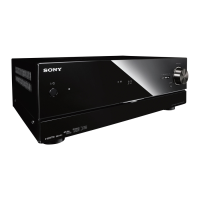
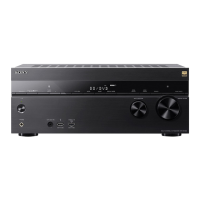
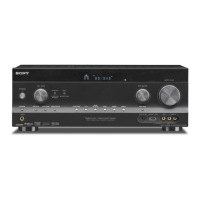
remote control. You can also use A.F.D./2CH,
Movie or Music on the receiver.
Auto Format Direct (A.F.D.) mode: This
mode allows you to listen to higher fidelity
sound and select the decoding mode for
listening to a 2 channel stereo sound as
multi channel sound.
2 channel sound mode: You can switch
the output sound to 2 channel sound
regardless of the recording formats of the
software you are using, the playback
equipment connected, or the sound field
settings of the receiver.
x A.F.D. Auto (A.F.D. AUTO)
Presets the sound as it was recorded/
encoded without adding any surround
effects.
However, for USA and Canada models,
this receiver will generate a low frequency
signal for output to the subwoofer when
there is no LFE signals.
Naming preset stations
(Name Input)
Note
Enjoying Sound Effects
Tip
Auto Format Direct
(A.F.D.)/2 channel sound
mode



 To Next Page