EasyManua.ls Logo

Sony TRINITRON KV-16WT1 - Teletext Operation; Picture Adjustment via Menu

Sony TRINITRON KV-16WT1
60 pages
Print Icon
To Next Page IconTo Next Page
To Previous Page IconTo Previous Page
Loading...
28
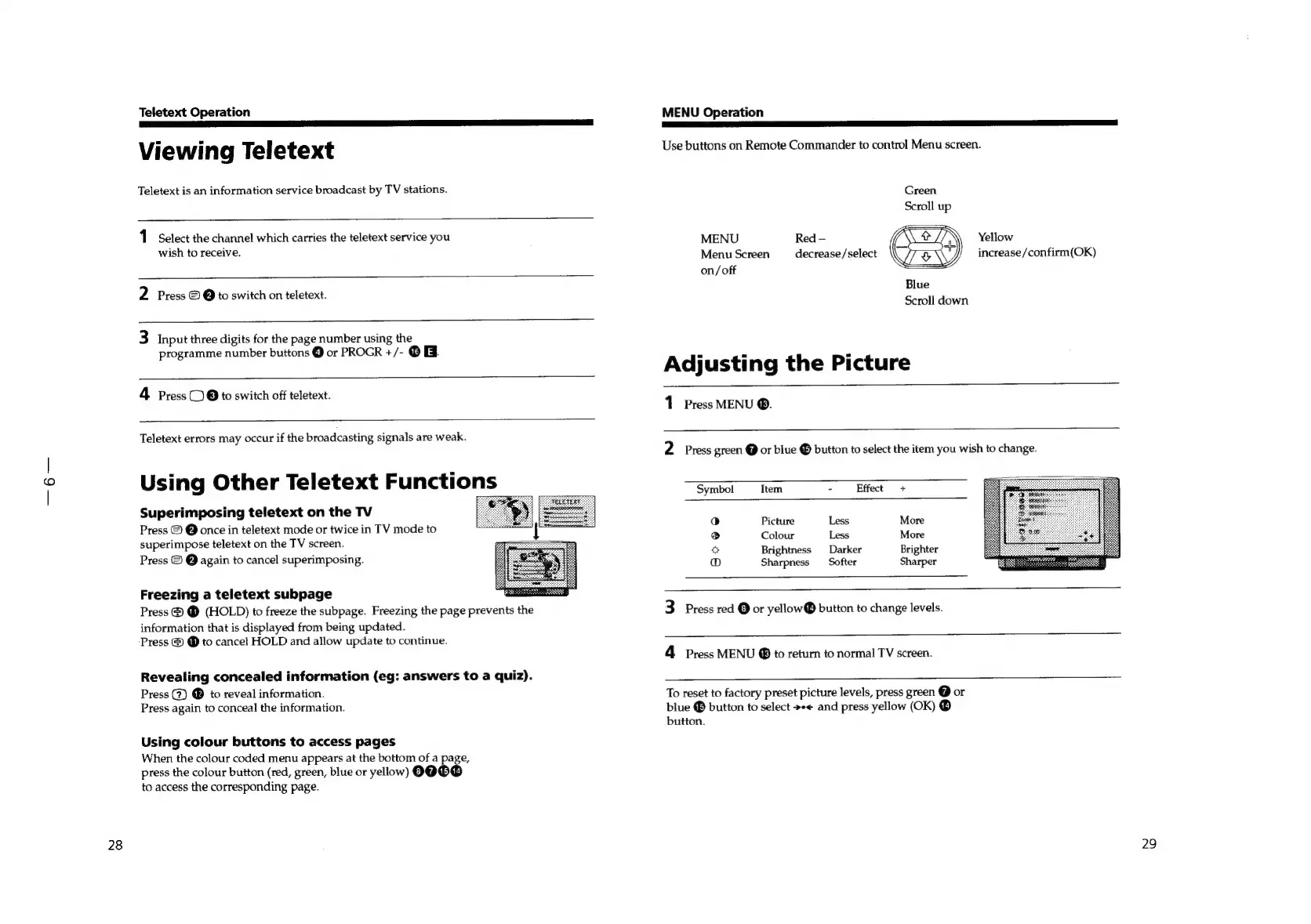
Teletext
Operation
Viewing
Teletext
Teletext
is
an
information
service
broadcast
by
TV
stations.
1.
Select
the
channel
which
carries
the
teletext
service
you
wish
to
receive.
2
Press
©
@
to
switch
on
teletext.
3
Input
three
digits
for
the
page
number
using
the
programme
number
buttons
@
or
PROGR
+/-
©
&.
4
Press
(2)
@
to
switch
off
teletext.
Teletext
errors
may
occur
if
the
broadcasting
signals
are
weak.
Using
Other
Teletext
Functions
Superimposing
teletext
on
the
TV
Press
©
@
once
in
teletext
mode
or
twice
in
TV
mode
to
superimpose
teletext
on
the
TV
screen.
Press
©
@
again
to
cancel
superimposing.
Freezing
a
teletext
subpage
Press
@
@
(HOLD)
to
freeze
the
subpage.
Freezing
the
page
prevents
the
information
that
is
displayed
from
being
updated.
Press
@
@
to
cancel
HOLD
and
allow
update
to
continue.
Revealing
concealed
information
(eg:
answers
to
a
quiz).
Press
(7)
®
to
reveal
information.
Press
again
to
conceal
the
information.
Using
colour
buttons
to
access
pages
When
the
colour
coded
menu
appears
at
the
bottom
of
a
page,
press
the
colour
button
(red,
green,
blue
or
yellow)
C3)
7115114)
to
access
the
corresponding
page.
MENU
Operation
Use
buttons
on
Remote
Commander
to
control
Menu
screen.
Green
Scroll
up
MENU
Red
-
Yellow
Menu
Screen
decrease/select
increase
/confirm(OK)
on/off
Blue
Scroll
down
Adjusting
the
Picture
1
Press
MENU
@.
2
Press
green
@
or
blue
@
button
to
select
the
item
you
wish
to
change.
Symbol
Ttem
-
Effect
+
16)
Picture
Less
More
6
Colour
Less
More
x
Brightness
Darker
Brighter
@O
Sharpness
Softer
Sharper
3
Press
red
©
or
yellow®
button
to
change
levels.
4
Press
MENU
to
return
to
normal
TV
screen.
To
reset
to
factory
preset
picture
levels,
press
green
O
or
blue
®
button
to
select
»«<
and
press
yellow
(OK)
®
button.
29

Related product manuals