12
16
Sorting TV channels
After tuning in TV channels, you may wish to rearrange the order of the channels.
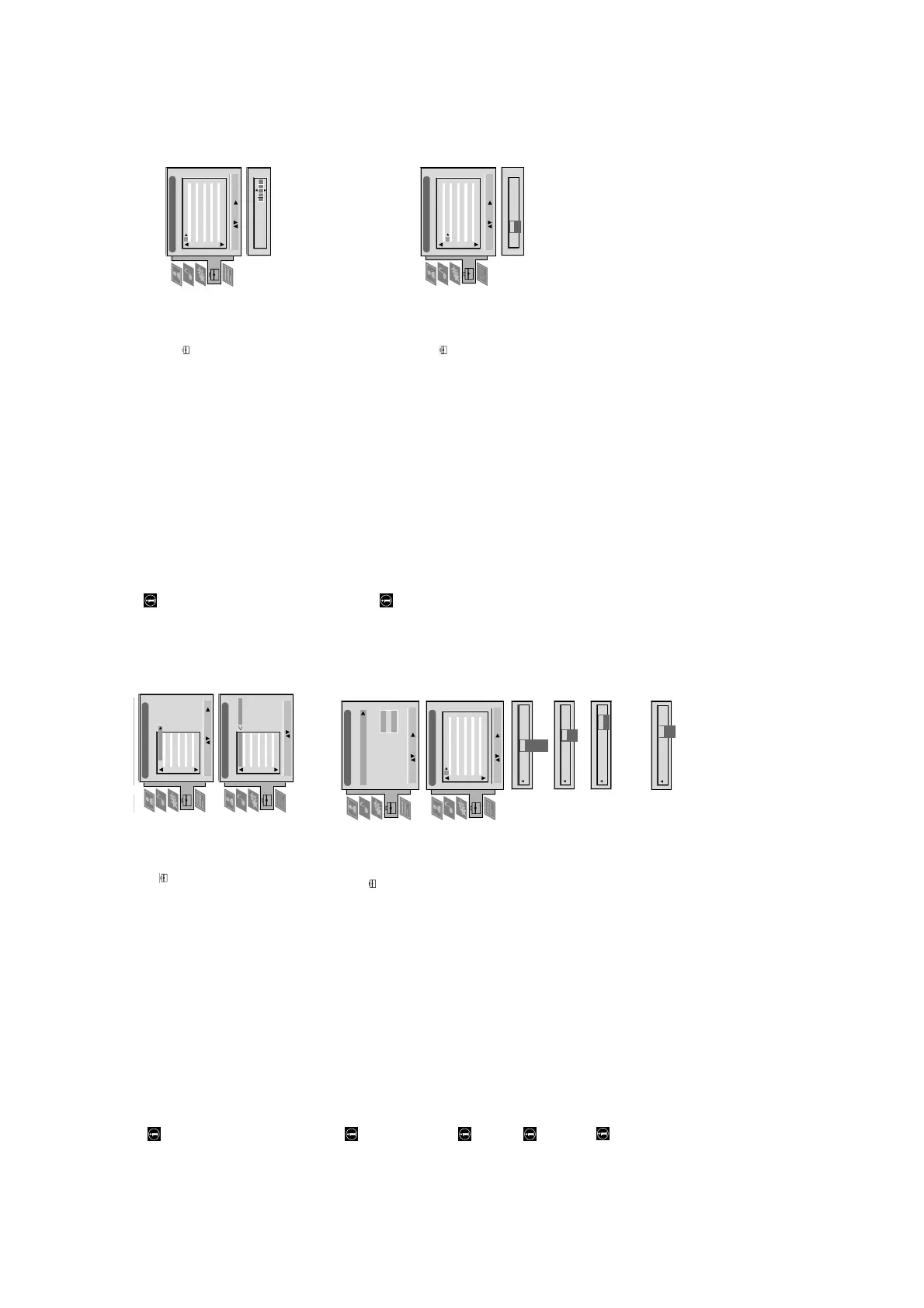
1 Press the MENU button on your remote control. Select the symbol
using $.
Push to ” to enter.
2 Select Programme Sorting using $. Push to ” to enter.
3 Select the programme position of the channel you wish to sort using 4 or $.
Push to ” to enter.
4 Move the channel to the new programme position using 4 or $. Store by
pressing OK.
The channel is now at the new position. The other programme positions
move accordingly.
5 To sort other programme positions repeat steps 3 to 4.
6 Press MENU to return to the normal TV screen.
Manually tuning-in channels
Use this function to preset channels or a video input source one by one to
programme positions of your choice.
1 Press the MENU button on the remote control. Select the symbol
using $.
Push to ” to enter.
2 Select Installation using $. Push to ” to enter.
Select Manual Programme Preset using $. Push to ” to enter.
3 Select the programme position by pushing to 4 or $. Push twice to ”.
The column SYS is highlighted.
4 Select the TV system using 4 or $. Push to ” to enter.
Available TV systems are I for Ireland or EXT for a video input source (please
go to step 5c after selecting EXT).
5 Select your method for the channel tuning using 4 or $. Push to ” to enter.
You have the choice between C for a terrestrial channel, S for a cable channel or
F for direct frequency input.
6a Direct Channel Input
For channel numbers input a two digit number, for the channel frequency a
three digit number.
•
Select the two or three digits by using the number buttons 0 to 9.
•
To start the search and to store the channel, press the OK button.
•
To preset other channels repeat steps 3 to 6a.
b Channel search (SEARCH)
Use Search if you do not know the channel number or frequency
•
Start the search for the next available channel by pushing to $.
•
Store the channel by pressing OK or continue the search by pushing again to $.
•
To search for other channels repeat steps 3 to 6b.
c For video input sources (EXT)
•
Select the Video Input source using 4 or $.
•
Store your selection by pressing OK.
•
To allocate other sources repeat steps 3 to 5c.
6 Press MENU to return to the normal TV screen.
Programme Sorting
Select Prog: Confirm:
PROG CH LABEL
Programme Sorting
Select Position: Move: OK
C03 TV 5
PROG CH LABEL
1
2
3
4
5
6
7
8
9
10
11
C03
C05
C07
C08
C09
C11
C12
C13
C14
C15
C16
TV 5
PRO 7
EU-SP
SWF
RTL
SAT
MDR
DDI
DSF
RTL 2
KAB 1
C03
C05
C07
C08
C09
C11
C12
C13
C14
C15
C16
TV 5
PRO 7
EU-SP
SWF
RTL
SAT
MDR
DDI
DSF
RTL 2
KAB 1
1
2
3
4
5
6
7
8
9
10
11
Installation
Select: Enter:
Language/Country
Manual Programme Preset
Further Programme Preset
RGB Set Up
Picture Rotation
Speaker Configuration
Personal ID
O
- - - - - - -
Manual Programme Preset
Select: Enter:
PROG CHSYSSKIP LABEL
C09
C10
BBC1
BBC
B/G
B/G
Off
Off
Off
Off
Off
Off
Off
Off
Off
Off
Off
1
2
3
4
5
6
7
8
9
10
11
PROG CHSYS
Off
SKIP LABEL
1
B/G
L
I
D/K
EXT
Internal
PROG SYS
Off
SKIP LABEL
1 I
CH
C
S
F
PROG CHSYS
Off
SKIP LABEL
0 EXT
AV1
AV2
AV3
AV1
PROG SYS
Off
SKIP LABEL
1 I
CH
03
SEARCH
Operation (TV menu system):
17
Naming a channel
During tuning the channels are usually labelled automatically.
You can, however, individually name a channel or a video input source.
1 Press the MENU button on the remote control. Select the symbol
using $.
Push to ” to enter.
2 Select Installation using $. Push to ” to enter.
Select Manual Programme Preset using $. Push to ” to enter.
3 Select the programme position of the channel or the video source you wish to
label by pushing to $ or 4. Push repeatedly to ” until the first element of the
position LABEL is highlighted.
4 Select a number, a letter, + or a blank using 4 or $. Push to ” to confirm.
Select the other four characters in the same way.
5 Store your selection by pressing OK.
6 To label other channels or video sources repeat steps 3 to 5.
7 Press MENU to return to the normal TV screen.
Skipping programme positions
In case of 100 programme positions there may be unused positions, which
you can skip in the menu »Manual Programme Preset«. When changing
channels with the PROGR +/– buttons they then do not appear.
You can, however, still select them using the number buttons.
1 Press the MENU button on the remote control. Select the symbol
using $.
Push to ” to enter.
2 Select Installation using $. Push to ” to enter.
Select Manual Programme Preset using $. Push to ” to enter.
3 Select the programme position you wish to skip by pushing to 4 or $.
Push to ” to enter.
The column SKIP is highlighted.
4 Select ON using $.
5 Store by pressing OK.
6 To skip other programme positions repeat steps 3 to 5.
7 Press MENU to return to the normal TV screen.
Operation (TV menu system):
Manual Programme Preset
Select: Enter:
PROG CHSYSSKIP LABEL
C09
C10
ARD
BBC
B/G
B/G
Off
Off
Off
Off
Off
Off
Off
Off
Off
Off
Off
1
2
3
4
5
6
7
8
9
10
11
PROG CHSYS
Off
SKIP LABEL
6I
C07 TE
Manual Programme Preset
Select: Enter:
PROG CHSYSSKIP LABEL
PROG CHSYSSKIP LABEL
53 I
F189 - - - Off
On
C09
C10
BBC1
BBC
I
I
Off
Off
Off
Off
Off
Off
Off
Off
Off
Off
Off
51
52
53
54
55
56
57
58
59
60
61





 To Next Page