9
The operating instructions mentioned here are partial abstracts from the ‘Operating
Instruction Manual’. The page numbers of the ‘Operating Instruction Manual’ remain
as in the manual.
SECTION 1 GENERAL
12
Adjusting the picture and sound
Picture and sound are adjusted at the factory. You can however, adjust
them individually.
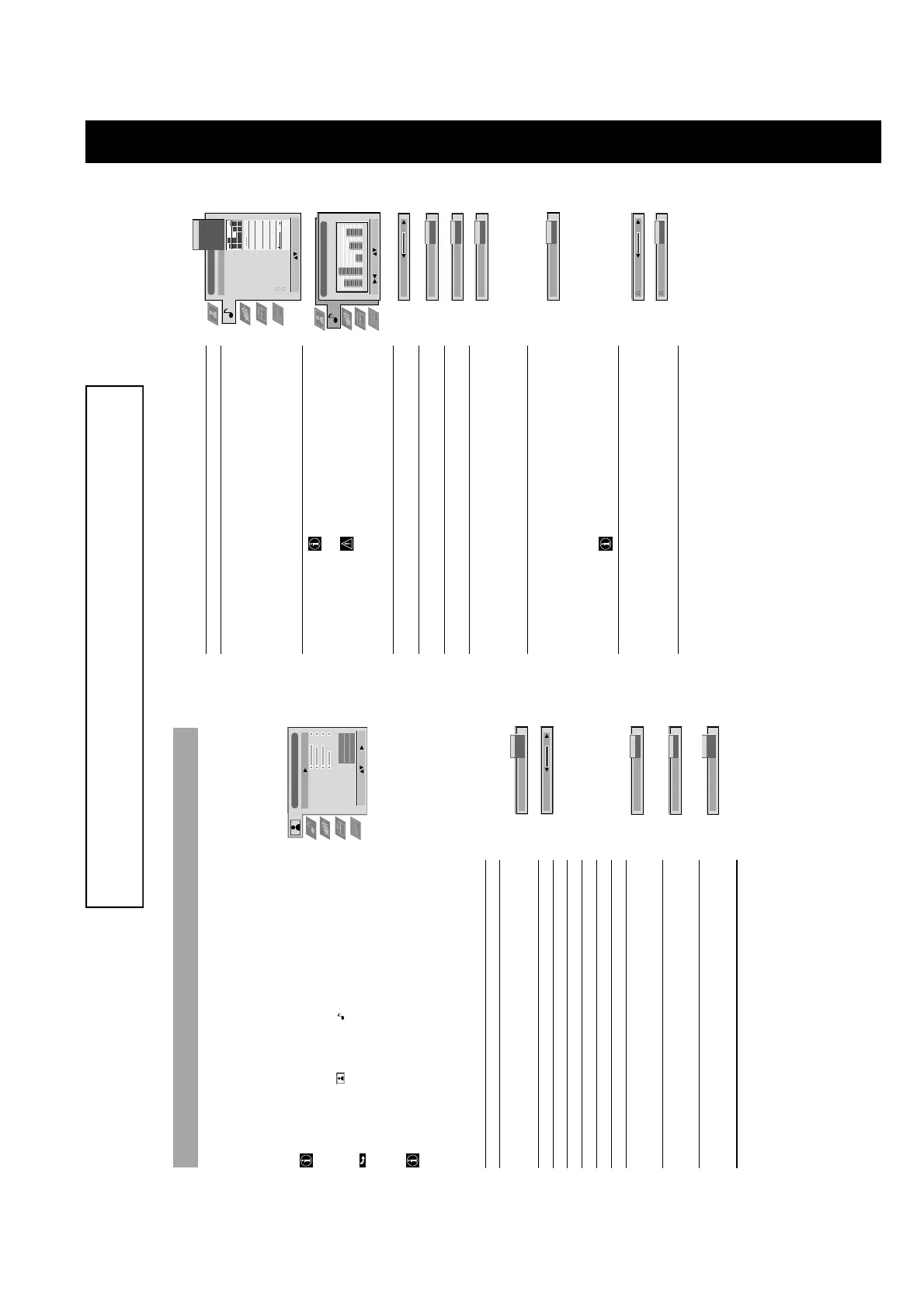
1 Press MENU.
Select the symbol
for Picture or for Sound using 4 or $.
Push to ” to enter.
The menu Picture or Sound Control is displayed.
2 Select the desired item using 4 or $. Push to ” to enter.
3 Adjust the selected item using 4, $, ” and “. Press OK to store.
Refer to the tables on this and the following page for more information.
4 Repeat steps 2 and 3 to adjust other items.
5 Press MENU to return to the normal TV screen.
Picture Control
Item Effect/Operation
Picture Mode $ Live (for live broadcasts)
Personal (for individual settings)
4 Movie (for movie broadcasts)
Contrast Less “” More
Brightness* Darker “” Brighter
Colour* Less “” More
Hue** Reddish “” Greenish
Sharpness* Softer “” Sharper
Reset Resets picture to the factory preset levels
AI 4 Off: normal
(Artificial Intelligence) $ On: Automatic optimization of contrast level
according to the TV signal
Noise Reduction 4 Off: Normal
$ On: Reduces picture noise in case of a weak
broadcasting signal
Digital Mode $ Normal: 100 Hz.
Digital+: 100 Hz plus line flicker reduction
4 Advanced: Digital+ plus smoothing of motions
* Only if Personal is selected in Picture Mode
** Only available for NTSC colour signal (e.g. US video tapes)
Picture Adjustment
Select Mode: Enter:
Picture Mode
Contrast
Brightness
Colour
Sharpness
Reset
AI
Noise Reduction
Digital Mode
Personal
On
On
Normal
Picture Mode
Live
Personal
Movie
Contrast
AI
On
Off
Noise Reduction
On
Off
Digital Mode
Normal
Digital+
Advanced
The TV consists of a menu system which is based on a series of user friendly on-screen displays and menus. These displays will help
you get the most from your TV, helping you to change picture and sound settings, to alter the size of the TV picture and to rearrange
the TV channels etc.
Using the TV menu system
Operation
13
Sound Control
Item Effect/Operation
Equaliser mode Select between the following sound settings
$ Personal
Vocal
Jazz
Rock
Pop
4 Flat (fixed setting, cannot be adjusted)
Equaliser adjustment
You can adjust the mode selected in Equaliser
mode by cutting and boosting of 5 selected
frequency bands.
Only the changes made in Personal can be stored,
the others return to factory setting.
•
Select the desired bar using ” or “, adjust using 4
and $.
Press OK to store.
Balance ” More right
“ More left
Loudness $ Off: Normal
4 On: For music broadcasts
Space $ Off: Normal
4 On: Special accoustic effect
Auto Volume Control 4 On: volume level of the channels will stay the same
independent of the broadcast signal
(e.g. in case of advertisements)
$ Off: volume level changes according to the
broadcast signal
Dual Sound For a bilingual broadcast:
$ A for channel 1
4 B for channel 2
For a stereo broadcast:
$ Mono
4 Stereo
In case of a NICAM stereo broadcast the indication
NICAM appears briefly on the screen.
Headphones
2 Volume Less “ ” More
2 Dual Sound For a bilingual broadcast:
$ A for channel 1
4 B for channel 2
Operation (TV menu system):
Equaliser Adjustment
Sel: Adjust: Confirm:OK
Personal
+
0
–
120 150 1,5K 5 K 10 K
Audio Adjustment
Equaliser Mode
Equaliser
Adjustment
Balance
Loudness
Space
Auto Vol. Control
Dual Sound
Volume
Dual Sound
Personal
Mono
Off
On
Mono
Personal
Vocal
Jazz
Rock
Pop
Flat
Select Mode: Confirm: OK
Off
Loudness
Off
On
Balance
Space
Off
On
Volume
Dual Sound
A
B
Dual Sound
Mono
Stereo
Auto Vol. Control
Off
On



 To Next Page