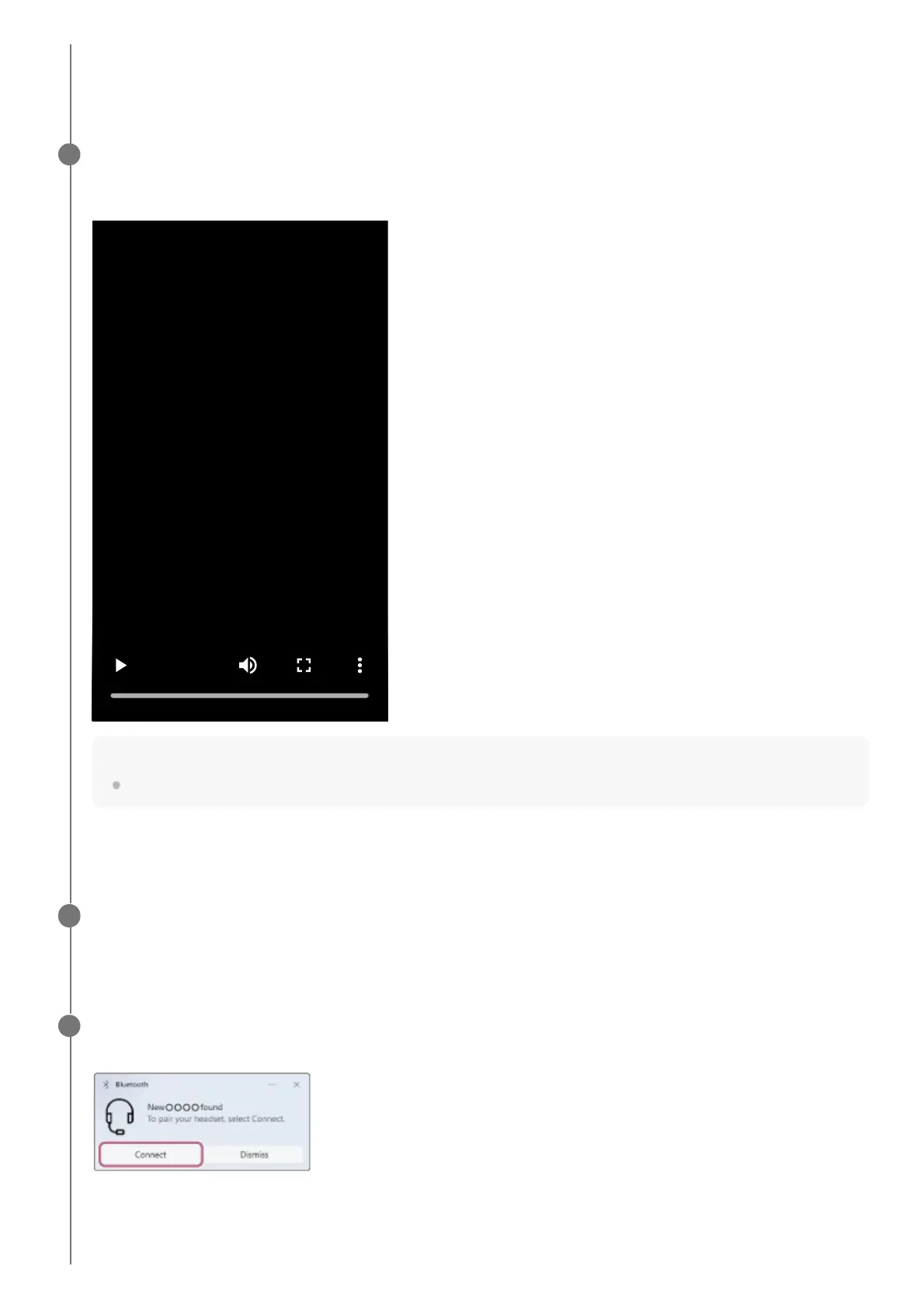
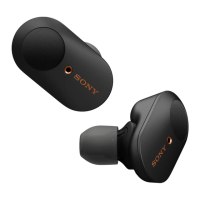
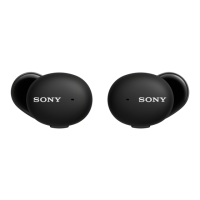
The headset enters pairing mode automatically.
You will hear a notification sound and the voice guidance say “Pairing” from both headset units at the same time.
Proceed to step 4.
(If you selected “the headset has pairing information for other devices” in step 1)
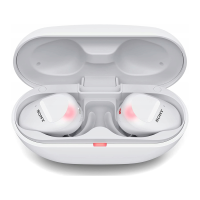
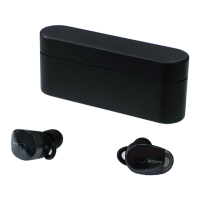
Set the headset into the charging case, leave the charging case lid open, and press and hold the pairing
button on the back of the charging case for about 5 seconds or more.
Hint
Leave the charging case lid open. The headset does not enter pairing mode with the charging case lid closed.
The indicator (blue) on the charging case repeatedly flashes twice in a row and the headset goes into pairing mode.
You can remove the headset from the charging case after entering pairing mode.
3
Wake the computer up if the computer is in standby (sleep) or hibernation mode.
To use the Swift Pair function, proceed to step 5.
To connect without using the Swift Pair function, proceed to step 6.
4
(If you selected “To use the Swift Pair function” in step 4)
Select [Connect] from the pop-up menu displayed on your computer screen.
The headset and computer are paired and connected with each other.
When the headset is being removed from the charging case, you will hear a notification sound indicating that the
connection is established from both headset units (or from the headset unit removed from the charging case when
5


 To Next Page