51
5-3-2. Time Line Search
The Calendar Search window is used to find the stored video by using the time line bar.
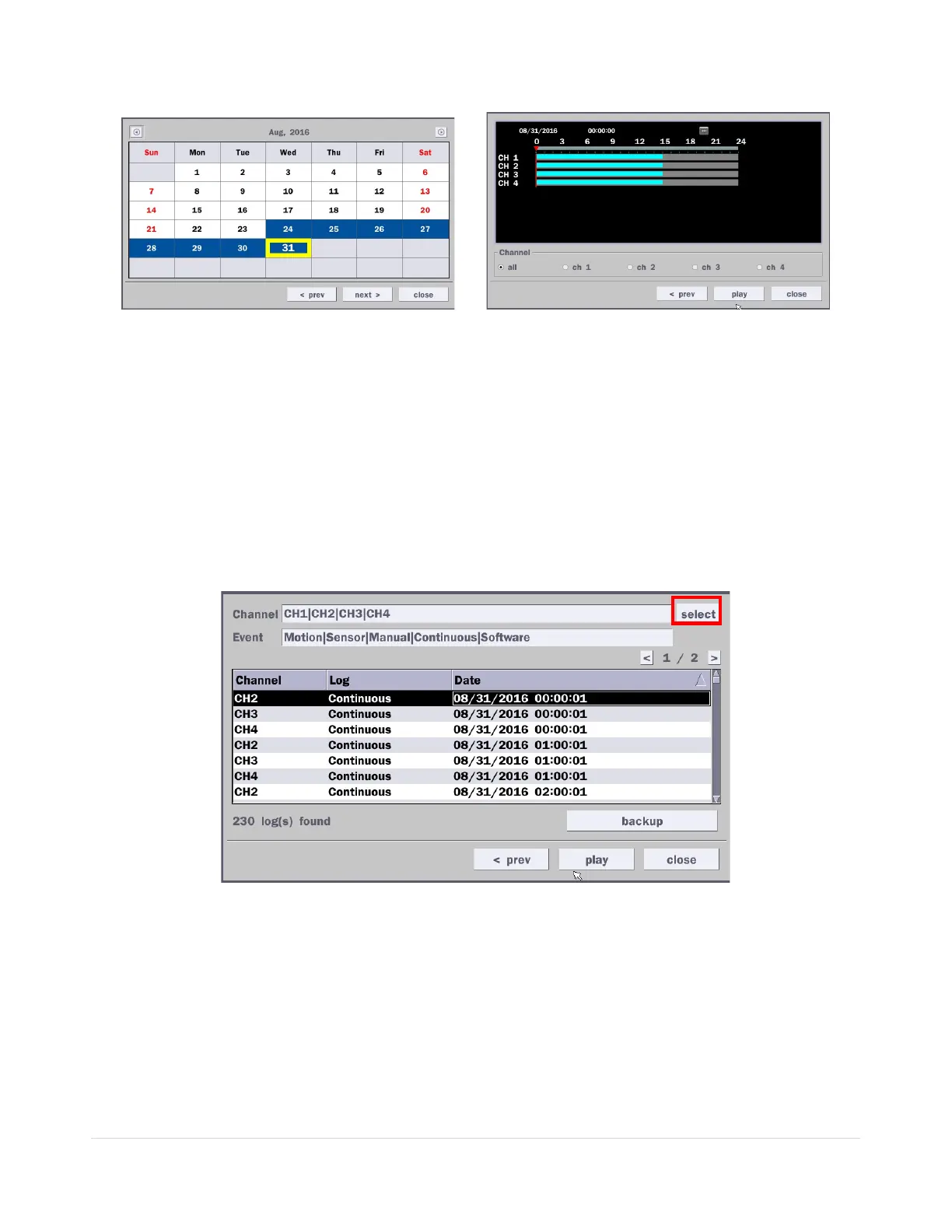
Figure 5.3.5. Calendar Screen Figure 5.3.6. Time-Line Search Screen
When the Timeline menu is selected, the user can see a calendar, which displays recorded dates with
highlights. Select a specific date and time. Click and drag the red time indicator bar to the desired hour.
User can select a specific minutes using a button in the above red box. Press the “play” button after
selecting the specific time. Press the “prev” to return to the Search window.
5-3-3. Event Search
The Event Search window is used to find stored video.
Figure 5.3.7. Event Search Screen
When the Event menu is selected, a calendar is displayed that highlights dates with recorded event data.
Select a specific date and the event log will be displayed. After selecting the event, Press the “play” button
to playback the recorded data or press the “backup” button to export the data. User can find a data of the
specific channel and event using a button in the above red box as following Figure 5.3.9. Press the “prev”
to return to the Search window.



 To Next Page