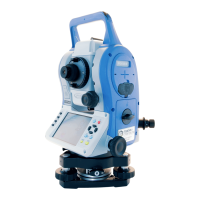
FOCUS 35 TOTAL STATION USER GUIDE
4 – Setup
43
Starting and Settings via Face1 Control Unit (if fitted)
Screen Actions and Comments
Face1 screen after instrument start While starting Windows CE the Spectra Precision logo
screen will show for several seconds and then the menu to
work in Windows CE will appear.
Face1 screen after starting Windows CE Start the software Spectra Precision Survey Pro by tapping
the Survey Pro
icon.
Note – StepDrive motor system and Focus System are
already usable at this phase.
Note – If you are using the Spectra Precision Layout Pro
software, refer to that product’s User Guide for information
on using the FOCUS 35 total station.
Face1 screen while starting SP Survey Pro Instrument loads application software Spectra Precision
Survey Pro.
Electronic bubble for leveling process After starting the Spectra Precision Survey Pro™ software
the screen shows the Level menu. Level the instrument
with the help of the electronic bubble.




 To Next Page
