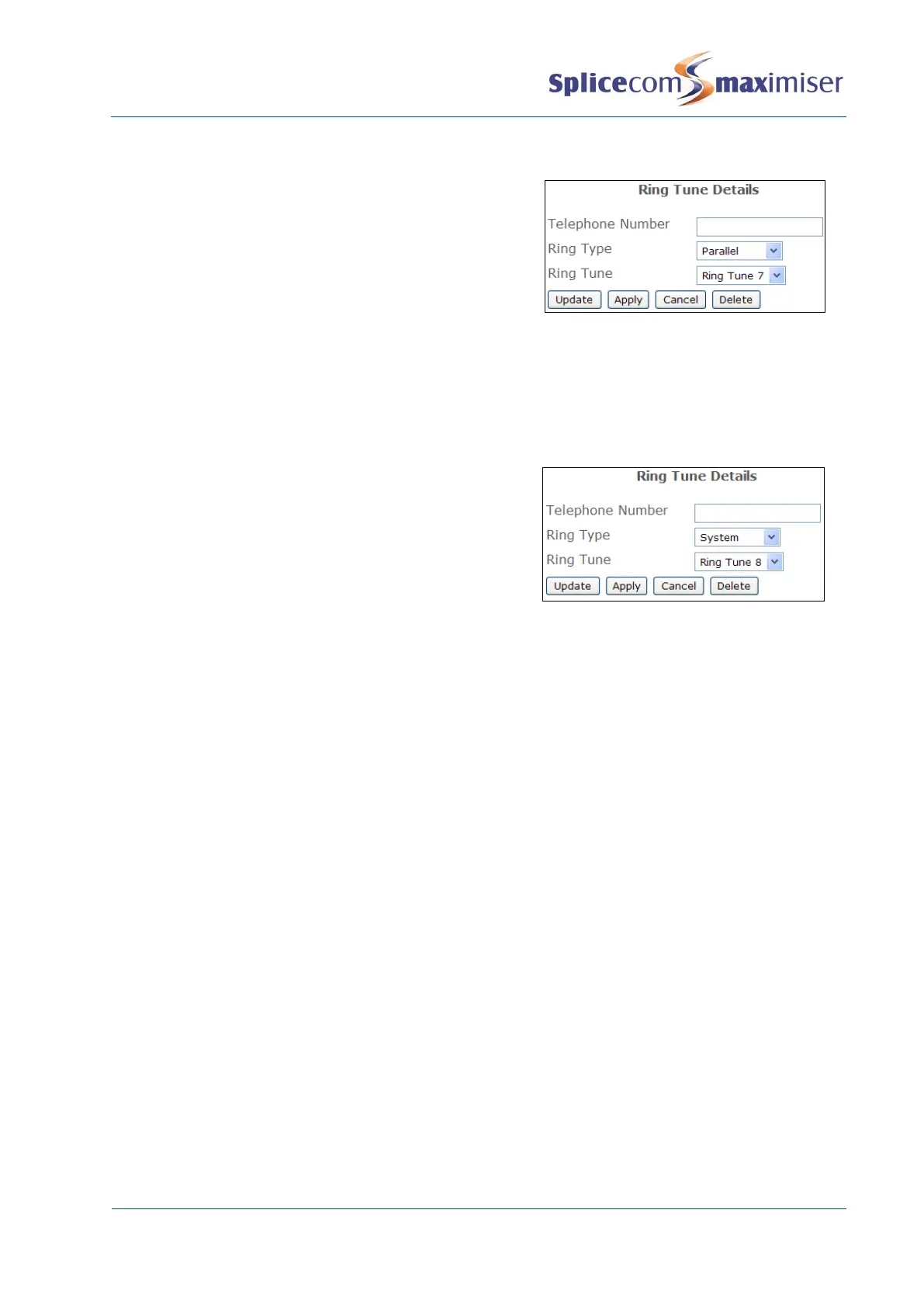
4 Select Add Ring Tune
5 Delete the entry in the Telephone Number field
6 From the Ring Type list box select Parallel
7 From the Ring Tune list box select the ring tune
required
8 Select Update or Apply when ready
Specify a Ring Tune for System calls
System calls are generated by the PBX, for example voicemail call-back. The default ring tune used can
be changed as follows:
1 In Manager select Users
2 Select the User required
4 Select Add Ring Tune
5 Delete the entry in the Telephone Number field
6 From the Ring Type list box select System
7 From the Ring Tune list box select the ring tune
required
8 Select Update or Apply when ready
Working with User Speed Dials
Each User can have a list of regularly used telephone numbers (internal or external) for speed dialling.
These can be dialled via a short code or for PCS 58x/57x/56x/55x/410/400/100/60/50 Users via an
icon/button displayed in their Favourites list, and for these users a Speed Dial set up for an internal
extension will also act as a BLF. A Speed Dial can also be used to pick up a call ringing on that extension.
For information on all these features please refer to the relevant PCS User Manual.
Users of a PCS 60/50, PCS 55x/56x/57x/58x or PCS 410/400 can create their own Speed Dials; alternatively
they can be configured via Manager as follows:
1 In Manager select Users
2 Select the User required
3 Select the Speed Dials page
4 Select Add Speed Dial
5 In the Telephone Number field enter the number (internal or external) to be dialled by the PBX, eg
01923287700
6 In the Short Code field enter the digits to be dialled by the User to activate the speed dial, eg 123.
(This entry is not required for a user of PCS 58x/57x/56x/55x/410/400/100/60/50 who wishes to dial
via the Speed Dial icon/button only. This feature is useful for Users of an analogue handset or 3
rd
party IP phone that are not using or cannot use Navigate or PCS 60/50 as a partner to their
handset.)
7 In the Description field enter a description for the Speed Dial, eg Head Office.
8 Select Update when ready
9 Repeat steps 4 to 8 to enter further Speed Dials


 To Next Page