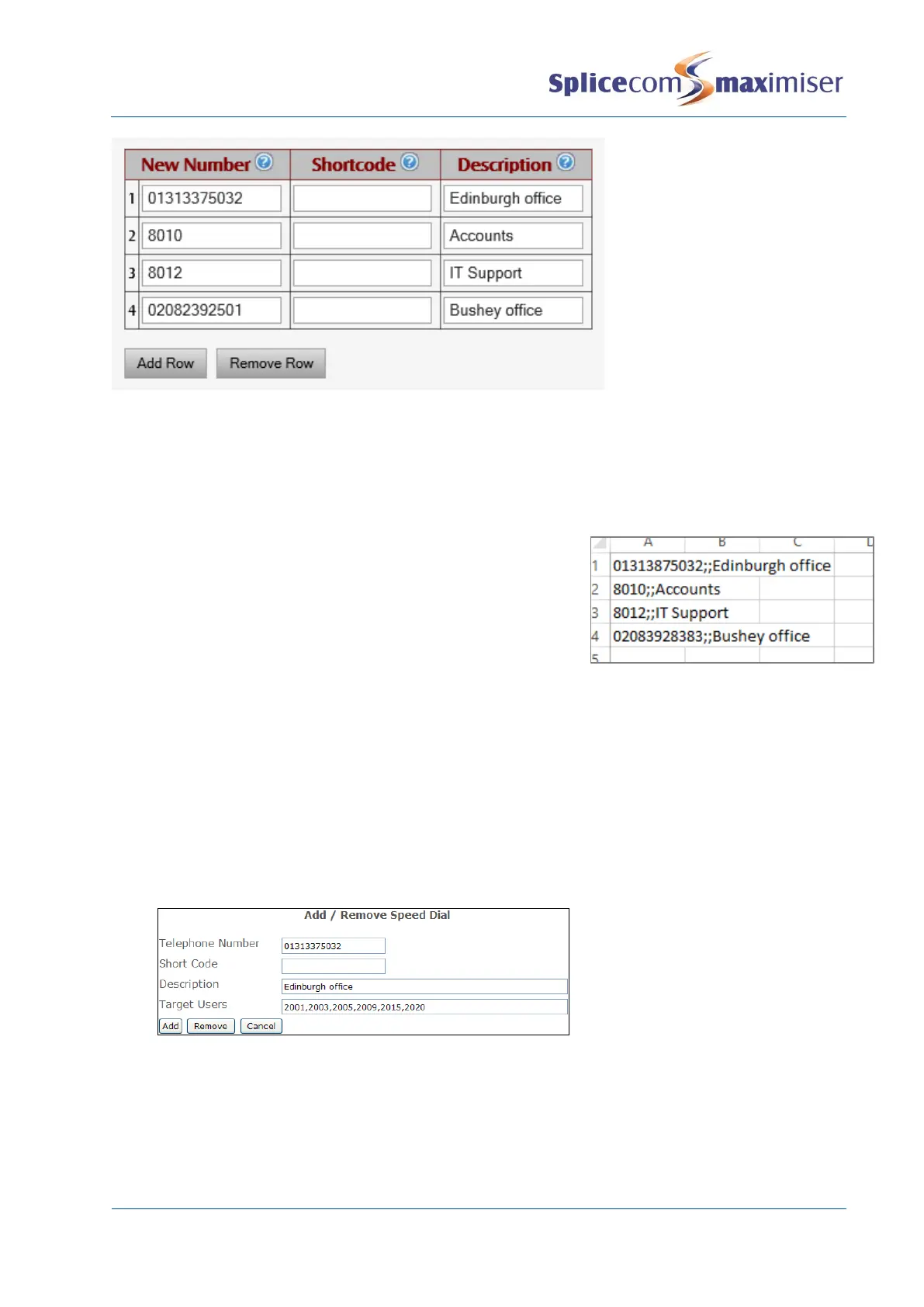
Remove Row = this will remove the last row added, ie the bottom row.
Update Existing Speed Dials – use this action to amend specific Speed Dials for specific Users. This can
be used to amend the number dialled and/or the Description.
Remove Exisiting Speed Dials – use this action to delete a specific Speed Dial for specific Users. The
Telephone Number specifies the Speed Dial to be removed.
Import Speed Dials – when a large number of Speed Dials need to
be created these can be imported from a .csv file. Each entry must
in the formal: telephone;shortcode;description.
Export Speed Dials – enables existing Speed Dials to be exported to
a .csv file.
Via Users (Speed Dial)
1 In Manager, select Users (Speed Dial)
2 In the Telephone Number field enter the number (internal or external) to be dialled via this Speed
Dial, eg 01313375032
3 In the Short Code field enter the digits to dialled to activate this speed dial, if required.
4 In the Description field enter text that will identify the Speed Dial, eg Edinburgh office.
5 In the Target Users field enter the extension numbers of the Users to receive this Speed Dial. Enter
either a comma between each extension number or use a hyphen to indicate a range of
extensions. For example: 2001,2003,2005,2009,2015,2020 etc or 2001-2050
6 Select the Add button
7 The Speed Dial will be created in each of the Target Users’ configuration forms within the Speed
Dial page.
If a particular Speed Dial is to be removed from a group of Users follow the above steps. However at
step 6 select the Remove button instead.


 To Next Page