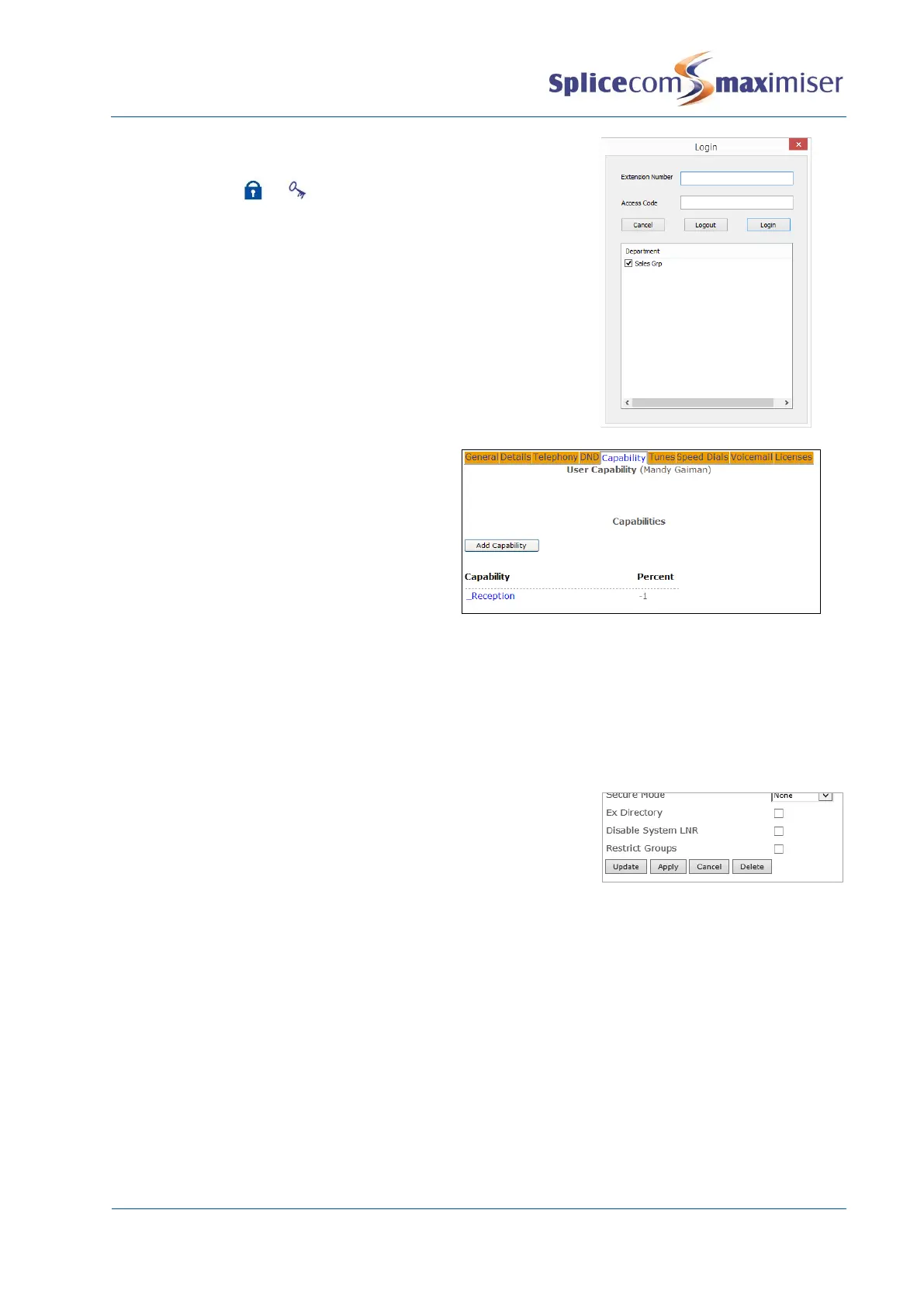
Within Navigate or PCS 60 the Groups that the User can log in or out
of will be displayed within the Login dialogue box which is accessed
via the Login icon ( or ). The User should add a tick to log in to
that Group or remove the tick to log out of the Group. (Please refer
to the Navigate or PCS 60 User Manual for further details.)
When a User logs out of a Group a minus sign is
added to their Capability Percent field, eg -1 so
that this value no longer matches the Capability
requirement of the Group and the User is
removed from the Group.
When a User logs back into a Group the minus sign is removed and the User is returned to the Group.
Restrict Users from logging in and out of a Group
Users can be restricted from logging themselves in and out of a Group on their handsets via the Restrict
Groups field in their User configuration form. This particularly relevant when used with Vision Call Centre
when only a supervisor is to be able to log an Agent in and out of a Group. Please refer to the Vision Call
Centre Configuration manual for further details.
1 In Manager open the configuration form for the relevant User.
2 Within the General tab select Restrict Groups
3 Select Update or Apply when ready.
The Groups option will no longer be available within the Settings screen (PCS 58x/57x/56x/55x) or via the
Login window (Navigate & PCS 60) for this User.
This options can be configured on bulk via Manager Assist>Configuration Aids>Users section>Groups
Restrict.


 To Next Page