For information on recording calls to a specific Company please refer to the Call Recording section on
page 256.
Creating a Company
1 In Manager select Companies
2 A list of the current Companies are displayed
3 Select the Add button
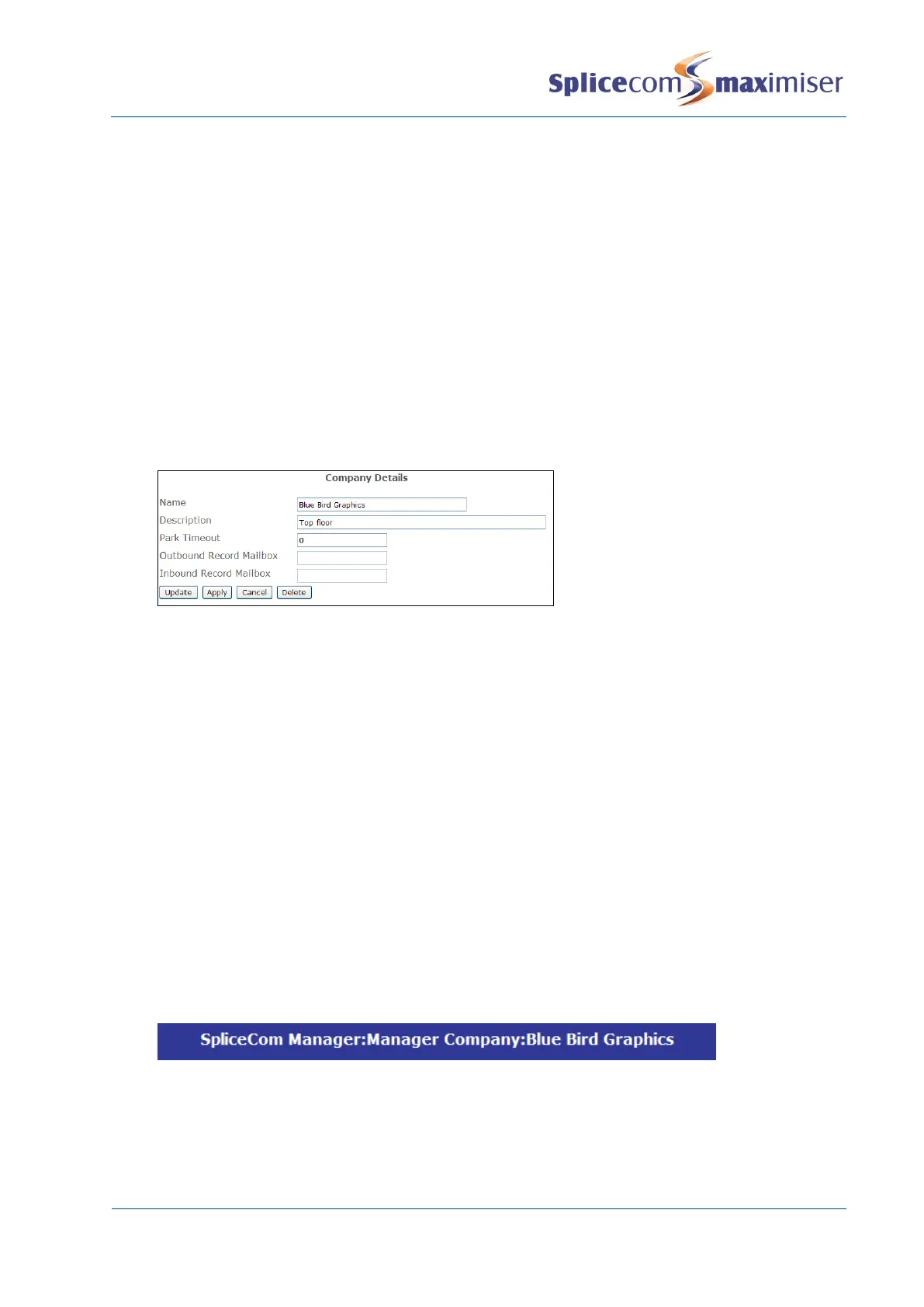
4 Enter a Name to identify the Company. Use alphanumeric characters only, begin with a letter and
do not use any punctuation.
5 If required, in the Description field enter a description to help to distinguish the Company
6 If required, in the Park Timeout field enter the amount of time (in seconds) a call parked by a User
who is a member of this Company is held in the park slot before being represented to the User. By
default, this is set to 5 minutes.
7 Select Update or Apply when ready.
Each Company is identified on the database by a GUID (Global Unique Identifier). This unique identifier
can be displayed, within Manager Assist, by selecting Configuration Aids and then Voicemail GUIDs.
For further information on using a Park Timeout and parking a call please refer to the Using the Park
Facility section from page 123.
For information on how to record inbound and outbound external calls made by a member of a
Company please refer to the Call Recording section from page 256.
Managing a Company
Each Company can have its own Contacts database, Meet Me Conferences and Auto Attendant; and
specific Users, Departments, Groups, Time Plans and Assistants can be assigned to the Company. These
can be administered via the Manage Company feature as follows.
1 In Manager select Manage Company
2 From the Select Company to Manage list select the Company required
3 The Company that you are currently managing will be displayed in the title bar
4 Select either Users, Departments, Contacts or Meet Me Conferences to manage these objects
within the Company


 To Next Page