Incoming CLI will only be matched to entries within the Company to which the User receiving the call
belongs.
Meet Me Conferences
Meet Me Conferences created while managing a specific company will be solely for the use of this
Company. Please refer to page 173 for further details on working with a Meet Me conference.
The conference can be initiated via a Dial Plan or DDI Call Plan entry where the Translate To field would
contain
!ConferenceCreate:company name:
, eg !ConferenceCreate:Blue Bird Graphics:
Users and external contacts can join the conference via a Dial Plan or DDI Call Plan entry where the
Translate To field would contain
!ConferenceJoin:company name:
, eg !ConferenceJoin:Blue Bird Graphics:
Auto Attendant
Please refer to page 248 for details on how to create an Auto Attendant for a Company.
Clear the Manage Company feature
When you wish to return to managing the complete database the following steps can be taken:
1 In Manager select Manage Company
2 Select Clear
3 The title bar will display that the Manage Company feature is no longer on and all Users,
Departments etc can be viewed.
Assigning an existing User/Department/Group/Time Plan to a Company
An existing User, Department, Group or Time Plan on the system can be assigned to a Company if
required.
1 In Manager select either Users, Departments, Groups, or Time Plans
2 Select the User, Department, Group or Time Plan required
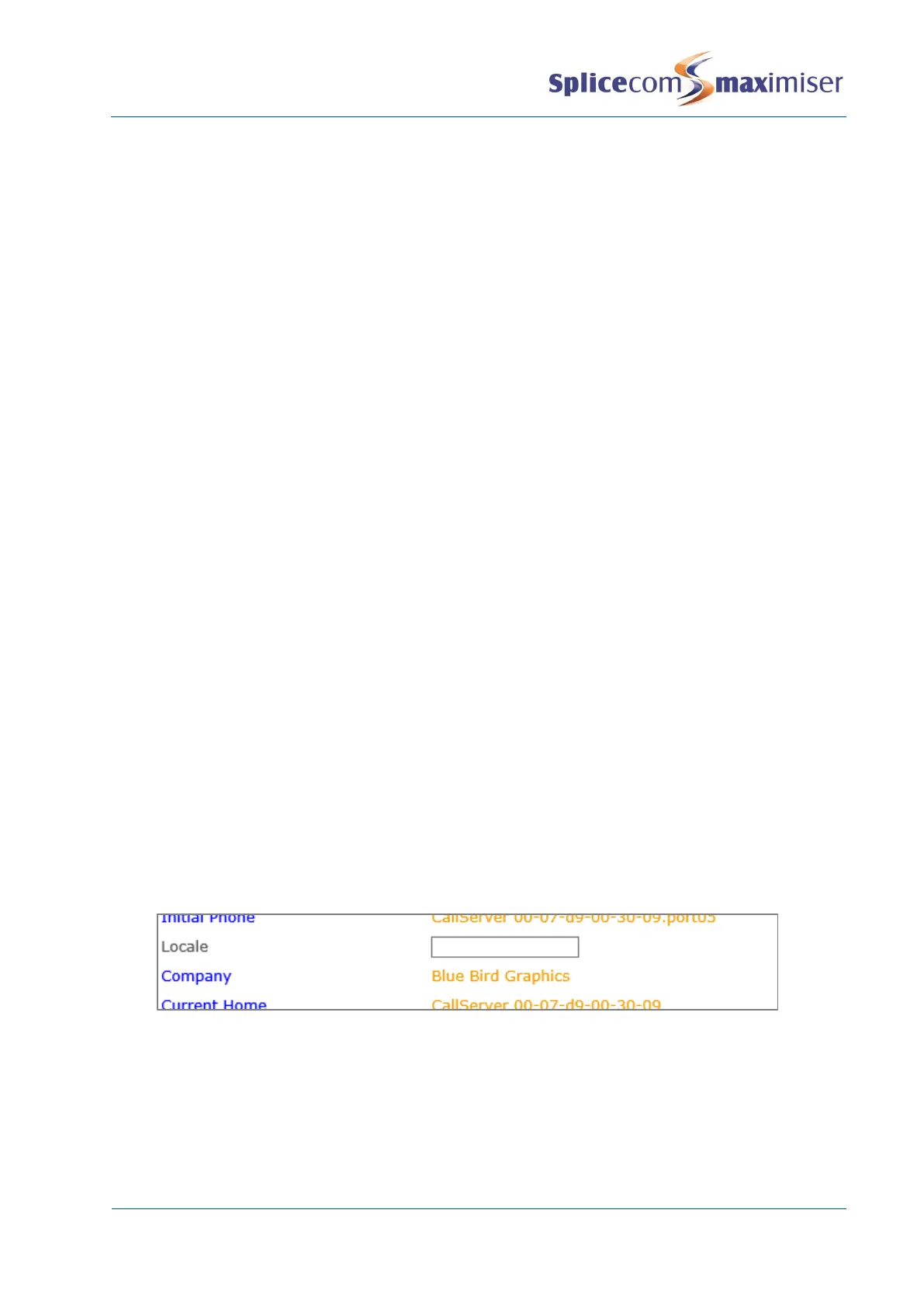
3 Select the Company field
4 From the Select Company list select the Company required and this will be entered into the
Company field
5 Select Update or Apply when ready.
A User that is not assigned to a Company will remain a global User and will be able to view all Users
regardless of the Company to which they belong. This is useful if, for example, a centralised reception is
being used for all Companies.
A global User will be able to view all Departments regardless of the Company they belong to.


 To Next Page