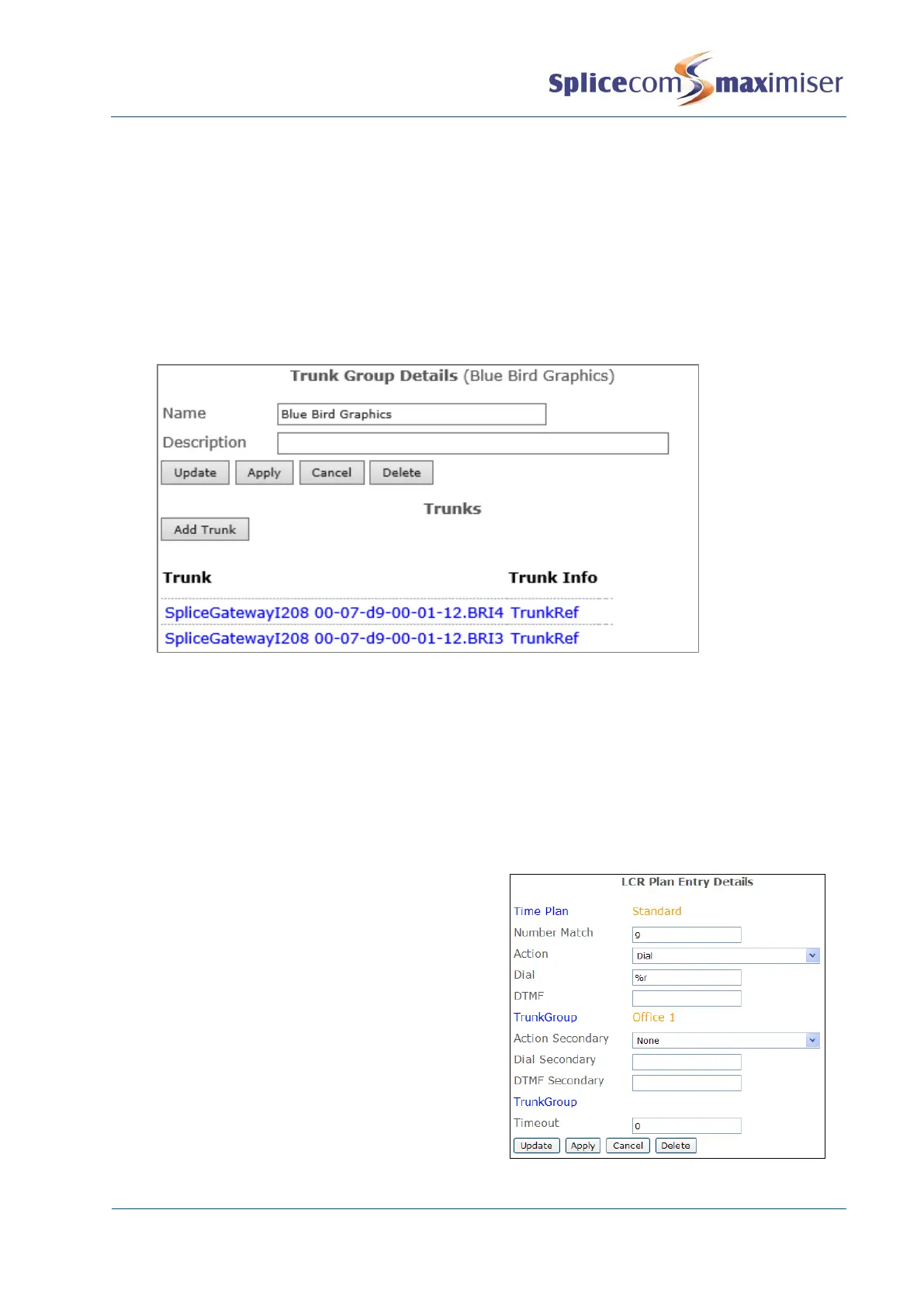
3 Enter a Name, using alpha-numeric characters only, begin with a letter and do not use any
punctuation, and a Description if required
4 Select Apply
5 Select Add Trunk
6 Select the Trunk field
7 From the Select Module for Trunks list select the relevant module, eg Call Server
8 From the Select Trunk list select the Trunk required
9 Select Update
10 Repeat steps 5 to 9 to add further Trunks
11 Select Update or Apply when ready.
Please note: if a Trunk Group contains trunks from multiple Call Servers, trunks located on the Call Server
where the call was initiated will be used first.
Assigning a Trunk Group to a LCR Plan entry
Outgoing calls are routed to a specific Trunk Group via a LCR Plan entry.
1 In Manager select LCR Plans
2 Select the LCR Plan required
3 Select Add LCR Plan Entry
4 In the Number Match field enter the digits to be
dialled to access the Trunk Group. (Ensure this
entry does not clash with a Dial Plan entry.)
5 From the Action list box select Dial
6 In the Dial field enter the number to be dialled
by the system, or
If all the digits entered by eg the User are to be
used enter
%n
, or
If the digits entered minus the numbers in the
Number Match field are to be used enter
%r
7 Select Apply
8 Select the Trunk Group field
9 From the Select Trunk Group list select the Trunk
Group required


 To Next Page