Configure a Phone’s Partner Login Code
1 In Manager select Users
2 Select the User who wishes to use Navigate as a partner to their handset
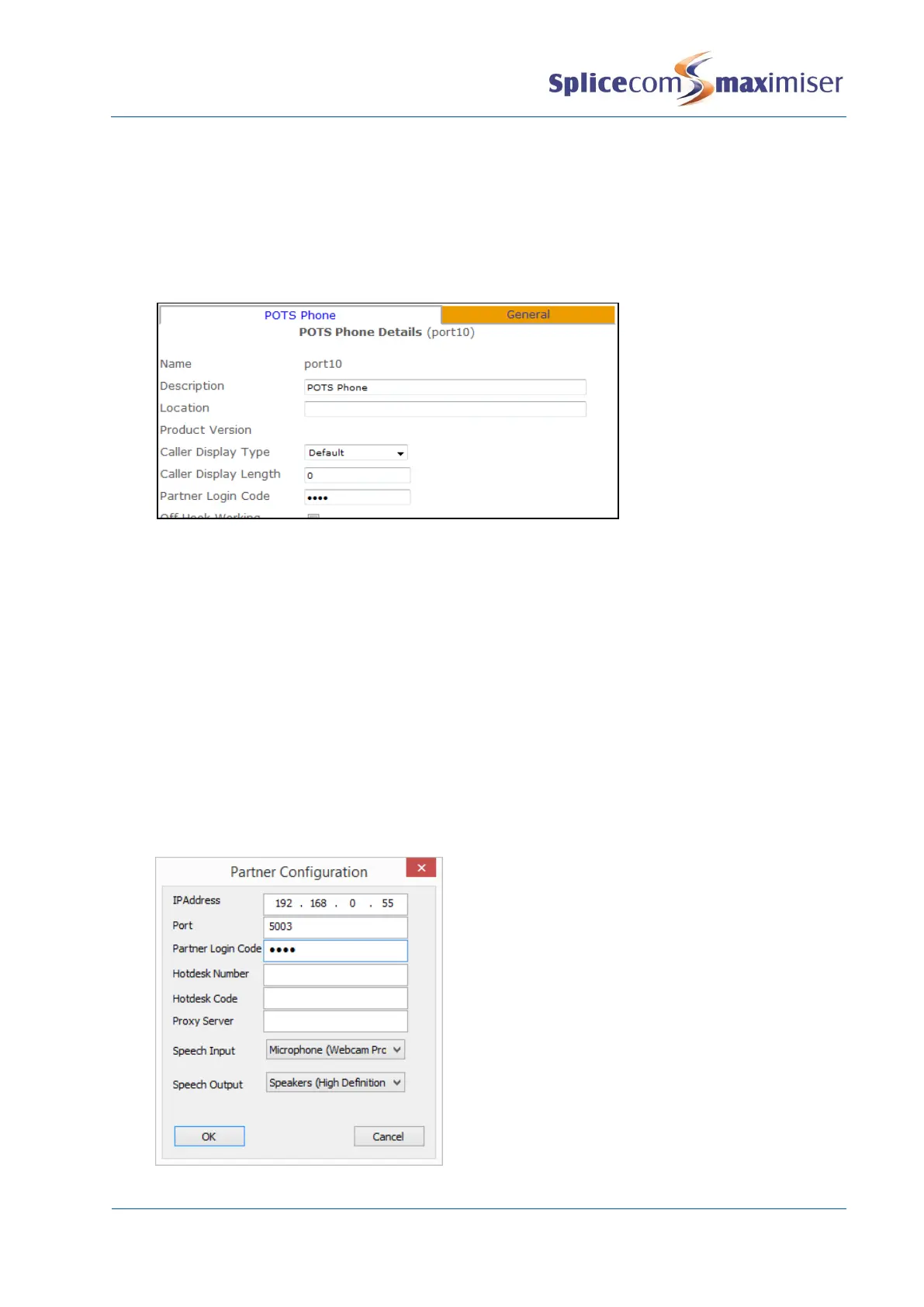
3 Click on the entry within the Initial Phone field eg Phone Module 1.port01
4 You will be taken to the port assigned to this User
5 In the Partner Login Code field enter a 1-8 digit access code, eg 7893
6 Select Update or Apply when ready.
Run the Navigate as a partner
1 Run the Navigate.exe file either from the installation folder, eg
C:\Program Files\SpliceCom\Navigate, or via the Windows Start menu or via the short cut created
during installation.
2 The Navigate application will open. The “Searching for Server” message will be displayed within
the Notification Area of the PC.
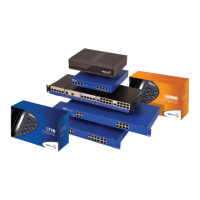
3 Click on the down arrow beside the Partner button
4 In the IP Address field enter the IP address of the Call Server or Phone Module or IP Phone as
described above, eg 192.168.0.249
5 In the Port field enter the port number that the analogue phone is connected to, as described
above, or 5001 for an IP phone.
6 In the Partner Login Code field enter the phone’s Partner Login Code configured above.
7 Select OK when ready


 To Next Page