BS and BSA Bias Supply Series and User Manual, Rev 2.60
www.stahl-electronics.com phone: +49 6242-504882, fax: +49 6242 504884
6
hazard of high electrical voltages to human beings and sensitive objects of all kind (see also safety
hints in section 2).
USB connection:
Use a standard type-A-B connection cable (USB 2.0 standard) to connect the device to the control
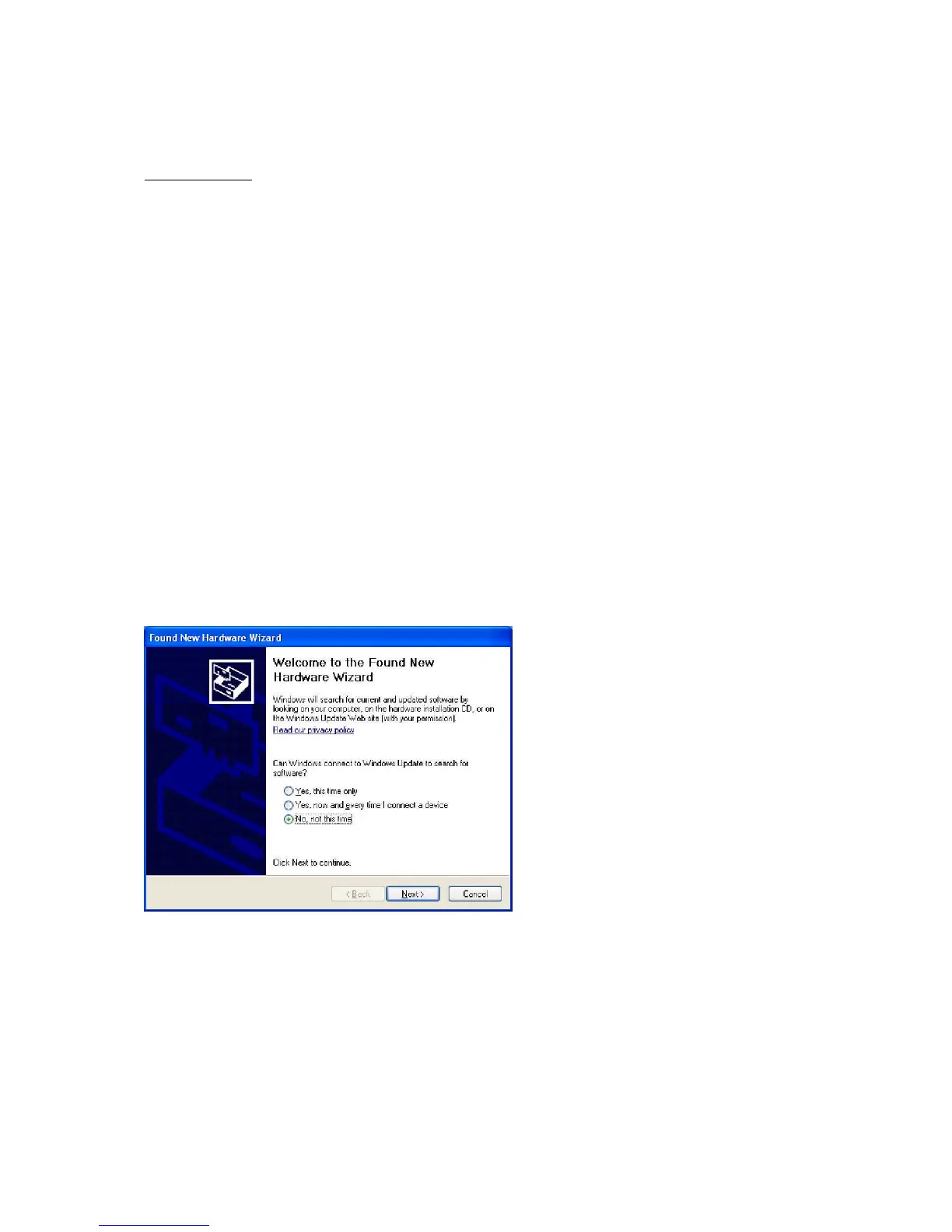
computer. After connecting to a PC under Windows, the “Found New Hardware Wizard” should open
(see next section for detailed description), regardless if the device is already switched on or not, since
the corresponding receiver inside the device is powered by the USB bus itself and therefore
autonomous. Cable length can be prolongated using an appropriate USB hub or repeater.
3.2. Software installation
3.2.1 USB-Driver
The device uses the USB bus for connecting to a control PC. After proper cabling of the USB
connection (see section before) the “Found New Hardware Wizard” under Windows should open up.
Depending on the Windows version allow a few seconds to automatically identify the connected
device and install drivers, or follow the described steps below. The automatic or manual installation
will install the USB-CDM drivers from FTDI Ltd., which is the manufacturer of the USB bus interface
circuitry.
The supplied installation CD provides suitable drivers for operation under Windows XP. Latest
drivers, also for different other operating systems (Linux, Mac OS, other Windows versions) can be
downloaded from http://www.ftdichip.com/FTDrivers.htm. Note that the device appears as a RS232-
controlled device, communicating with standard settings (9600 Baud, 8N1 protocol, no handshake) or
115200 Baud (see also appendix).
Execute the following steps after start of the “Found New Hardware Wizard”:
In this screen activate the last button “No, not this time” and continue with “Next”.
In the following window choose “Install from a list or specific location” => “Next”



 To Next Page